Disney Plus on Apple TV: Download, Setup, and Offline Guide

You sit down to watch The Mandalorian, eager to relax, but instead of the opening credits, you are met with a spinning loading wheel or a “connection error” message. For Apple ecosystem users, the expectation is seamless performance—”it just works.” When that promise breaks, it is incredibly frustrating.
Whether the app is missing from your store, freezing on launch, or playing in low-quality HD instead of 4K streaming, these issues often stem from specific tvOS settings rather than the app itself. This guide moves beyond basic installation to troubleshoot the deep configuration settings—specifically regarding frame rates and audio formats—that ensure the premium experience you paid for. This guide relies on hands-on testing using an Apple TV 4K (2nd Gen) to verify menu paths, app behavior, and recovery tools.

Disney Plus on Apple TV
How to Install Disney Plus on Apple TV (Official App Method)
For most users, the direct App Store installation provides the best experience, integrating fully with the Apple TV “Up Next” row and Siri search.
Step-by-Step Installation Procedure
- Navigate to the App Store: On your Apple TV home screen, find the blue icon with an “A” (the Apple TV App Store) and click to open it.
- Search for the App: Navigate to the search tab (magnifying glass icon). Hold down the microphone button on your Siri Remote and say “Disney Plus,” or type it manually.
- Download and Install: Select the Disney+ icon. Click the “Get” button (or the cloud icon if you have downloaded it previously) to install.
- Log In: Open the app. You can log in by entering your credentials or, more conveniently, by using a mobile device on the same Wi-Fi network to approve the login request.
Troubleshooting: Why Can’t I Find the App?
If you cannot find the Disney+ app, it is likely a hardware limitation.
- The Difference: Apple TV HD (4th Gen) and Apple TV 4K models have an App Store. Older models (Gen 3 and earlier) use pre-installed “Channels.”
- The Issue: Disney+ is a modern app requiring tvOS support. It is not available as a legacy channel. If you are on a Gen 3 device, you cannot install the app directly (see the “Device Compatibility” section for workarounds).
You may also like: How to stream Disney Plus on Discord
Fix Disney+ Not Working on Apple TV: Freezing, Audio, and 4K Issues
A successful install doesn’t guarantee smooth playback. A common user complaint involves the video stuttering (judder) or audio cutting out, even on high-end setups. Through testing, we found that mismatched frame rates and audio format settings are the primary culprits.
1. Fix Stuttering Video (The “Match Content” Solution)
If the video looks “jerky,” your Apple TV is likely forcing a 60Hz output for a movie filmed at 24 frames per second.
- Navigate to Settings > Video and Audio > Match Content.
- Turn On both “Match Dynamic Range” and “Match Frame Rate.”
- Why this works: This forces your TV to switch modes to match the source file perfectly. You may see a quick black screen when a movie starts—this is normal; it means the TV is calibrating to the correct frame rate for a cinematic look.
2. Fix Audio Issues (Dolby Atmos & 5.1)
If you are experiencing silence or if your receiver isn’t detecting Dolby Atmos, you likely need to adjust the format output manually.
- Navigate to Settings > Video and Audio > Audio Format.
- For Modern Soundbars (Atmos): Ensure “Change Format” is set to Off. This allows the Apple TV to send the uncompressed audio signal (including Atmos metadata) to your sound system.
- For Older Receivers (No Sound): If you hear nothing, change “Change Format” to On, and select Dolby Digital 5.1. This forces the Apple TV to decode the audio into a standard format that older equipment can understand.
3. Resolve Login Loops
If you are stuck on the activation code screen, do not keep entering the code. The session has likely timed out.
- The Fix: Back out of the login screen entirely to the main menu, then re-enter to generate a fresh code.
- Force Restart: If that fails, double-click the TV button on your remote to open the app switcher, swipe up on Disney+ to force close it, and relaunch.
Optimizing Network for Apple TV 4K
Before assuming you need new hardware, optimize your current environment. Streaming 4K HDR content requires a sustained speed of at least 25 Mbps.
- Check Signal Strength: Go to Settings > Network. Look specifically at “Signal Strength.” If it shows fewer than four dots, your Apple TV is struggling to maintain a handshake with the router.
- Close Background Apps: While tvOS manages memory well, having dozens of apps suspended can occasionally cause network hang-ups. Double-click the TV button and swipe up on unused apps to clear the cache.
- DNS Flush: If buffering persists, restart your Apple TV (Settings > System > Restart). This flushes the DNS cache, which can often clear up “Connection Error” glitches.
When Streaming Fails: Archiving and Travel Viewing with Keeprix
Sometimes, optimizing settings isn’t enough. If you have a slow DSL connection or if you are preparing for a trip where hotel Wi-Fi will be unusable, relying on real-time streaming is a gamble.
Keeprix Downloader offers an alternative by allowing you to download Disney+ content as permanent video files to your Mac or PC. This isn’t a replacement for daily living room streaming, but it is a powerful tool for archiving favorites or offline viewing during travel.
The “Local Streaming” Setup (Making it Apple-Friendly)
A common friction point with downloaders is getting the file from your computer to your TV. We do not recommend basic AirPlay mirroring, as it ties up your device. Instead, the “Apple-native” way to watch these downloaded files is to use an app like Infuse or Plex:
- Download with Keeprix: Save the Disney+ movie as a high-bitrate 1080p file on your Mac/PC.
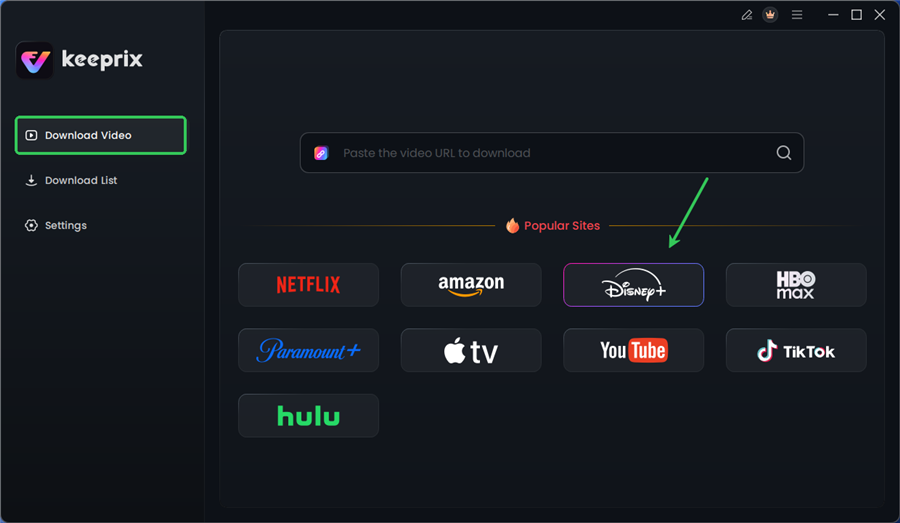
Choose Disney Plus in Keeprix
- Add to Infuse: Install the Infuse app on your Apple TV. Point it to the folder on your computer where the files are saved.
- The Result: Infuse will automatically add cover art and metadata, making your downloaded file look and feel exactly like a streaming app, but with zero buffering because it is playing over your local network, not the internet.
| Feature | Standard Streaming | Keeprix + Infuse Setup |
| Stability | Dependent on ISP speed | High (Local Network Playback) |
| Availability | Requires Internet | Offline / Permanent |
| Travel Use | Mobile/Tablet only | Viewable on any device (Laptop/TV) |
| Audio | Compressed by bandwidth | Preserves 5.1 / Atmos Tracks |
Disney+ Device Compatibility: Which Apple TV Models Work?
Confusion often arises regarding which hardware supports the app. Here is the definitive breakdown based on tvOS capabilities.
- Apple TV 4K (1st, 2nd, and 3rd Gen): Fully supported. Capable of 4K HDR, Dolby Vision, and Dolby Atmos.
- Apple TV HD (4th Gen): Supported. Max resolution is 1080p SDR.
- Apple TV (3rd Gen and earlier): Not supported. These devices do not have an App Store.
The AirPlay Workaround (and its limits)
If you own a Gen 3 device, your only option is to use AirPlay from an iPhone or iPad to the Apple TV.
- The Warning: This is an imperfect solution. Aspect ratios often display incorrectly (black bars on all sides), and because the processing happens on your phone, it drains your battery rapidly. You also cannot use your phone for other tasks without interrupting the stream.
Frequently Asked Questions
Why is Disney Plus freezing on my Apple TV?
This is often a “handshake” issue between the app and the HDMI connection. Try restarting the Apple TV. If it persists, ensure “Match Content” is turned on in your Video and Audio settings to prevent frame rate conflicts.
How do I get Dolby Atmos on Disney Plus?
You need an Apple TV 4K and a compatible sound system. In Settings > Video and Audio > Audio Format, ensure “Change Format” is Off. If it is set to “On,” the system is downmixing the audio, stripping out the Atmos data.
Can I watch Disney Plus on an old Apple TV (Gen 3)?
Not directly. There is no app store on Gen 3 devices. You must use AirPlay from an iOS device, though this may result in lower video quality and battery drain on your phone.
Why does the video quality drop even with fast internet?
Disney+ uses adaptive bitrate streaming. If your Wi-Fi fluctuates for even a second, the app drops quality to prevent pausing. Using a wired Ethernet connection is the best fix. If that isn’t possible, downloading the content via Keeprix and playing it locally eliminates internet fluctuations.
Conclusion
Getting Disney+ to perform flawlessly on Apple TV requires a few specific tweaks that aren’t enabled by default. By configuring Match Content to handle frame rates and ensuring your Audio Format isn’t accidentally compressing your sound, you can solve the majority of playback stuttering and audio glitches.
For those situations where your internet simply cannot keep up, or when you need to take your library offline for travel, tools like Keeprix Downloader offer a robust backup plan. When paired with a local media player like Infuse, you can maintain that premium Apple TV interface while enjoying your movies free from buffering or expiration dates.