Screen Record Disney Plus Without Black Screen [Solved]

You have likely arrived here after a specific, frustrating experience. You attempted to capture a scene from a movie for a project, study reference, or personal archive. You opened your screen recording software, whether it was OBS, QuickTime, or the Windows Game Bar, and everything looked correct. The interface was active, the timer was running, and the audio levels were bouncing.
However, upon playing back your file, the result was a completely black screen with audio playing in the background. No error message appeared; just a void where the video should be.
If you are searching for how to screen record Disney Plus, it is vital to understand that this is not a glitch in your computer or a user error. It is a sophisticated, intentional mechanism called DRM (Digital Rights Management) working efficiently to protect intellectual property. Disney+ utilizes high-level encryption that essentially renders the video “invisible” to screen capture technology.
This guide clarifies the legal and technical realities of saving streaming content. We will explain why standard recording tools inevitably lead to dead ends and provide a transparent, verified procedure using professional software to secure high-quality video files. Unlike other guides that promise magic fixes via settings tweaks, we acknowledge that reliable solutions often require a dedicated, third-party Disney Plus downloader.

How to Screen Record Disney Plus
Screen Recording vs. Professional Downloaders: A Reality Check
Before we detail the solution, we must address the difference between what you want to do (record a quick clip) and what the technology forces you to do (download the file).
Most users searching for Disney Plus screen recording black screen solutions simply want to grab a 30-second segment for a video essay or a meme. Unfortunately, because of HDCP restrictions (High-bandwidth Digital Content Protection), there is no simple “record” button for Disney+.
To get that 30-second clip, you must shift your approach from Manual Screen Recording to Professional Video Downloading.
The Limitations of Manual Recording
Manual screen recording attempts to capture the pixels currently displayed on your monitor.
- The Black Screen: Disney+ detects the recording layer and cuts the video feed to that layer, resulting in the black screen.
- The “Hardware Acceleration” Hack: Some guides suggest disabling hardware acceleration in your browser. While this can occasionally bypass the black screen, it forces your CPU to render high-definition video. The result is almost always a stuttering, low-frame-rate video that is unwatchable and unsuited for professional projects.
The Trade-off of Professional Downloaders
Professional Video Downloaders operate differently. Instead of recording the screen, they interact directly with the streaming server to download the source video file.
- The Upside: You get a perfect 1080p file with no black screen, 100% of the time.
- The Downside: You cannot simply “snip” a clip in real-time. You must download the entire episode or movie first, then trim it yourself.
- The Cost: Because these tools must constantly update to bypass new encryption methods, they are rarely free. Most reliable options operate on a “Free Trial” or paid license model.
Comparison of Methods
| Feature | Manual Screen Recording (OBS/QuickTime) | Professional Downloader (Keeprix) |
| Outcome | Black Screen with Audio | 1080P Full HD Video File |
| Method | Screen Capture (Pixel-based) | Direct Stream Download (Server-based) |
| Time Efficiency | Real-time (2 hours for a 2-hour movie) | 10x Speed (Hardware Accelerated) |
| Storage Space | Low (if it worked) | High (Approx. 2GB – 6GB per movie) |
| Editing | Clip length determined during recording | Requires trimming after download |
| Cost | Usually Free | Free Trial / Paid License |
If you need a usable video file without the black screen, downloading the source file is the only consistent method.
The Reliable Method: Saving Disney Plus Videos with Keeprix
Since standard screen recorders are blocked at the system level, we recommend using a specialized tool designed to handle streaming service protection. Keeprix Downloader is a professional software solution that allows you to download videos directly from Disney+, Netflix, and Amazon Prime as open MP4 or MKV files.
It is important to be transparent: Keeprix is commercial software. While there is a trial version available that allows you to test the capability, maintaining the technology to decrypt modern streams requires ongoing development. For users who need high-fidelity assets for offline libraries or content creation, this is the industry-standard workaround.
Unlike misinformation suggesting you can bypass DRM with simple browser extensions, Keeprix uses a legitimate, secure login process to access the content you have a subscription for.
Step-by-Step Procedure
Follow this guide to secure your content. Note that this process requires you to download the full video file first.
Step 1. Download Keeprix for your Windows or Mac device. Launch the software and select Disney+ from the main screen.
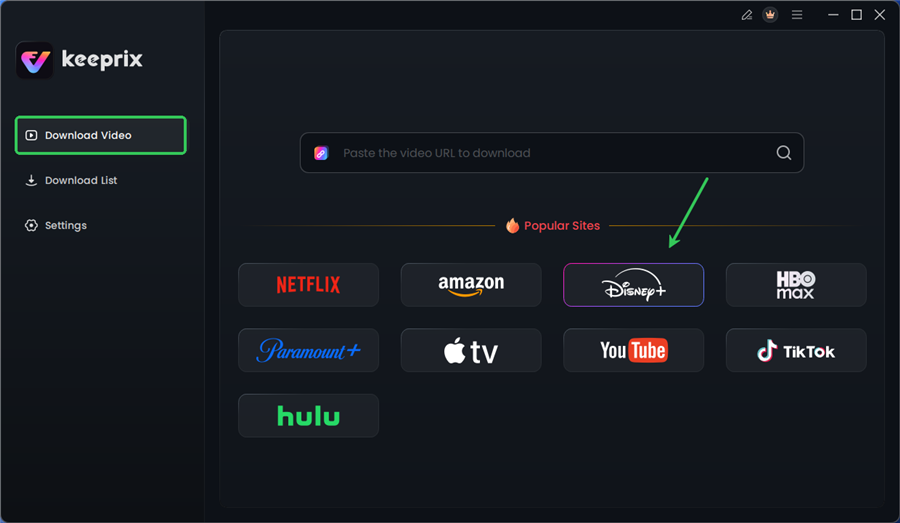
Choose Disney Plus in Keeprix
Step 2. You will need to sign in to your Disney+ account within the software.
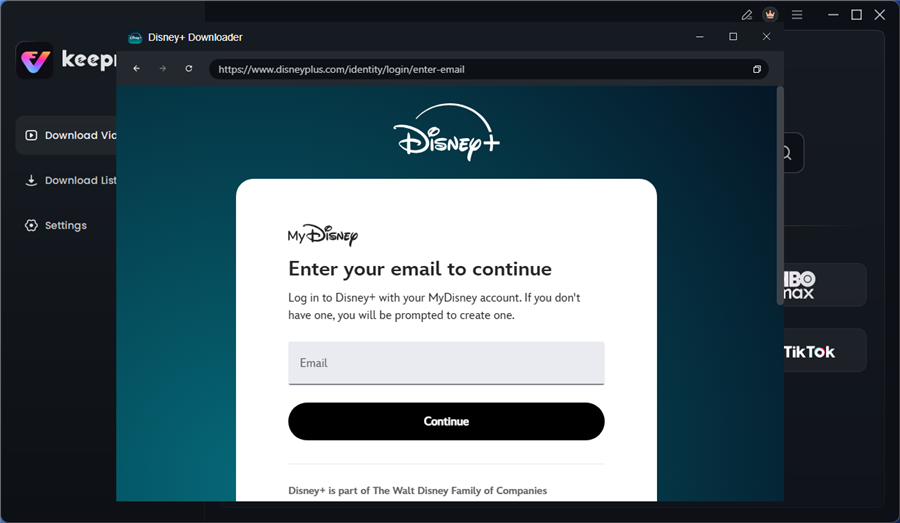
Log in to Disney Plus Account
Safety Note: Keeprix uses an embedded, isolated browser instance. It functions like a standard web browser (like Chrome or Edge). The software facilitates the connection to the Disney+ server but does not store or harvest your password externally. Your login creates a direct, encrypted session token between your machine and Disney+, just like logging into a new web browser.
Step 3. Navigate to the movie or episode you wish to save. Keeprix will automatically analyze the video URL.
Note on File Size: Before downloading, ensure you have adequate hard drive space. A typical 2-hour movie in 1080p will range from 4GB to 8GB.
Step 4. A configuration window will appear. Here you can customize the file:
- Resolution: Set to 1080p for source quality.
- Audio/Subtitles: If you are studying foreign films or need specific accessibility options, select the relevant tracks here.
- Format: Choose MP4 for the widest compatibility with video editors (like Premiere, Final Cut, or even simple mobile editors).
Step 5. Click “Download Now.” The software utilizes hardware acceleration to download the file faster than real-time playback.
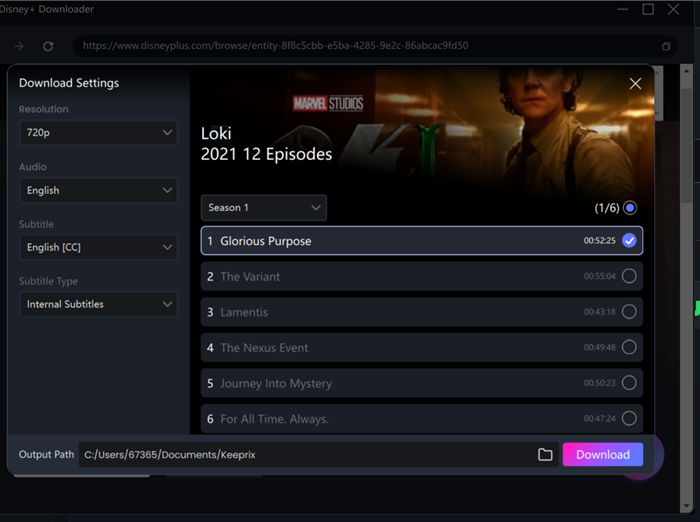
Configure Download Settings
If your goal was likely a short clip, you now have a large video file on your drive.
- Windows: Right-click the file > Open with Photos Legacy (or Clipchamp) > Select “Trim” to cut the file down to the specific scene you need.
- Mac: Open the file in QuickTime Player > Press Cmd + T > Drag the yellow handles to isolate your clip > Click “Trim” and save the new, smaller file.
By using this method, you bypass the recording layer entirely. You are archiving a clean video file that acts as a master copy, from which you can create unlimited clips, GIFs, or screenshots without ever worrying about a black screen again.
Why Disney Plus Screen Recording Turns Black (The Technical Reason)
If you are wondering why such a complex workaround is necessary, the answer lies in how modern operating systems handle encrypted video playback.
Disney+ utilizes a combination of DRM and HDCP. These technologies do not just hide the video; they fundamentally change the signal flow within your computer’s hardware.
The Encrypted Rendering Path
Here is a critical insight into why your screen recorder sees nothing:
- Standard Display: Normally, your computer draws windows, icons, and videos on a desktop compositor. Screen recorders (like OBS) capture this layer.
- Protected Display: When DRM-protected content is detected, the browser instructs the GPU to create a secure, encrypted tunnel directly to your monitor.
- The Result: The video data effectively skips the operating system’s visual layer. Your screen recording software looks at the desktop compositor and sees a void—a black window—because the video data never passed through that layer.
Why Audio Records But Video Does Not
This is one of the most confusing aspects for users. You hit record, and the audio captures perfectly, but the video is black.
This happens because audio signals travel through a different path in your system architecture. They go through the OS audio mixer (WASAPI on Windows or CoreAudio on Mac) before reaching the speakers. This path is rarely encrypted in the same aggressive manner as video. Consequently, your recording software can easily hear the audio stream even while the video stream is completely invisible to it.
Official Offline Viewing: App Limitations vs. Desktop Reality
A common source of confusion regarding how to screen record Disney Plus stems from inconsistent features across different devices. Users often ask, “Can I legally save Disney Plus videos?” assuming that because they can download episodes on their iPad, they should be able to do the same on their laptop.
It is crucial to distinguish between the official app capabilities and the desktop browser reality.
Mobile/Tablet Apps
The official Disney+ app for iOS and Android includes a “Download” feature. However, these are not standard video files.
- They are encrypted cache files hidden within the app’s directory.
- You cannot move them to an external drive or open them in an editor.
- They function only for playback within the Disney+ app and expire after a set period (usually 30 days or 48 hours after watching).
Desktop Browsers
When accessing Disney+ via Chrome, Edge, or Safari on a computer, the “Download” button is completely absent. This is a deliberate limitation to prevent high-quality piracy on platforms where file management is open.
Does Disney Plus store downloads as normal video files? No. This is why screen capture limitations on desktops are so strict. Without a third-party tool like Keeprix, there is no official method to watch Disney+ content offline on a PC or Mac, leaving you dependent on an active internet connection.
You may also like: How to download Disney Plus movies on laptop
FAQ: Troubleshooting Disney+ Capture Issues
Here we address specific questions regarding Disney+ DRM capture and common troubleshooting scenarios.
1. Why can’t I just clip the 30 seconds I need?
Because of the encryption explained above, the video stream cannot be intercepted in real-time. The only way to get a clear image is to decrypt and download the entire file first. While this requires downloading a 2GB+ file for a small clip, it is currently the only reliable way to get a clip without a black screen.
2. Is it safe to log into Disney+ through third-party software?
Yes, provided the software uses an embedded browser framework (like Keeprix does). When you log in, you are entering your credentials directly into the Disney+ login page loaded within the tool’s window. The software facilitates the connection but does not have access to read or store your password. It simply utilizes the active session cookie to access the video stream.
3. Why do some YouTube tutorials claim hardware acceleration fixes this?
Disabling hardware acceleration in Chrome forces the browser to decode video using software (CPU) instead of hardware (GPU). Occasionally, this breaks the HDCP “secure tunnel,” allowing screen recorders to see the video. However, this is a flaw, not a feature. It often results in dropped frames, overheating laptops, and stuttering video. As browsers update, this loophole is frequently closed.
4. What happens if I use a capture card (Elgato) instead?
Capture cards connected via HDMI will also fail. They are legally required to be HDCP-compliant. When you plug a capture card into your PC to record Disney+, the streaming service detects the “listening” device and blocks the signal, resulting in the same black screen (or a “HDCP Error” message on your monitor).
Conclusion: The Only Way to Keep Disney Plus Content
The frustration of the black screen is a clear signal: standard screen recording tools are effectively obsolete for capturing premium streaming content. While your goal may be simple—saving a short clip for reference or study—the technology protecting that content is enterprise-grade.
Attempting to bypass this with screen recorders usually leads to wasted time and poor-quality results. The solution requires a shift in strategy: Download first, edit later.
By using a professional downloader like Keeprix, you resolve the issue at the source. You trade the convenience of a “record” button for the reliability of a downloaded file. Yes, it requires a paid tool and some hard drive space, but the result is a permanent, high-definition video file that you actually own and can edit as needed.
If you are ready to stop fighting the black screen and start building your library, download the Keeprix trial to verify the solution for yourself.