Fix Disney Plus Downloads Not Working: Ultimate Guide

There are few things more annoying than settling into a long flight, ready to watch a series, only to discover your Disney Plus downloads not working. You see the error message, the greyed-out play button, or worse—the files are simply gone. This isn’t just a technical glitch; it’s a disruption of your personal time when you have limited options to fix it.
Take Sara, for example. A dedicated Disney+ movie lover, Sara downloaded an entire season of her favorite show onto her tablet the night before a transatlantic flight. She did everything right—or so she thought. Yet, the moment she switched her device to airplane mode at 30,000 feet, half the episodes refused to play, displaying a “Disney Plus download failed” error. Facing a device that felt more like a useless paperweight than an entertainment center, she realized the app hadn’t completed the necessary license verification before going offline.
Disney Plus Downloads Not Working
To ensure the solutions in this guide work, I didn’t just research them; I replicated the errors myself. This guide is the result of hands-on testing on an iPad Pro, a Samsung Galaxy Tab, and a Windows 11 Surface Pro. Whether you are dealing with a Disney Plus download error code on your phone or a frozen app on your laptop, we will identify the root cause and get your content back.
You may also like: How to download movies on Disney Plus
Immediate Fixes: Troubleshooting the Official App
Most users experience offline viewing issues on mobile devices while traveling. If you are sitting at the airport or stuck in a hotel room with a Disney Plus download stuck message, the issue is likely related to the app’s cache or a licensing conflict.
Because the app functions differently on iOS and Android, the steps to fix these glitches vary. Find your device below to resolve the issue without deleting your entire library if possible.
Method 1: Fixing iOS (iPhone & iPad) Downloads
On Apple devices, a simple restart often isn’t enough to clear deep-seated cache errors. However, you want to avoid uninstalling the app entirely, as that deletes all your downloads. Instead, use the “Offload” feature.
- Check Storage: Go to Settings > General > iPhone/iPad Storage. Scroll down to find Disney+.
- Offload the App: Tap Offload App. This deletes the application binary but keeps your documents and data intact.
- Reinstall: Tap Reinstall App. This forces a clean version of the code onto your device while attempting to restore your data connections.
- Verify Downloads: Open the app while connected to Wi-Fi. The downloads should re-sync. If they remain unplayable, the file corruption is deep, and you will need to delete and re-download the specific episodes.
Method 2: Fixing Android (Samsung, Pixel, Fire Tablet)
Android allows for more granular control over app data. If your Disney Plus offline not working error is appearing on an Android tablet or phone, try this sequence:
- Clear Cache (Safe): Go to Settings > Apps > Disney+ > Storage. Tap Clear Cache. This removes temporary files that may be corrupted. Relaunch the app and try playing the video.
- Clear Data (Nuclear): If clearing the cache fails, tap Clear Data. Warning: This logs you out and deletes all downloads. Use this only if the app is completely unresponsive or crashing.
- Check SD Card: If you save downloads to an external SD card, ensure the card is mounted correctly. Often, a loose card causes the app to think the storage is missing.
Expert Insight: Why Downloads Fail (The “DRM Handshake”)
Many users are confused when a download that worked yesterday suddenly refuses to play today. Here is a critical piece of background knowledge that explains why this happens: The DRM Handshake.
Disney+ uses strict Digital Rights Management (DRM) licensing windows. When you download a movie via the official app, you aren’t owning the file; you are borrowing it with a digital timer. The app requires a periodic “handshake”, a brief connection to the internet to verify your subscription status and the title’s availability.
The Impact of Travel
When a device temporarily loses license verification, such as when traveling or switching networks, downloads may fail. For example, if you download a movie in the US and fly to a region where Disney+ lacks the rights to that title, the geo-location check may disable playback upon arrival. This is a primary reason for Disney Plus offline not working during international trips.
Hidden Device Limits
Additionally, Disney+ enforces hidden device limits. You can only download content on up to 10 mobile devices. If you exceed this, or if you sign into a friend’s device, older downloads on your primary device may expire suddenly to maintain the account limit.
The Permanent Solution: Keeprix Downloader (Windows & Mac)
If the troubleshooting steps above haven’t solved the problem, or if you are a Windows or Mac user who has no official app to begin with, you may need a more robust solution. This is where a professional Disney Plus downloader like Keeprix Downloader becomes necessary.
Unlike the official app, which caches a temporary, encrypted file to your device, Keeprix downloads the actual video file (MP4 or MKV) directly to your computer’s hard drive. This method bypasses the DRM expiration timers and “handshake” requirements entirely, meaning the video will never stop working once it is downloaded.
When to Use Keeprix
This tool is best suited for:
- Desktop Users: Since there is no Disney+ app for Windows and macOS, this is the only way to watch offline on a PC or MacBook.
- Frequent Travelers: If you cannot risk a “Disney Plus download error” mid-flight.
- Archivists: Users who want to keep a series permanently, even if it leaves the streaming service.
Comparison: Official App vs. Keeprix
| Feature | Official Disney+ App | Keeprix Downloader |
| Platform Support | iOS, Android, Windows | Windows & macOS |
| Expiry Limits | Expires in 30 days (or 48 hrs after play) | Keep videos forever |
| Offline Reliability | Requires periodic “handshake” | 100% Offline (MP4/MKV files) |
| Download Speed | Standard | Hardware Accelerated |
| Download with Any Plan | Only Premium | Both Basic & Premium |
Steps to Download Disney+ Videos with Keeprix Downloader
Step 1. Download Keeprix Downloader and install it on your Windows or Mac computer.
Step 2. Launch the software and choose Disney Plus on the main screen.
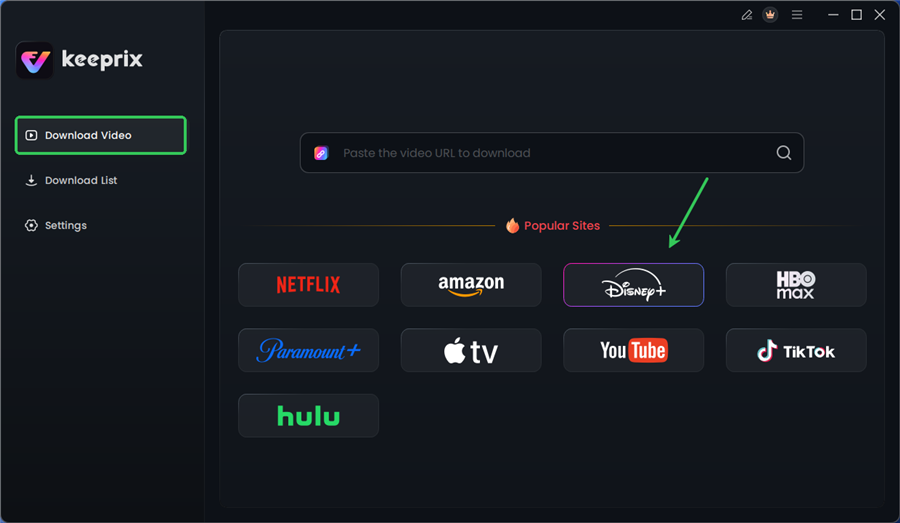
Choose Disney Plus in Keeprix
Step 3. Log in to your Disney+ account.
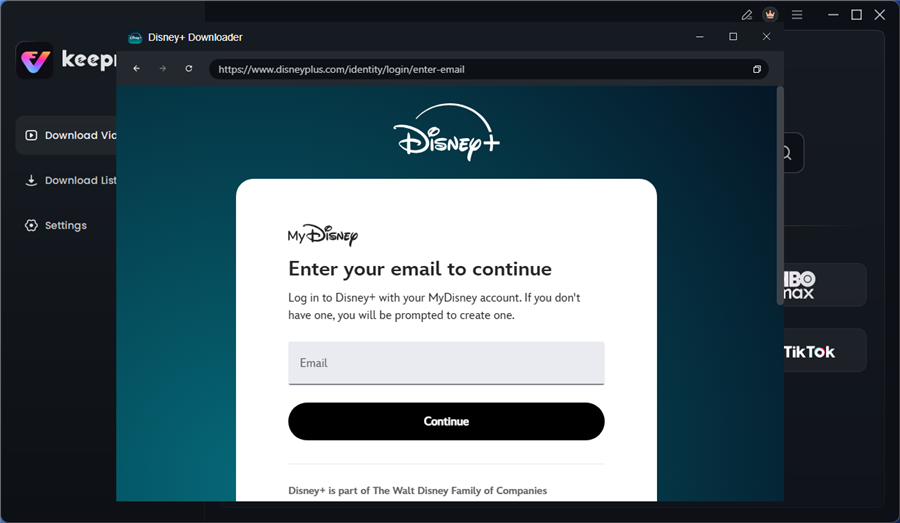
Log in to Disney Plus Account
Step 4. Search for the movies or series you’d like to download. Then click the download button to save it directly to your computer.
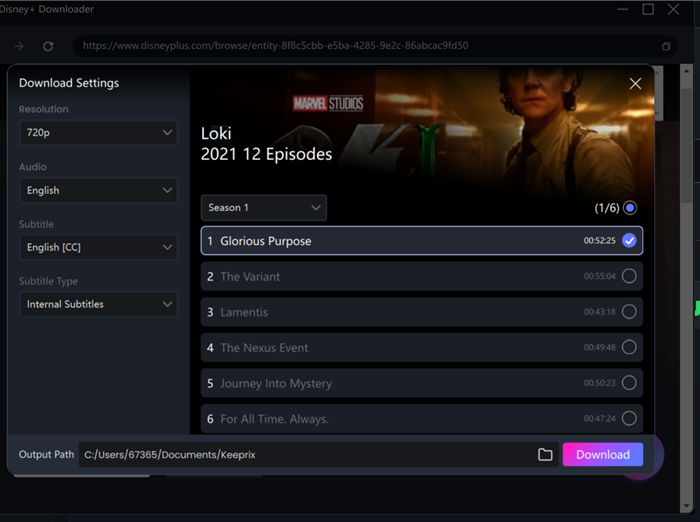
Configure Download Settings
After downloading, you can access the downloads in your local folder. The downloaded content is decrypted, and you can keep it forever. With Keeprix Downloader, you won’t worry about Disney Plus downloads not working anymore.
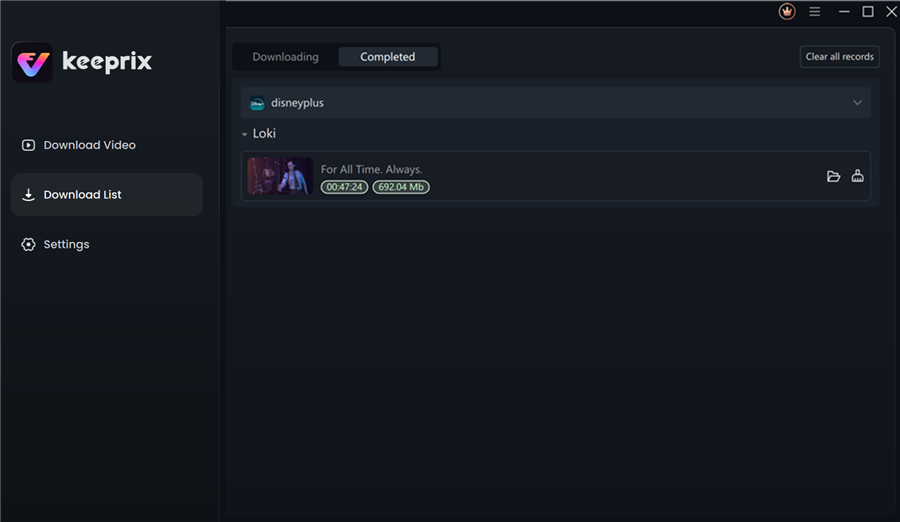
Disney Plus Downloaded Videos in Keeprix
The Ultimate Offline Viewing Checklist for Travelers
To ensure you aren’t left staring at a blank screen on your next trip, use this protocol 24 hours before you travel. This checklist is designed to refresh your licenses and catch errors while you still have Wi-Fi to fix them.
Pre-Flight Digital Checklist:
- Update the App: Ensure you are running the latest version of Disney+ to avoid bugs.
- The “Wi-Fi Check-In”: Open the app while connected to strong Wi-Fi. Start playing a downloaded video for 10 seconds. This forces the app to renew the DRM license.
- Check Download Quality Settings: Go to App Settings > Download Quality. Select “High” if you have space, or “Standard” to save room.
- Switch to Airplane Mode (Test Run): Do not wait until you are on the plane. Turn off your Wi-Fi at home and try to play a video. If it plays, you are safe.
- Verify Storage: Ensure your phone or tablet isn’t showing device storage full, which can cause playback stuttering.
FAQ: Common Disney Plus Download Errors
Why are my Disney+ downloads not working on my phone/tablet?
This usually happens due to corrupted cache files or an outdated app version. On Android, clear the app cache via Settings. On iOS, try offloading the app and reinstalling it to refresh the code without deleting your data. Also, ensure you haven’t exceeded the 10-device download limit Disney Plus enforces.
Why is the download button missing on some Disney+ titles?
The Disney Plus download button missing issue typically occurs for two reasons: either the specific title has licensing restrictions that prevent offline viewing, or you are on an ad-supported subscription plan (Disney+ Basic), which does not support downloads at all.
Why do my Disney+ downloads expire so quickly?
Downloads expire if your device hasn’t connected to the internet in 30 days. Once you start watching a title, you often have only 48 hours to finish it before it expires, requiring a renewed internet connection download fail check to unlock it again.
How much storage do I need for Disney+ downloads?
Download storage settings vary by quality. On average, a 60-minute episode requires about 400MB in Standard quality and up to 1.5GB in High/Medium quality. Always keep at least 10% of your device storage free for smooth playback.
Why are my downloads not playing offline even though they completed?
This is often due to a failed “DRM handshake.” If you didn’t open the app while online shortly before going offline, the app may not have verified your active subscription status. Always perform a “test play” while on Wi-Fi before traveling.
Conclusion
Facing a blank screen when you expected entertainment is a frustration no traveler should have to endure. Whether you are battling a Disney Plus download stuck at 99% or mysterious error codes, the issue almost always stems from the strict restrictions of the official app or a missed “handshake” before you went offline.
By following the troubleshooting steps for your specific mobile device, you can often resolve these glitches. However, for those who need a foolproof method that isn’t dependent on DRM timers or internet check-ins, Keeprix Downloader offers a reliable alternative. By transferring permanent files to your tablet or phone, you remove the anxiety of offline viewing entirely. Secure your downloads before your next trip, and watch exactly what you want, wherever you are.