Disney Plus Download Limit Explained & How to Bypass

Picture this: You are days away from a two-week cruise with spotty internet access. Like George, a dedicated dad and movie lover, you are prepping for the trip by downloading a library of movies to keep the family entertained. You load up the iPad, but halfway through the tenth movie, an error blocks your progress: “Download limit reached.” Suddenly, your plan for offline entertainment is in jeopardy. Facing a locked device when you need it most creates significant anxiety, especially when you are paying for a premium subscription.
This guide addresses that specific frustration. Based on our hands-on testing of the latest Disney+ app, we have verified exactly how these restrictions work and, more importantly, how to navigate them. We will explain the specific caps on devices and titles, help you troubleshoot the errors officially, and look at alternatives for watching Disney+ videos offline on laptops.
Disney Plus Download Limit
What Is the Disney Plus Download Limit?
Before we fix the error, it is vital to understand the mechanics behind the Disney Plus device download cap. Many users ask, “how many downloads on Disney Plus are allowed?”
Officially, Disney allows you to download unlimited titles (dependent only on your device’s storage space), but these downloads can only exist across a maximum of 10 supported mobile devices at one time.
The Hidden DRM Mechanism
Here is a critical piece of technical context that most guides miss: Disney+ uses DRM (Digital Rights Management) licensing that tracks not just the files, but the active licenses assigned to hardware.
Expert Insight: Even if a device is offline or powered down, the license it holds still counts against your account-wide cap. The system requires the device to check in online to release that license. This creates a common syncing error where users delete a movie on an offline tablet, but the Disney+ server still thinks the slot is occupied.
Until that tablet reconnects to Wi-Fi and syncs with the server, you cannot download that title on a new device. Understanding this check-in requirement is the key to managing Disney Plus offline download restrictions effectively.
Fixing ‘Download Limit Reached’ & ‘Too Many Devices’ Errors
If you are seeing the Disney Plus too many downloads error, simply deleting a movie file often fails to resolve the issue immediately due to the licensing delay mentioned above. You have two main options to fix this: one for when you have the device in hand, and a “nuclear option” for when a device is lost or broken.
Scenario A: You Have Access to the Device
If you have the old phone or tablet that is clogging up your license slots:
- Connect to Wi-Fi: The device must be online to communicate with Disney’s servers.
- Open the App: Navigate to the “Downloads” tab.
- Delete Content: Remove the downloaded titles.
- Wait for Sync: Keep the app open for a minute to ensure the removal registers with the server.
- Retry on New Device: The slot should now be open.
Scenario B: The “Lost Device” Protocol
This is the most common panic point. If your old iPad is lost, broken, or at home while you are traveling, you cannot physically delete the content to free up the slot.
In this specific case, you must perform a global reset. Warning: This will sign you out of every device, including Smart TVs, Rokus, and game consoles at home. You will need to log back into them later.
Step-by-Step for US Users:
- Access Account Settings: Open a web browser and go to the Disney Plus website. Then log in to your account.
- Navigate to Profile: Hover over your Profile Avatar in the top right corner and select Account.
- Locate the Reset Tool: Under the section labeled “Settings”, find and click “Log out of all devices”.
- Confirm: You will be asked to enter your password to confirm.
- The Result: This forces the Disney+ server to strip all active licenses from your account. It may take up to 4 hours to fully process, but it is the only way to clear a ghost license from a device you cannot access.
When the Official App Isn’t Enough: Watching on Laptops
While the steps above resolve the error on phones and tablets, they highlight a significant gap in the official Disney+ ecosystem: There is no official way to download content on a Mac or Windows laptop.
The official Disney+ app is strictly for mobile devices and some tablets. If you want to watch movies on a laptop – which offers a larger screen and often better battery life for long flights – the official app cannot help you. This is where third-party media archiving tools become a necessary alternative.
Alternative Solution: Keeprix Downloader
For users who need to download Disney+ videos on computers or who want to avoid the 30-day expiration timer, software like Keeprix Downloader offers a different approach.
Unlike the official app, which rents you a temporary license, Keeprix is a paid software tool that converts the stream into a permanent video file (MP4 or MKV) stored directly on your hard drive.
Important Note on Cost: Keeprix is a premium tool. While it offers a free trial to test functionality, full access to high-definition downloads is a paid service. However, for users who travel frequently or need a permanent library, the investment often outweighs the frustration of expiring downloads.
Why Use a Downloader Instead of the App?
- Laptop Playback: This is the only reliable method to watch Disney+ offline on a MacBook or Windows laptop.
- Permanent Library: The files do not expire. You can keep them forever, unlike the 30-day rental limit on the app.
- No “Check-In” Required: Because the files are saved locally to your hard drive, you never need to connect to the internet to “renew” the license.
- Hardware Acceleration: Downloads can be faster than the official app, utilizing your computer’s processing power.
How It Works
If you decide this route is better for your travel needs, the process is straightforward:
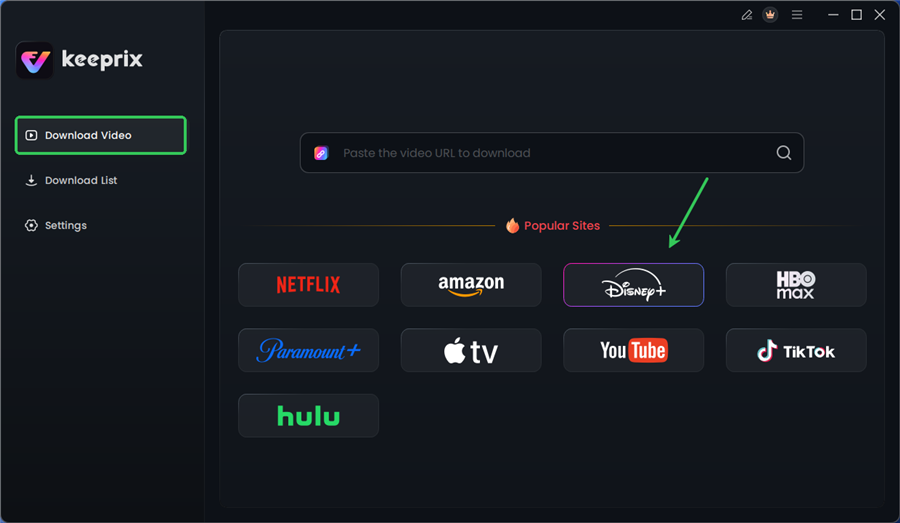
Step 1. Launch Keeprix. Choose Disney+ and open the built-in browser within the tool.
Choose Disney Plus in Keeprix
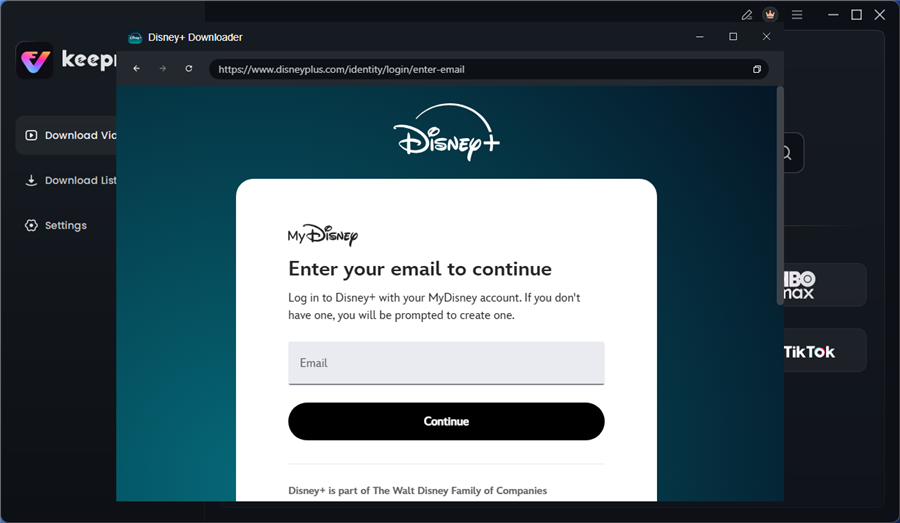
Step 2. Log in to your Disney Plus account and navigate to the video you wish to save.
Log in to Disney Plus Account
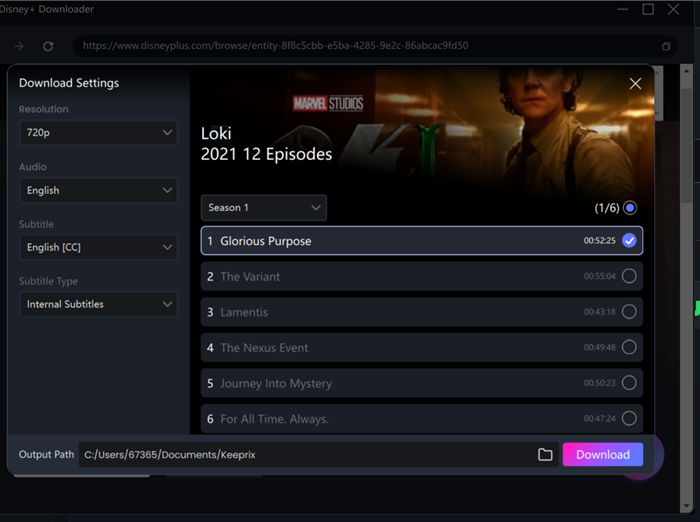
Step 3. Customize Output: Choose your resolution and format.
Configure Download Settings
Step 4. Download: The software saves the file to your “Videos” folder. You can now open this file with any media player without ever opening the Disney+ app.
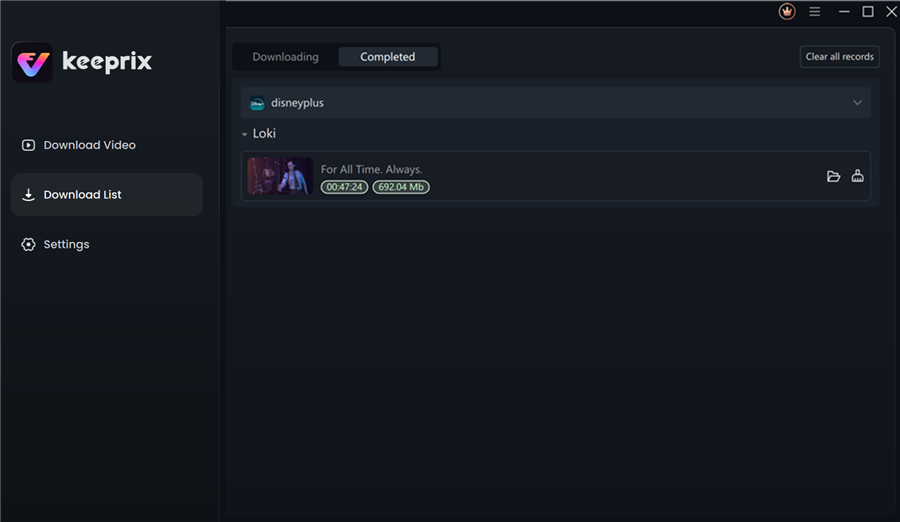
Disney Plus Downloaded Videos in Keeprix
Comparison: Official App vs. Media Downloader
To help you decide which method suits your trip, here is a breakdown of the differences between managing the official app’s constraints and using a dedicated archiving tool.
| Feature | Official Disney+ App | Keeprix Downloader (Alternative) |
| Primary Device | Mobile & Tablet Only | PC & Mac Laptops |
| Device Cap | Limited to 10 specific devices. | Unlimited. Transfer files to any device. |
| Expiration | 30 days (or 48 hours after play starts). | None. Videos are saved forever. |
| Offline Req. | Must connect online every 30 days. | 100% offline access; no internet needed. |
| “Lost Device” Risk | Must reset account to clear slot. | No risk; files are yours. |
FAQs: Unlocking Disney Plus Offline Viewing
Can I download Disney Plus movies on my MacBook?
Officially, no. The Disney+ app is not available for macOS. To watch offline on a Mac, you must use a third-party tool like Keeprix to download the video files as MP4s, which can then be played in QuickTime.
Does “Log out of all devices” sign me out of my TV?
Yes. This is the main drawback of the remote fix. Using the “Log out of all devices” feature in your account settings will sign you out of every single device, including Smart TVs, game consoles, and your family’s phones. You will need to log back in on each one.
How many titles can I download on Disney Plus at once?
Technically, there is no cap on the number of titles. You can download as many movies and episodes as your device’s local storage permits. However, Disney Plus offline download restrictions apply strictly to the number of devices used.
Why do my downloads expire in 48 hours?
While a download can sit on your device for 30 days, the moment you press “Play,” a 48-hour timer begins. This is a licensing rule. If you do not finish the movie within that window, you must briefly connect to the internet to renew the license.
Why did my downloads disappear after an update?
Downloads are tied to the specific app installation. If you uninstall the app, clear the cache, or sometimes even after a major app update, the local data is wiped for security reasons. This requires re-downloading the content.
Final Thoughts: Securing Your Entertainment
Returning to George’s story, the panic of the “Download limit reached” error was eventually replaced by relief. By understanding that he needed to remotely sign out his old devices via the website, he cleared the necessary slots for his trip. However, the experience taught him a valuable lesson about the limitations of streaming rentals. For his absolute favorite movies—and specifically for watching on his laptop during the flight—he eventually opted for the permanent solution offered by Keeprix.
Whether you choose to meticulously manage your device authorizations or invest in software to archive your library, the goal is uninterrupted viewing. Do not let technical Disney Plus download limit rules dictate your vacation. Ensure you have a backup plan so that no matter where you are, your movies are ready when you are.