How to Download Movies on Disney Plus [2026 Offline Guide]

Imagine boarding a five-hour flight, strapping in, and opening your iPad to entertain the kids, only to find the screen blank or the app refusing to load. It is the modern traveler’s nightmare. You planned a Marvel marathon or queued up Pixar shorts to keep the peace, but facing a locked device when you are offline creates immediate panic. Whether it is storage errors, missing download buttons, or expired licenses, the fear that your entertainment won’t work offline is valid.
If you are searching for how to download movies on Disney Plus to avoid this anxiety, you have found the right resource. This guide moves beyond basic help pages. It addresses the specific nuances of different mobile operating systems, including Amazon Fire Tablets, and introduces a method for watching Disney+ offline on your computer. By following these verified steps, you can ensure your library is accessible the moment you hit airplane mode.

How to Download Movies from Disney Plus
Choose Your Method: Official App vs. Desktop Downloader
Before initiating a download, it is critical to select the method that aligns with your hardware and your intent. There are two distinct techniques to save movies on Disney Plus, and they serve very different purposes.
The Official App Method is excellent for mobile consumption. It is the standard way to watch content on a phone or tablet during a specific trip. However, these files are encrypted, hidden within the app, and subject to strict expiration rules (usually 30 days, or 48 hours once viewing starts).
The Desktop Downloader Method is designed for archival and PC/Mac playback. Since Disney+ does not offer a native download function for laptops, this software allows you to save files permanently in MP4 or MKV format. This is best for users who want to build a library on an external hard drive or watch on a laptop screen larger than a tablet.
Comparison of Capabilities
| Feature | Official Mobile App | Keeprix Desktop Downloader |
| Best For | Phones, Tablets (iPad, Fire, Android) | Laptops, Plex Servers, Smart TVs |
| Expiration Limits | 30 days (48 hrs after play) | None (Keep Forever) |
| File Format | Encrypted Cache | MP4 / MKV (Open Format) |
| Storage Location | Internal Device Storage | External Hard Drive / USB / PC |
| Max Resolution | Device Dependent | 1080p Full HD |
| Ad-Plan Support | Restricted (Usually No Downloads) | Ad-Free Downloads Supported |
Disney Plus Offline Download Guide for Mobile Devices
For users strictly on mobile devices, the official app provides a reliable way to handle Disney Plus mobile downloads, provided you know where to look. While the concept is the same across platforms, the interface differs significantly between Apple, Android, and Amazon devices. We have broken these down separately to ensure you aren’t hunting for buttons that don’t exist on your specific screen.
Instructions for iPhone and iPad (iOS)
Apple devices have strict background activity limits. Follow these steps to ensure the file saves correctly without pausing.
- Locate Your Content: Open the Disney+ app and navigate to the movie or episode you want to view offline.
- Identify the Icon: Look for the downward-facing arrow icon directly below the “Play” button and the movie title.
- Initiate Download: Tap the icon. It will turn into a loading circle.
Do not minimize the app. If you switch to Instagram or check email, iOS often pauses the download to save battery. Keep the app open until the circle becomes a checkmark.
- Access Downloads: To watch, tap the “Downloads” icon on the bottom navigation bar (the far right option).
Instructions for Android Phones & Tablets
Android offers more flexibility, specifically the ability to choose where the file is stored if your phone supports expandable memory.
- Set Storage Location: Before downloading, tap your Profile Icon (bottom right) > App Settings. Look for “Download Location” and ensure “External Storage” (SD Card) is selected if you want to save space on your main drive.
- Start the Download: Navigate to your show. For TV series, you will see a small download arrow next to the season header (to download all) or next to individual episodes.
- Monitor Progress: Pull down your notification shade to see the download progress bar without keeping the app open.
Instructions for Amazon Fire Tablets
Many parents rely on Fire Tablets for their children, but the interface (Fire OS) behaves differently from standard Android.
- Check SD Card Settings: Fire Tablets often have limited internal storage. Go to Settings > Storage on your tablet first and ensure your SD card is formatted as “Internal Storage” if you want to store heavy Disney+ files there.
- Open the App: Launch Disney+ from the “Apps” tab.
- Find the Content: Select your movie. The download arrow is located next to the “+” (Add to Watchlist) button.
- Kids Profile Note: If you are using a Kids Profile, the interface is simplified. The download button is prominent, but you cannot change quality settings from within a Kids Profile. You must switch to the primary Admin profile, adjust the App Settings, and then switch back.
Not all titles are available for download due to licensing rights. If the button is missing, that specific title is restricted to streaming only. Additionally, ensure you are on Wi-Fi to avoid consuming your cellular data plan.
How to Save Movies on Disney Plus on PC & Mac (Permanent Method)
Many users are surprised to find that logging into Disney+ via a web browser on a laptop offers no option to download content. This is a platform limitation. To download Disney Plus movies on a desktop, you require specialized software.
We tested Keeprix Disney+ Downloader for this guide because it offers granular control over the file output, which addresses the “trust” issues many users have with third-party software. It doesn’t just “grab” the screen; it downloads the raw video stream.
Procedure to Download on Desktop
Step 1. Install and Launch: Open Keeprix Downloader on your Windows or Mac computer.
Step 2. Select Service: Choose Disney+ from the VIP Services interface and log in to your account.
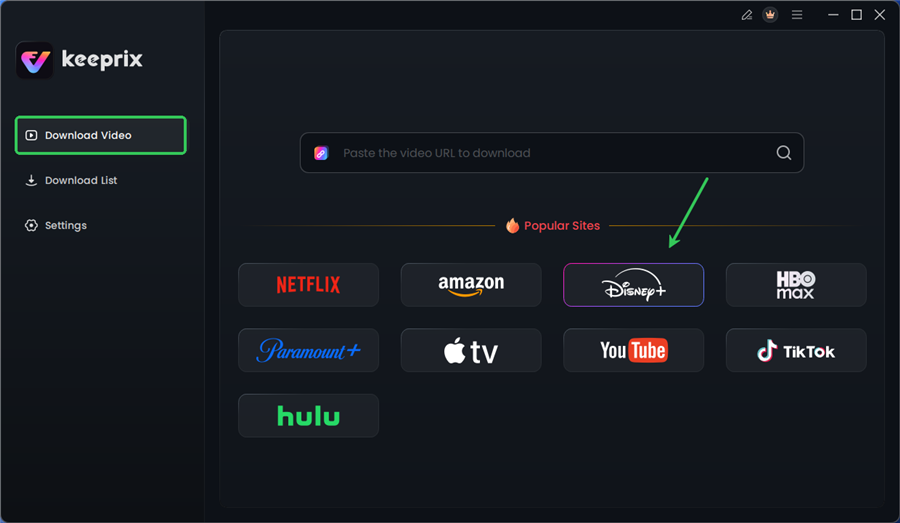
Choose Disney Plus in Keeprix
Step 3. Configure Before Downloading: This is the most important step. When you click on a video, a “Settings” window will pop up before the download starts. You will see:
- Video Codec: Choose H.265 for smaller file sizes with high quality, or H.264 for maximum compatibility with older TVs.
- Resolution: Select 1920×1080 (Full HD).
- Audio: Select “E-AC3 5.1” for surround sound or “AAC 2.0” for stereo.
Step 4. Download: Click “Download Now.” The software removes the ads (even on ad-supported plans) and saves the file to your hard drive.
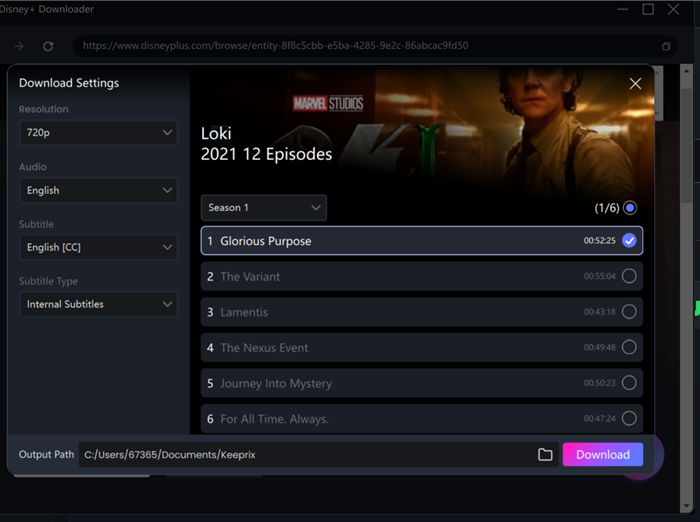
Configure Download Settings
By using this method, you possess the actual video file. You can transfer it to a USB drive to watch on a smart TV or keep it on your laptop indefinitely.
Why Can’t I Download? Troubleshooting & Expert Tips
Even after following the correct steps, you might encounter a situation where the content refuses to play. Here is a critical tip that most other guides miss, and it is something we verified during testing: The 30-Day DRM Handshake.
The 30-Day DRM Sync
The original cause is that Disney+ uses digital rights management (DRM), which requires your device to periodically “ping” their servers. Many users are unaware that Disney+ offline viewing may fail if the device has not been connected to the internet within the past 30 days, even if the title itself hasn’t expired.
The Fix: If you downloaded a movie two months ago and plan to watch it on a flight tomorrow, you must open the app while on Wi-Fi today. Launch the app, let it load the home screen, and ensure your downloads are valid. This refreshes the licenses.
Common Technical Obstacles
1. Download button not showing: This usually indicates a licensing restriction for that specific title, or your subscription tier (such as the “Basic with Ads” plan in some regions) does not support offline viewing.
2. Storage “Full” Errors: Sometimes the app cache becomes corrupt. If you have space but cannot download, try clearing the app cache.
- Android: Settings > Apps > Disney+ > Storage > Clear Cache.
- iOS: You must delete and reinstall the app to fully clear the cache.
Managing Storage: Quality Settings & Data Use
High-definition video consumes storage rapidly. Users often run into space issues after downloading just two or three movies in ‘High’ quality. The solution lies in adjusting the Disney Plus download quality settings to fit your device’s capacity.
To change these settings, tap your Profile Icon (bottom right of the screen) > App Settings > Download Quality.
Disney+ offers three tiers. Here is a visual breakdown of how much space each setting consumes for a standard 2-hour movie:
Standard (480p/SD)
[=== ] ~1.2 GB
Best for smartphones. The lower resolution is barely noticeable on small screens, and it downloads very quickly.
Medium (720p/HD)
[====== ] ~3.0 GB
A balanced option for most tablets. Offers sharper text and details without filling the drive immediately.
High (1080p/HDR)
[==========] ~5.0 GB+
Use strictly for high-end tablets (like iPad Pro) or if you have ample storage. This consumes significant space.
By switching from ‘High’ to ‘Standard,’ you can often triple the amount of content you can carry for a trip. Remember to delete watched content via the ‘Downloads’ tab (Edit > Select Items > Trash Icon) to free up space for new titles.
Frequently Asked Questions About Disney+ Downloads
Why can’t I find the download button on my laptop?
Disney+ does not support downloads on browser-based viewing (Chrome, Safari, Edge). To download on a laptop, you must use third-party software like Keeprix, as the official app functionality for downloads is restricted to mobile devices.
How do I download movies to my SD card on Fire Tablet?
Go to your Fire Tablet Settings > Storage and ensure your SD card is detected. Then, inside the Disney+ app, tap your Profile Icon > App Settings and toggle “Download to SD Card” to On.
How long do Disney Plus downloads stay on my device?
Downloads generally remain on your device for 30 days. However, once you press “Play” on a downloaded title, a 48-hour timer begins. You must finish watching the movie within that window, or connect to the internet to renew the license.
Will downloaded movies still play if I have no internet?
Yes, but only if you have opened the app while online within the last 30 days. If the app hasn’t “checked in” with Disney servers recently, the downloads may be locked to prevent piracy. Always open the app once before a trip.
Conclusion
Technical failures during travel disrupt well-laid plans and create unnecessary stress. By understanding the distinct steps for your specific device—whether it is an iPad, an Android phone, or a Fire Tablet—and recognizing the need for the 30-day license check, you can prevent the “black screen” scenario.
For most travelers, the official app is a capable tool if managed correctly. However, if you require a permanent library that bypasses expiration dates and works on laptops, a dedicated desktop solution like Keeprix Downloader is the practical alternative. It empowers you to build a collection of high-definition movies that work on any device, anytime. Secure your entertainment now and ensure your next trip is peaceful.