How Long Do Disney Plus Downloads Last? [2026 Guide]

Facing a locked screen when you are ready to watch your favorite movie is a traveler’s worst nightmare. Just ask Elena, a frequent flyer who downloaded a season of content for a two-week international trip, only to find her offline library blocked midway through the journey. The confusion surrounding Disney+ download limits is common, as the rules are often buried in the fine print.
Generally, standard downloads remain on your device for 30 days. However, there is a critical catch that often trips users up: once you press Play on a specific title, that window shrinks to just 48 hours. Furthermore, strict expiration policies mean that if your device doesn’t connect to the internet periodically for a handshake with the servers, you might lose access even sooner. This guide clarifies these restrictions, offers a practical “Traveler Hack” to keep your downloads alive longer, and reviews an alternative method for permanent archiving.
How Long Do Disney Plus Downloads Last
The Official Rules: 30-Day vs. 48-Hour Limits Explained
To manage your offline library effectively, you must understand the “Dual-Timer” system that governs offline viewing. Many users assume that once a file is downloaded, it is theirs to keep until they delete it. In reality, two separate clocks are ticking on every file you save.
1. The Storage Timer (30 Days)
From the moment a download finishes, it will remain stored on your device for up to 30 days. If you do not interact with the file, it sits dormant until this period ends. Once the 30 days elapse, the file automatically expires. You will see an alert requiring a download renewal to make the content viewable again.
2. The Playback Timer (48 Hours)
This is the specific trigger that caused Elena’s movies to expire mid-trip. The moment you press “Play” on a downloaded title—even if you only watch for five seconds to check the video quality—the 30-day window is immediately overridden for that specific file. You now have exactly 48 hours to finish watching it before it locks.
During our testing on an iPad Pro, we played the first 10 seconds of The Mandalorian. Even though we immediately paused and closed the app, the download status changed, and the file expired precisely 48 hours later.
Pro-Tip: Do not test your downloads by playing them unless you plan to finish them within two days.
The Connection Requirement
It is important to note that DRM restrictions mean these files are not truly permanent. The application needs to communicate with Disney servers periodically. If you remain offline for an extended period, the app cannot verify your subscription status. This creates a risk of expired content alerts even if the 30-day limit has not theoretically been reached. This mechanism ensures that only active subscribers can access the verification required for playback.
Why Did My Downloads Disappear? The Silent License Check
A common frustration among users is finding that their library has been wiped or locked despite having time left on the clock. If you are wondering why your library vanished, the answer usually lies in background processes rather than the standard time limits.
The Hidden License Handshake
Downloads require periodic license re-verification, which happens silently in the background. The app attempts to ping the Disney+ servers to confirm two things:
- Your subscription is still active.
- The content rights are valid for your current location.
How often is “Periodically”?
While Disney does not publish an official interval, our testing and user reports suggest the app attempts a “soft check” roughly every 24 to 48 hours when a connection is detected. If your device is offline, it relies on the cached license. However, if you connect to a hotel Wi-Fi network even briefly, the app will attempt this handshake instantly. If the check fails (or returns a “wrong region” error), the content locks.
The Region-Based Trap
This is the specific issue that ruined Elena’s viewing experience. If the app detects a Geo-IP change indicating you are in a country where a specific title is not licensed, the verification will fail immediately upon connection.
For example, a movie available in the US might not be available in France. If you connect to hotel Wi-Fi in France, the app updates your location and may instantly invalidate your US downloads.
The “Traveler Hack”: How to Prevent Geo-Blocking
If you are using the official app for an international trip, you need to prevent the app from realizing you have left your home country. Here is a strategy verified during our testing:
- Download at Home: Finish all downloads on your home Wi-Fi.
- Enter Airplane Mode Early: Turn on Airplane Mode before you arrive at the airport or cross the border.
- Stay Offline: Keep the device in Airplane Mode (or simply turn off Wi-Fi/Data specifically for that device) for the duration of your viewing.
- Do Not Connect: Do not connect this specific device to hotel or airport Wi-Fi. As long as the app cannot “phone home” to see your new IP address, it will rely on the stored 30-day license (provided you haven’t pressed play yet).
This method essentially freezes the app’s knowledge of your location, allowing you to watch your US-based library while abroad.
Method Comparison: Official App vs. Professional Archiving
Before committing to a download strategy, it is crucial to evaluate your specific needs. Are you taking a short weekend trip, or do you need a permanent archive for long-haul travel? The following comparison highlights the operational differences regarding validity periods and reliability between using the standard Disney+ app and a third-party tool like Keeprix Downloader.
| Feature | Official Disney+ App (Manual) | Keeprix Video Downloader (Professional) |
| Expiration Rule | Expires in 30 days (or 48 hours after play). | Never expires. Files are permanent. |
| Format | Encrypted cache files (unreadable outside the app). | Standard MP4 or MKV video files. |
| Regional Lock | Content may vanish if you travel internationally. | Global Access. Files work anywhere. |
| Quality | Dependent on device/settings. | Up to 1080p Full HD. |
| Ads | Ads are present on lower-tier plans. | Ad-Free Viewing (removes ads automatically). |
| License Check | Requires internet for license refresh. | No internet required after download. |
The Official App (Manual Method):
This approach is best suited for daily commutes or domestic weekend trips. The primary risk is the viewing time limit; if the app cannot verify your license, the content becomes inaccessible. Additionally, if your subscription lapses, you lose access to all downloaded files immediately.
Alternative Solution: Permanent Downloads (The Keeprix Method)
For travelers who find the 48-hour timer too restrictive, or who simply want to back up their favorite movies, third-party software offers a workaround. While the official app is sufficient for casual use, software like Keeprix Downloader solves the issue of disappearing content by converting the stream into an open file format.
Unlike the official app, which caches encrypted files with a timer, Keeprix converts titles into standard MP4 or MKV formats. This technical distinction allows you to keep videos locally on your laptop, bypassing the expiration triggers entirely.
Key Benefits for Long-Term Storage
- Remove Time Limits: Once downloaded with Keeprix, the file is yours permanently. It will not expire after 30 days, and there is no 48-hour countdown after you press play.
- High-Definition Quality: You can secure content in 1080p Full HD, which is ideal for viewing on laptops where the official app might restrict quality.
- Ad-Free Experience: For users on ad-supported tiers, the software filters out commercials during the download process.
- Multi-Language Support: You can preserve audio tracks and subtitles in up to 13 languages, which is essential if you are learning a language or prefer original audio.
This method effectively creates a personal backup of the content you have paid for, ensuring it remains accessible even if you are offline for weeks at a time.
Steps to Download Disney+ Videos with Keeprix Downloader
Step 1. Download Keeprix Downloader and install it on your Windows or Mac computer.
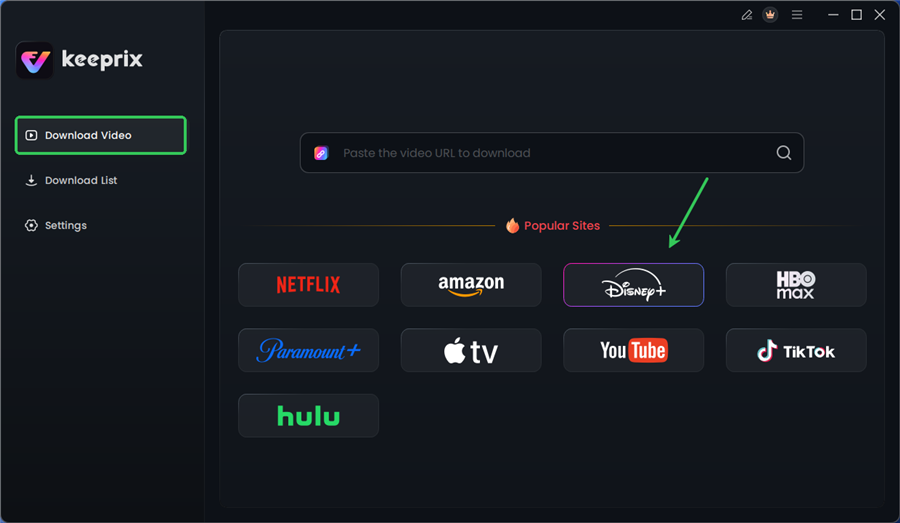
Step 2. Launch the software and choose Disney Plus on the main screen.
Choose Disney Plus in Keeprix
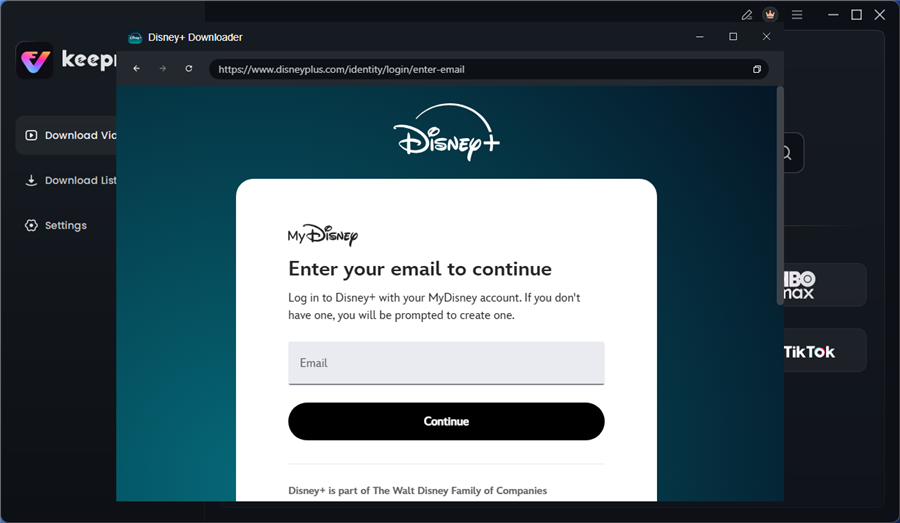
Step 3. Log in to your Disney+ account.
Log in to Disney Plus Account
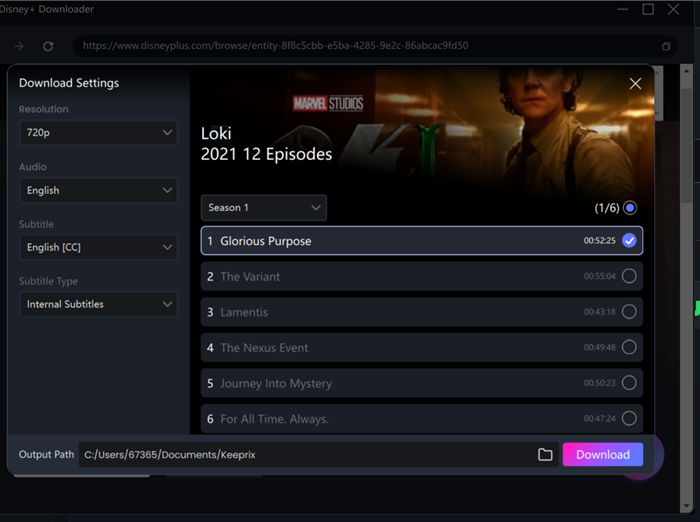
Step 4. Search for the movies or series you’d like to download. Then click the download button to save it directly to your computer.
Configure Download Settings
After downloading, you can access the downloads in your local folder. The downloaded content is decrypted, and you can keep it forever.
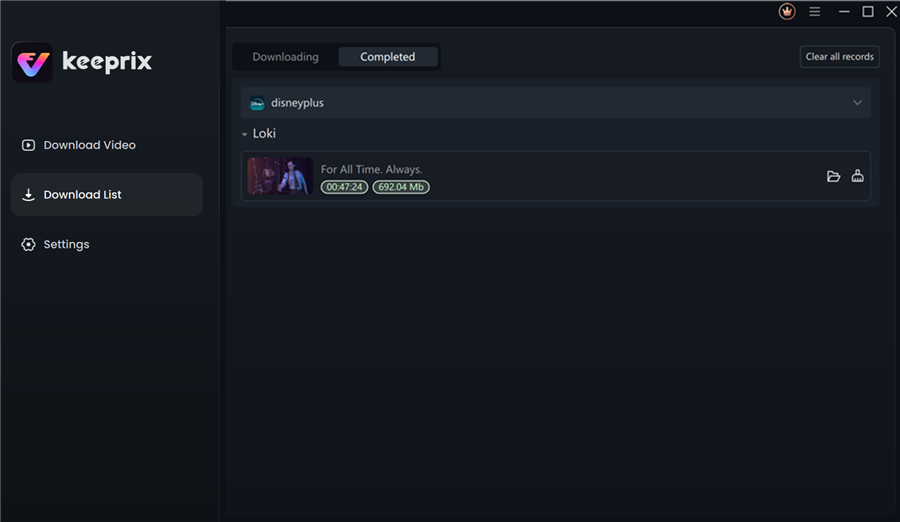
Disney Plus Downloaded Videos in Keeprix
Troubleshooting: How to Renew Expired Disney Plus Downloads
If you choose to use the official app and find your content blocked, you can usually restore access through the manual renewal process. However, it is vital to understand that this process is not offline-capable; you must have an active internet connection to perform the handshake with Disney’s servers.
Procedure to Manually Renew Content
- Locate the Exclamation Mark: Navigate to the “Downloads” tab in the Disney+ app. Expired titles will be marked with an exclamation point icon or a greyed-out play button.
- Initiate Renewal: Tap the exclamation icon. You will see a prompt asking if you want to renew the download.
- Connection Check: Ensure your Wi-Fi or cellular data is active. The app will perform a quick verification to confirm your subscription and the title’s availability.
- Completion: Once verified, the progress bar does not need to re-download the video file; it simply updates the digital license, resetting the 30-day or 48-hour timer.
Note on Data Usage: This renewal process uses very little data compared to re-downloading the movie. It is safe to do this over a cellular connection if necessary.
Why Renewal Might Fail
Sometimes, the renewal option will not appear at all. This typically happens if the title has left the Disney+ streaming library entirely due to licensing agreements. In this scenario, the download cannot be renewed and is permanently lost from the app—a limitation that does not affect users who archive files externally using tools like Keeprix.
FAQ: Common Questions About Disney Plus Offline Viewing
1. How long do Disney+ downloads stay on my device?
Generally, downloads remain on your device for 30 days. However, once you begin watching a title, the time limit shifts to a 48-hour viewing window before it expires.
2. Do Disney+ downloads expire after 30 days?
Yes. Even if you never press play, the download will expire 30 days after saving it. You must connect to the internet and click “Renew” to refresh the license.
3. Why did my Disney+ downloads disappear suddenly?
This usually occurs due to a failed background license check. If you have been offline for an extended period or the app detects a region change (e.g., traveling to a different country), the DRM restrictions may be instantly invalidated.
4. Do I need the internet to keep Disney+ downloads active?
Technically, no, but practically, yes. While you can watch offline, the app requires sporadic internet access to perform a license refresh. We recommend connecting to Wi-Fi at least once every 48 hours to ensure uninterrupted access.
5. How do I renew expired Disney+ downloads?
To renew, you must be online. Go to your downloads list, click the exclamation mark icon next to the expired title, and select “Renew Download.” This refreshes the license without re-downloading the large video file.
Conclusion
Navigating the expiration rules of streaming services can be frustrating, especially when you are relying on entertainment for a long trip. While the standard Disney+ app offers a convenient short-term option, the risks of the 48-hour playback timer and silent background license checks can leave you with a blank screen when you need it most.
For casual viewers, simply remembering not to press “Play” until you are ready to watch—and keeping your device in Airplane Mode while traveling—can solve most issues. However, to eliminate the anxiety of disappearing downloads entirely, a professional tool like Keeprix Downloader offers a robust alternative. By converting your favorite titles to permanent MP4 files, you regain full control over your media library, bypassing restrictive timers and regional locks. Secure your entertainment before you leave home, and ensure your movies last as long as your journey does.