Download Disney Plus Movies on Mac: Verified Ways for 2026

If you have searched for how to download Disney Plus movies on Mac, you have likely encountered the same frustration as Emily. A graduate student preparing for a long cross-country flight, Emily opened her MacBook Air M2 to load up on movies, expecting the same simple “Download” arrow she relies on with her iPad. Instead, she found nothing. With her flight departure looming, she realized that watching her favorite content offline was not a native feature of her laptop.
Facing a connected device that becomes a “paperweight” the moment you lose Wi-Fi is a significant obstacle for travelers and commuters. While mobile devices offer easy offline access, macOS users face a rigid technical barrier. Many forums suggest confusing workarounds, while others mistakenly claim that simply AirDropping a file from an iPhone works (it doesn’t).
This guide moves beyond speculation to provide verified methods. We explore why the official app is missing, why simple file transfers fail, and detail the specific tools—both professional Disney+ downloader and ecosystem workarounds—that actually work.

How to Download Disney Plus Movies on Mac
The “AirDrop” Myth: Why You Can’t Transfer Files from iPhone
Before looking at solutions, we need to address the most common “fix” users attempt first. Logic suggests that if you download a movie on your iPhone using the official Disney+ app, you should be able to AirDrop that file to your Mac. – This does not work.
When you download a movie on iOS, Disney+ does not save a standard video file to your camera roll. Instead, it saves fragmented, encrypted data hidden deep within the app’s system folders. These files are “locked” to the specific device ID of your iPhone. Even if you managed to extract the files and move them to a Mac, they would be unreadable. The methods below are currently the only ways to view content on a Mac offline.
Quick Comparison: Professional Downloaders vs. Apple Ecosystem Workarounds
It is important to understand the trade-offs between professional tools and manual workarounds. While the Apple ecosystem offers features like Sidecar, Disney Plus DRM restrictions often create friction in the viewing experience, such as black bars or battery drain.
We have tested the three most common approaches based on success rate, video quality, and offline permanence.
| Feature | Professional Software | Apple Ecosystem (Sidecar) | Screen Recording (OBS/QuickTime) |
| Success Rate | High (Direct Download) | Medium (Hardware Dependent) | Low (Blocked by DRM) |
| Video Quality | 1080p Full HD | Mirrors iPad Resolution | Poor (Dropped Frames/Black Screen) |
| Offline Permanence | Forever (MP4/MKV) | Temporary (Stays on iPad) | N/A (Often Fails) |
| Audio Support | 5.1 Surround / Multi-language | Stereo Mirroring | System Audio Only |
| Setup Time | Medium (Processing Time) | Fast (Requires iPad) | Slow (Real-time Recording) |
For users who need a set-and-forget solution for travel, relying on a method with a low success rate creates unnecessary risk. Professional software offers a distinct advantage by bypassing the restrictions that cause standard Disney Plus desktop download attempts to fail, though it comes with its own costs.
Method 1: How to Download Disney Plus Movies on Mac with Keeprix (Best Quality)
For many users, the primary goal is ensuring access throughout a long flight without worrying about Wi-Fi or expiring credentials. Keeprix Downloader acts as a reliable intermediary between the streaming platform and your Mac’s local storage.
Keeprix is a professional tool designed to download streaming video directly to your device as local files. Unlike the official mobile app, where downloads expire after 30 days or 48 hours after viewing starts, Keeprix saves content as permanent MP4 or MKV files. This solves the Disney Plus offline viewing Mac issue by removing time limits entirely.
Is It Safe? (The Login Concern)
A common hesitation with third-party tools is the requirement to log in. In our testing, Keeprix utilizes a built-in, secure browser instance. When you log in, you are communicating directly with Disney’s official login page, not a phishing site. Keeprix captures the authentication “token” generated by this session to authorize the download. To Disney’s servers, this activity resembles a standard login from a Chrome or Safari browser, significantly reducing the risk of your account being flagged.
Step-by-Step Guide
Step 1. Install and Launch: Download Keeprix for macOS and install it. Launch the program and select the Disney+ icon. Log in to your account via the built-in browser.
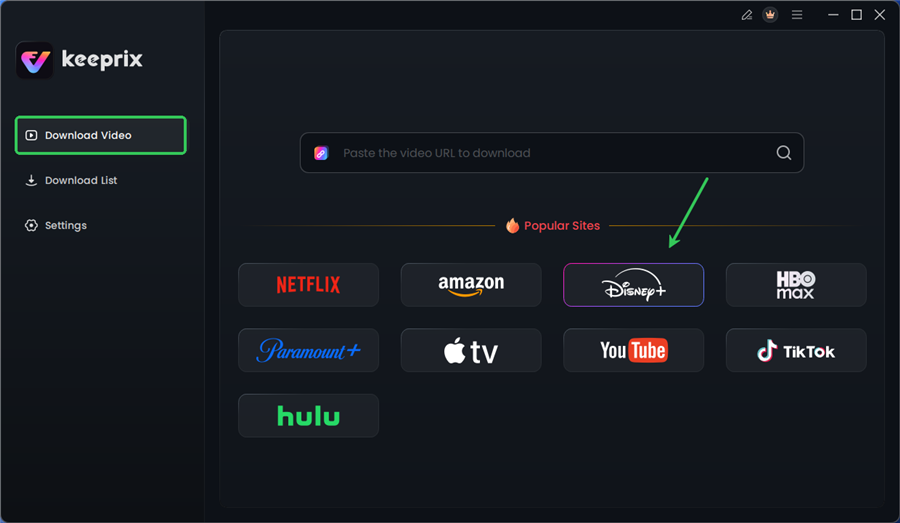
Choose Disney Plus in Keeprix
Step 2. Search and Select: Browse for the movie or TV show you wish to save. The interface mimics the web player but adds extraction capabilities.
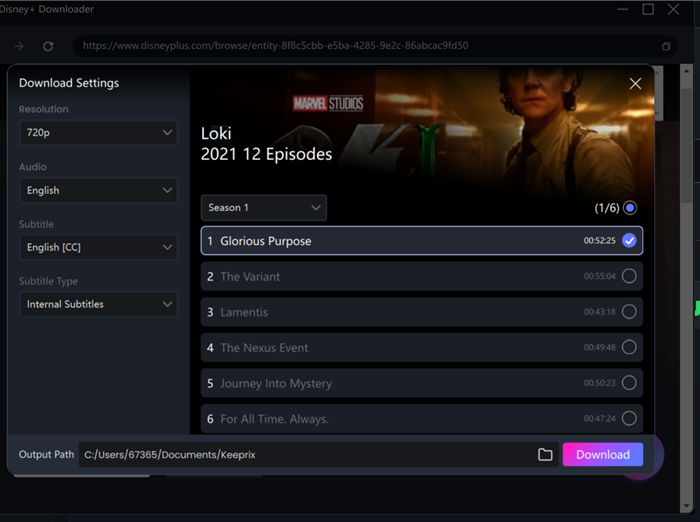
Configure Download Settings
Step 3. Customize Quality: Before the download begins, a settings window appears. Select “1080p” for the best resolution. You can also select audio tracks and subtitles—crucial for international travelers.
Step 4. Batch Download: You can add an entire season to the queue. After downloading, you can find the downloads in the Download List.
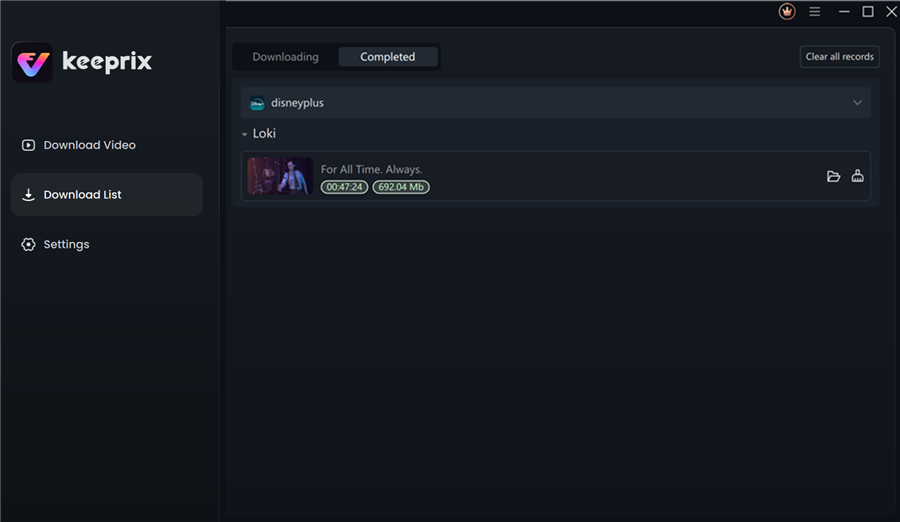
Disney Plus Downloaded Videos in Keeprix
The “Cons” You Should Know
While effective, this software isn’t magic.
- Cost: This is paid software (though most offer trial versions). You are paying for the ability to bypass DRM.
- Processing Speed: It is not instant. While it uses hardware acceleration, downloading a full movie can still take 10–20 minutes depending on your internet speed and processor, as it is decrypting and encoding the file simultaneously.
- Storage Space: A 1080p movie can be 4GB–6GB. Ensure your Mac has space.
Once the download finishes, the file is yours. You can move it to an external hard drive to save space on your MacBook or play it via VLC Player.
Method 2: Using an iPad with Sidecar (The Ecosystem Alternative)
If you already own an iPad, using Apple’s “Sidecar” feature is a legitimate workaround. This does not download the file to your Mac, but it turns your iPad into a second display, allowing you to view the content on a larger setup.
However, based on our real-world testing on flights, there are significant friction points you must be aware of regarding aspect ratios and battery life.
The Sidecar Workflow
- Download on iPad: Use the official Disney+ app on your iPad to download movies for offline viewing.
- Connect Devices: Connect your iPad to your Mac via a USB-C cable. While Sidecar works wirelessly, never use wireless Sidecar on a plane. Wi-Fi interference is high, and the video will stutter. A cable is mandatory for a watchable experience.
- Activate Sidecar: On your Mac, navigate to Control Center > Display and select your iPad. This extends your Mac desktop to the iPad.
- Drag and View: Move the Disney+ app window on your iPad to the screen area representing the Mac’s extension.
The Reality Check: Battery and Black Bars
While this works, the experience is not seamless:
- The Battery Trap: When connected via USB-C, your Mac generally attempts to charge the iPad. This effectively turns your MacBook into a massive power bank. If you are watching a 2-hour movie, your Mac battery will drain significantly faster than normal because it is powering the screen and charging the tablet.
- Aspect Ratio Issues: iPads typically use a 4:3 aspect ratio, while Macs use 16:10. When you full-screen a movie on the iPad (which is already letterboxed), and then view it on the Mac via Sidecar, you may encounter significant black bars on all sides, reducing the actual viewable size of the film.
Important Limitation: You are strictly viewing the content through the iPad’s hardware. You cannot drag the movie file to the Mac. If your iPad runs out of storage, you cannot use your Mac’s hard drive as overflow.
Why Disney+ Restricts Mac Downloads: The DRM Reality
Users often assume the lack of a download button on Mac is a bug, but it is a deliberate security measure tied to how different devices handle encryption.
Mobile devices like iPhones and iPads utilize hardware-based security (Widevine L1 or Apple’s secure enclave). This allows the device to store encrypted video files that are extremely difficult to pirate or extract.
In contrast, macOS browsers (Safari, Chrome, Firefox) typically rely on software-based DRM implementations. Disney+ considers these software-based environments less secure for storing high-quality offline files because the decryption keys are theoretically easier to extract. Consequently, the platform disables the download feature on browsers to protect its intellectual property.
This technical limitation is why MacBook streaming limitations exist, even though the hardware (especially M1/M2 chips) is powerful enough to play the video.
Can You Screen Record Disney+ on Mac? (Risks & Limitations)
A frequent query is: can you download Disney Plus movies on MacBook by simply screen recording them using QuickTime or OBS?
In short: Do not rely on this method.
When you attempt to record a stream from Disney+, the browser detects the recording software. Because of HDCP (High-bandwidth Digital Content Protection), the video player will immediately black out the visual feed. You will be left with a large video file containing nothing but a black screen and the movie’s audio track.
Even if you manage to bypass the black screen (often by disabling hardware acceleration in Chrome), the results are rarely watchable:
- Dropped Frames: Recording a screen at 60fps places a heavy load on the CPU. The resulting video often looks “choppy.”
- Notification Interruptions: If an email pops up during the recording, it is permanently burned into the movie.
- Time Consumption: You must play the movie in real-time. A 2-hour movie takes 2 hours to record.
For a clean experience, direct downloading tools are the only technically sound solution.
FAQ: Common Questions About Watching Disney+ Offline on Mac
Will Disney ban my account for using a third-party downloader?
This is a valid concern. While violating Terms of Service is always a risk, professional tools like Keeprix operate by simulating a standard browser session. To Disney, it looks like you are streaming the movie on a Chrome browser. We have not seen widespread reports of account bans for personal use, but you should avoid sharing your downloaded files online, as that is piracy and will lead to repercussions.
Why can’t I just use AirPlay to send the movie from my iPhone to my Mac?
AirPlay requires an active Wi-Fi handshake. While you can AirPlay streamed content, many streaming apps (including Disney+) block AirPlay for downloaded offline content due to HDCP protection. You will likely get audio with a black screen.
Is there an official Disney Plus app for macOS coming soon?
There have been rumors, but as of 2026, no official Disney Plus Mac app exists in the App Store. The service remains web-based for desktop users.
Can I run the iPad Disney+ app on my Mac if I have an M1/M2/M3 chip?
Apple Silicon Macs technically support running iPad apps. However, developers can opt out of this feature. Disney has explicitly opted out, meaning you cannot install the iPad version of the Disney+ app on your Mac, even if you have the compatible hardware.
Final Verdict: The “Night Before Flight” Checklist
While the lack of an official Disney Plus offline viewing Mac feature is inconvenient, you have two clear paths depending on your needs.
If you travel frequently and want a permanent library of movies on your Mac without hardware hassles, Keeprix is the most robust solution. If you are a casual viewer who already owns an iPad and a USB-C cable, Sidecar is a passable workaround, provided you watch your battery levels closely.
Your Pre-Flight Checklist:
- Start Early: If using a downloader like Keeprix, do not wait until 30 minutes before your taxi arrives. 1080p files take time to process and encode.
- Test Playback: Open the file (or set up Sidecar) and play 30 seconds of video before you leave your home Wi-Fi. Ensure the audio is synced and subtitles are correct.
- Check Storage: A season of a show can take up 20GB+. Ensure your Mac or iPad has the space.
Don’t let technical restrictions ruin your travel plans. By preparing the night before, you can ensure your entertainment is ready whenever—and wherever—you are.