How to Watch Disney Plus on PS4 [Ultimate Guide]

If you are settling in for a movie night only to find yourself struggling with how to watch Disney Plus on PS4, the frustration is genuine. Many users assume the console experience is strictly plug-and-play, but technical roadblocks often stand between you and your content. Whether the app is missing entirely from your store search or crashing upon launch, these issues are rarely due to user error. They are almost always tied to specific console firmware states, regional account settings, or cached data conflicts.
Whether you are facing Disney Plus app freezing or crashing on PS4, dealing with endless buffering, or simply cannot locate the icon, this guide provides the solution. We have hands-on tested these methods on a standard PS4 and a PS4 Pro on firmware version 11.00 to verify the latest app performance. Below, we detail the exact Disney+ on PS4 setup procedure, how to overcome PS4 Disney Plus not working errors, a performance breakdown between PS4 and PS5, and an alternative method for offline viewing.

Disney Plus on PS4
Official Method: How to Install Disney Plus on PS4
For the majority of users, the standard installation via the PlayStation Store is the most efficient method. However, before you attempt to install Disney Plus on PlayStation 4, there is a critical prerequisite that many general guides overlook.
Critical Pre-requisite: Firmware Update
Here is a pro-tip that prevents most installation errors: PS4 streaming performance and store availability often depend heavily on system cache and firmware updates. If your console is running an outdated version of the operating system, the PSN store apps library may not populate correctly, making it impossible to find the Disney+ app.
Ensure your system software is up to date before proceeding:
- Go to Settings.
- Select System Software Update.
- If an update is available, select Next and follow the on-screen prompts.
Step-by-Step Installation & Login Procedure
Once your system is verified as current, follow this procedure to complete the Disney+ on PS4 setup. We have updated this section to include the “Smart Login” method, so you do not have to type your email and password using a controller.
Step 1. Navigate to the Store: On your home screen, scroll to the TV & Video icon or select the blue PlayStation Store bag icon on the far left.
Step 2. Search for the App: Navigate to the search bar (magnifying glass) at the top of the screen.
Step 3. Enter Keywords: Type “Disney Plus” using the controller keypad.
Step 4. Download: Select the app from the results list and click the “Download” button to begin the PS4 app installation.
Step 5. Launch: Once installed, the app will appear in your “TV & Video” library. Open it.
Step 6. The “Smart” Login (Crucial Step): Instead of selecting “Log In” and typing with your controller:
Step 7. Select “Log in via Computer/Mobile” on the TV screen.
- An 8-digit code will appear.
- On your phone or laptop, go to the Disney Plus login page.
- Enter the 8-digit code.
- Your PS4 screen will automatically refresh and log you in instantly.
Troubleshooting: Why Can’t I Find or Launch Disney+?
When users first try to set up their stream, many cannot locate the app. This is a common issue, but the fix is often simpler than expected. Updating the console firmware and checking regional availability usually resolves the issue.
Common Fixes for “App Not Found”
If you are asking, “Why can’t I find Disney+ in the PlayStation Store?” verify your PSN account region.
- The Issue: Disney+ is not available in every region globally, and the PS Store only displays apps approved for your account’s specific location.
- The Solution: If your account is registered to a region where Disney+ is not supported, the app will not appear. Creating a new PSN account registered to a supported region (like the US or UK) is a common workaround.
Resolving Crashing and Freezing
If you face Disney Plus login PS4 loops or the app hangs on the blue loading screen, do not immediately reinstall the app. There are two specific fixes for stability issues on the PS4.
1. Check for App-Specific Updates:
Sometimes the system is updated, but the app is not.
- Highlight the Disney+ icon on your dashboard (do not open it).
- Press the Options button on your controller.
- Select Check for Update from the side menu.
- Install any patches found.
2. The Power Cycle (Clear Cache):
Expert Insight: PS4 streaming performance often depends heavily on system cache. Users who experience Disney Plus loading failures often resolve issues by fully restarting the console rather than reinstalling.
To clear the cache:
- Turn off the PlayStation 4 completely (do not use Rest Mode).
- Unplug the power cord from the back of the console.
- Wait at least 30 seconds. This drains the remaining power and clears the temporary memory (cache) that causes freezing.
- Reconnect and reboot.
Performance Breakdown: PS4 vs. PS4 Pro vs. PS5
Understanding your specific console hardware is vital for managing expectations regarding video quality and app responsiveness. A common query is, “Can I watch Disney+ in 4K on PS4?” The answer depends entirely on which version of the hardware you own and how it stacks up against the newer PS5.
PS4 (Base/Slim)
- Resolution: Limited to 1080p High Definition. Even if you have a 4K TV, the Disney+ app on these devices will max out at HD.
- Performance: You may experience slight lag when navigating the Disney+ menu, specifically when loading high-resolution thumbnails for “Star Wars” or “Marvel” collections.
- Fan Noise: Older PS4 units may struggle with the heat generated by decoding streaming data, causing the fan to spin loudly during quiet movie scenes.
PS4 Pro
- Resolution: Supports 4K Ultra HD. However, streaming device compatibility extends to your display setup. You must use a Premium HDMI cable and ensure your TV’s HDMI port supports HDCP 2.2 to enable 4K playback.
- Performance: Menu navigation is smoother than the base PS4, but HDR implementation can occasionally look washed out depending on your TV settings.
PlayStation 5 (The Upgrade Path)
While this guide focuses on the PS4, it is worth noting the differences if you are considering an upgrade.
- App Speed: The PS5’s SSD loads the Disney+ app almost instantly, eliminating the long blue loading screen often seen on PS4.
- Native 4K: The PS5 supports native 4K streaming with better color depth (HDR) management than the PS4 Pro.
- Silence: The PS5 runs significantly quieter, meaning no fan noise interrupts your viewing experience.
Network Requirements
Regardless of which console you use, if you find Disney Plus buffering on PS4, compare your speed against these minimums:
- 5.0 Mbps for High Definition (1080p).
- 25.0 Mbps for 4K UHD (PS4 Pro / PS5).
For the best results, use a wired Ethernet connection (LAN) instead of Wi-Fi to reduce latency and prevent signal interference.
Option for Offline Viewing: Using Keeprix Downloader
While the native PS4 app is the standard way to watch, it has one major limitation: it requires a strong, constant internet connection. Users suffering from slow or unstable networks, causing playback problems, often find the streaming experience frustrating, especially if the Wi-Fi drops out in the middle of a movie.
If you are in a situation where your PS4 cannot maintain a stable connection, or if you want to take your movies to a location without internet, there is a third-party workaround using a PC tool called Keeprix Downloader.
This method requires a PC or Mac and a USB drive. It is not a direct app for the console, but rather a way to prepare content for offline playback on your PS4 Media Player.
When to Consider This Method
- Persistent Buffering: If your home Wi-Fi is too slow for 1080p streaming.
- Travel: If you are taking your PS4 to a vacation home without internet.
- Data Caps: If your ISP limits your monthly data, downloading content once on a PC prevents using data every time you re-watch a movie.
How It Works
Keeprix allows you to download Disney+ content as MP4 files on your computer.
Step 1. Download Keeprix Downloader and install it on your Windows or Mac computer.
Step 2. Launch the software and choose Disney Plus on the main screen.
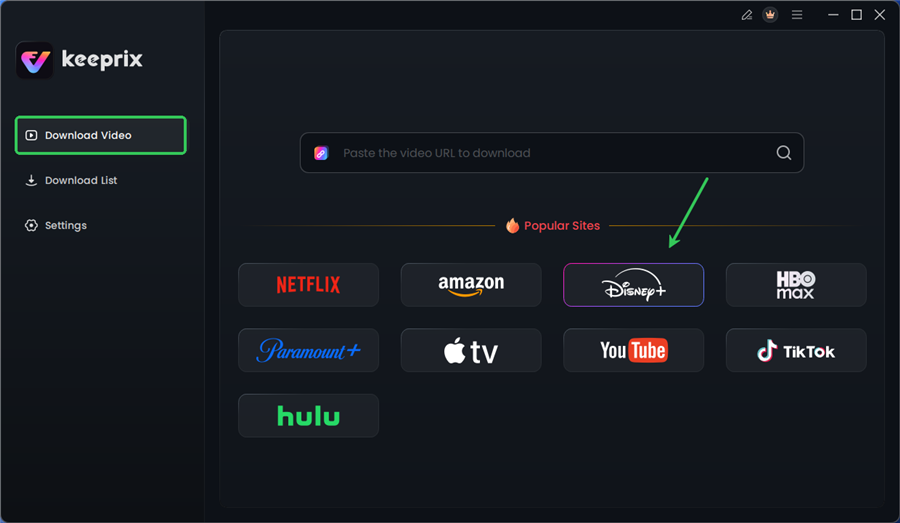
Choose Disney Plus in Keeprix
Step 3. Log in to your Disney+ account.
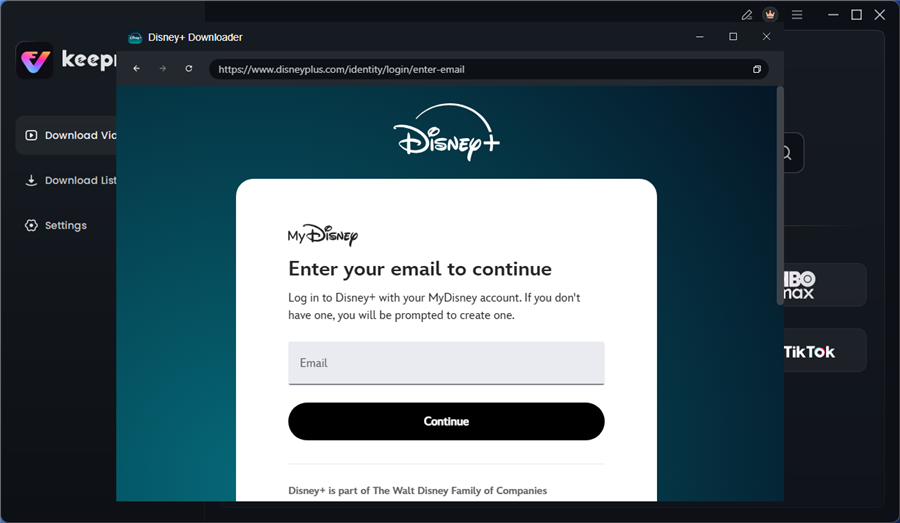
Log in to Disney Plus Account
Step 4. Search for the movies or series you’d like to download. Then click the download button to save it directly to your computer.
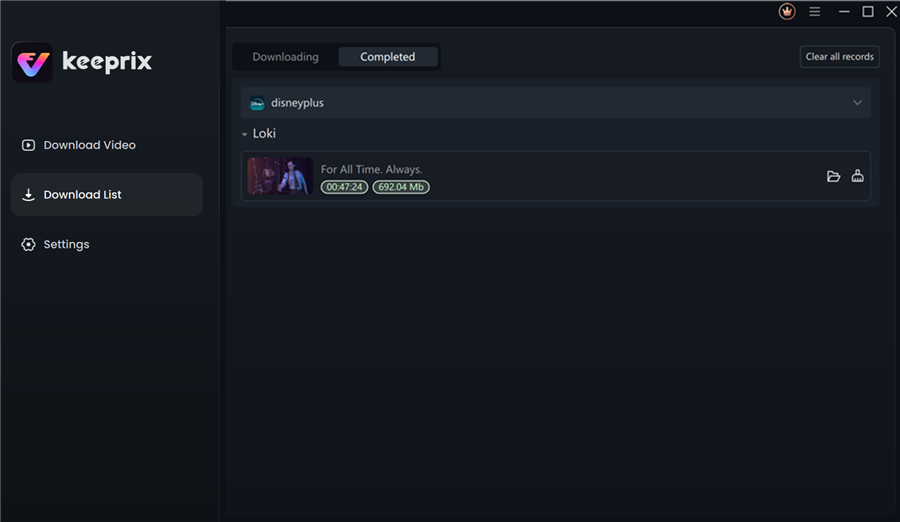
Disney Plus Downloaded Videos in Keeprix
This method effectively solves the Disney Plus app freezing or crashing on PS4 by removing the app from the equation entirely, relying instead on the PS4’s robust local video playback capabilities.
FAQ: Common Questions About Disney+ on PlayStation
How do I install Disney Plus on PS4?
Navigate to the PlayStation Store via the main dashboard, use the search icon to type “Disney Plus,” and select “Download.” Ensure your system firmware is updated first.
Why is Disney Plus not loading on my PS4?
This is typically caused by a corrupted cache or a connection drop. Perform a full power cycle (unplug for 30 seconds) to clear the cache. If the issue persists, highlight the app, press “Options,” and select “Check for Update.”
Do I need to update my PS4 to watch Disney Plus?
Yes. An outdated operating system can prevent PSN store apps from appearing or functioning. Go to Settings > System Software Update to verify your version.
Is Disney Plus available in all PS4 regions?
No. The app’s availability depends on your PSN account’s region. If your account is registered in an unsupported country, the app will not appear in the store.
Can I use my mobile device to control the PS4 app?
Yes. You can use the “cast” icon on your mobile Disney+ app if your phone and PS4 are on the same Wi-Fi network. This is also the easiest way to log in, as detailed in the installation steps above.
Conclusion
Successfully setting up your entertainment hub shouldn’t require a technical manual, but platform-specific quirks can sometimes block your access. Whether you needed to install Disney Plus on PlayStation 4 for the first time or troubleshoot a freezing app, the solution usually lies in verifying your firmware, clearing your cache, and ensuring your app is updated.
By following the official setup guide and using the “Smart Login” feature, you can eliminate the frustration of typing with a controller and get straight to your content. If you continue to struggle with a slow or unstable network causing playback problems, consider using a wired LAN connection or exploring offline playback options like Keeprix Downloader to bypass streaming requirements entirely.