How to Stream Disney Plus on Discord Without Black Screen

Hosting a digital movie night should be straightforward, but trying to learn how to stream Disney Plus on Discord frequently results in technical frustration. You set up the server, gather your friends in a voice channel, and start the stream, only to be met with the infamous Discord Disney Plus black screen. The audio plays perfectly, but the visual feed is completely dark.
If you are staring at that black screen right now, the solution is likely simpler than you think. This guide cuts straight to the fix. The issue is almost always caused by a conflict between your browser’s performance settings and Discord’s capture method. Below are the verified steps to resolve this on Chrome, Edge, and Firefox, along with a crucial cleanup checklist to ensure your computer runs smoothly after the movie ends.
How to Stream Disney Plus on Discord
You may also like: How to watch Disney Plus on Nintendo Switch
Method 1: Disabling Hardware Acceleration
The primary reason users encounter the Discord screen share not showing video error is hardware acceleration. By default, modern browsers utilize your computer’s GPU to render video efficiently. However, this acceleration allows streaming services like Disney+ to detect screen capture attempts and block the video feed to protect copyright.
To restore the picture, you must disable this feature in your browser and Discord.
Step-by-Step Procedure for Windows and Mac
Follow these steps for your specific browser. Note: You may need to refresh your stream in Discord after applying these changes.
1. Google Chrome Settings:
- Click the three vertical dots in the top-right corner and select Settings.
- Navigate to the System tab on the left sidebar.
- Toggle OFF the switch labeled “Use graphics acceleration when available.”
- Crucial: Click the “Relaunch” button that appears to apply the change.
2. Microsoft Edge Settings:
- Click the three dots in the top-right corner and choose Settings.
- Go to System and Performance.
- Turn OFF “Use hardware acceleration when available.”
- Restart the browser completely.
3. Mozilla Firefox Settings:
- Click the three horizontal lines in the top-right corner and select Settings.
- In the General tab, scroll down to the Performance section.
- Uncheck the box that says “Use recommended performance settings.”
- Uncheck the newly revealed box: “Use hardware acceleration when available.”
- Restart Firefox.
4. Discord App Configuration:
- Open Discord and click the User Settings near your username.
- Scroll down to Advanced under the “App Settings” header.
- Toggle OFF “Hardware Acceleration.”
- Discord will require a restart to apply this change.
Crucial Post-Movie Checklist: Revert Your Settings!
While disabling hardware acceleration fixes the Discord Disney Plus black screen, it forces your CPU to do all the heavy lifting. If you leave these settings off, other tasks—like playing video games, using design software, or even browsing media-heavy websites—will suffer from significant lag.
Once your watch party is over, follow this reversal guide:
- Re-enable Browser Acceleration: Go back to your browser settings and toggle “Use hardware acceleration” back ON.
- Re-enable Discord Acceleration: Go to Discord User Settings > Advanced and toggle “Hardware Acceleration” back ON.
- Restart Applications: Ensure you restart both apps to regain full system performance.
Improving the Experience: Audio and Visual Tips
Even after fixing the video, you might encounter other annoyances.
- The Cursor Issue: Since you are sharing a browser window, your mouse cursor may remain visible over the movie. Move your mouse to the far edge of the screen or use a browser extension that auto-hides the cursor during inactivity.
- Low Audio Volume: If friends complain the movie is too quiet, do not just turn up your speakers. Go to your PC’s “Volume Mixer” and ensure the browser volume is at 100%. In Discord, checking “Attenuate other applications” in Voice & Video settings can sometimes accidentally lower stream volume—ensure this slider is at 0%.
Why Does Disney Plus Go Black on Discord Streams?
Before looking at alternative methods, it is helpful to understand why this happens. The black screen is not a bug; it is a sophisticated feature working exactly as intended.
Understanding Widevine DRM Level 1
Disney+ utilizes a digital rights management (DRM) technology called Widevine DRM. On most modern browsers, this operates at “Level 1” security. This technology creates a secure, encrypted tunnel from the video source directly to your display monitor.
When you attempt to screen share Disney Plus on Discord, the screen capture APIs try to “hook” into the video renderer to duplicate the image. Widevine detects this unauthorized hook and instantly cuts the video feed to the capture software, replacing the protected content playback layer with a black screen. It leaves the audio intact because audio streams are often less strictly encrypted.
This explains why Disney Plus goes black on Discord streams while video games stream perfectly. Games are designed to be broadcast; premium streaming services are architecturally designed to prevent re-broadcasting. Disabling hardware acceleration forces the browser to use a software-based rendering method that DRM often fails to recognize or block.
Method 2: The Offline Alternative (Keeprix Downloader)
If the browser method results in choppy video or if your internet connection cannot handle streaming and uploading to Discord simultaneously, you may need to consider an alternative approach.
Some users opt to move from live-streaming a browser tab to sharing a local video file. Tools like Keeprix Downloader allow users to download Disney+ content directly to their drives. This converts the stream into a standard file (like MP4), which Discord can share without triggering DRM blocks.
⚠️ Important Warning: Terms of Service Risk
Please be aware that downloading content from Disney+ using third-party tools likely violates the Disney+ Terms of Service. While this method bypasses the black screen effectively, it technically involves stripping DRM protection. Use this method at your own risk and discretion.
How to Stream a Local File on Discord
The main advantage here is stability. Because the file is on your hard drive, you eliminate buffering issues caused by internet fluctuations.
Step 1. Get Keeprix Downloader Prepared: Download and install Keeprix Downloader on your Windows or Mac computer.
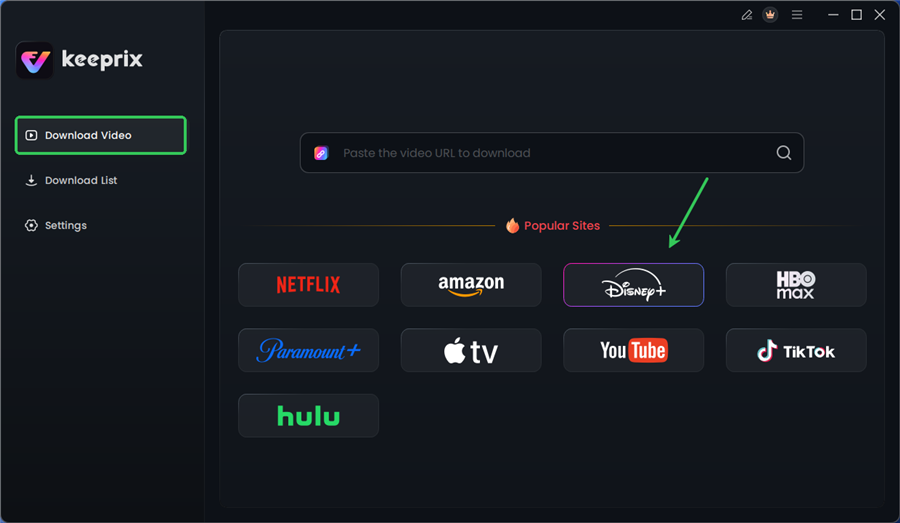
Choose Disney Plus in Keeprix
Step 2. Download the Content: Use Keeprix Downloader to save the movie or episode to your computer.
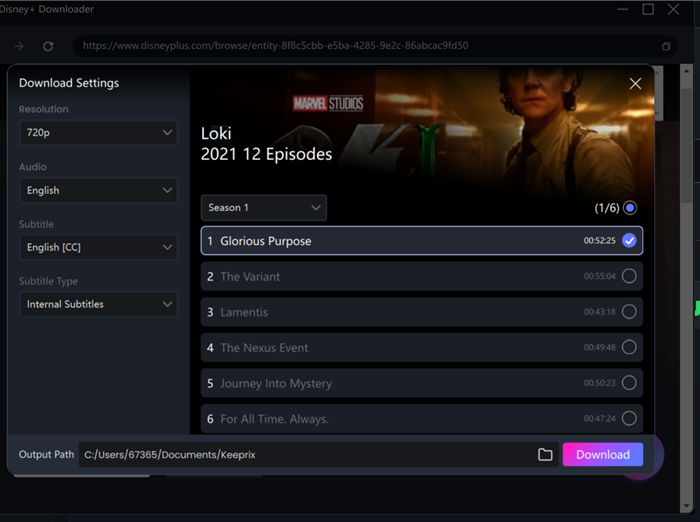
Configure Download Settings
Step 3. Open in a Media Player: Open the file in a standard player like VLC Media Player.
Proper Discord Setup:
- Join your voice channel.
- Click “Share Your Screen.”
- Critical Step: Click the “Applications” tab (do not use “Screens”).
- Select the VLC Media Player window.
- Click “Go Live.”
Why “Applications” matters: If you share your whole “Screen,” the audio might not pipe through to your friends correctly, or the picture quality might suffer. Sharing the specific “Application” window ensures Discord captures the direct video and audio feed from the media player.
Method 3: The Official Alternative (Disney+ GroupWatch)
If modifying browser settings feels risky or too technical, Disney+ offers a native feature called GroupWatch. This method does not involve Discord screen share; instead, it synchronizes the playback of a title across multiple devices through the Disney+ app or website.
How GroupWatch Works
GroupWatch allows you to invite up to six friends to watch a movie or show simultaneously. The key feature is synchronization—if one person pauses the stream to get a snack, it pauses for everyone. This ensures no one falls behind during critical plot moments.
Limitations to Consider
The primary drawback is cost and access. Unlike discord streaming troubleshooting scenarios where one host shares content with many viewers, GroupWatch requires every participant to have their own active Disney+ subscription.
Additionally, GroupWatch does not include voice chat. Users typically keep Discord open in the background for audio communication while watching the video on their own separate screens. This is the most legally compliant way to watch together, provided everyone in your group has a subscription.
Comparison: Browser Streaming vs. Offline Files vs. GroupWatch
When deciding how to stream Disney Plus on Discord, you are balancing quality, convenience, and compliance.
| Feature | Browser Streaming (Method 1) | Offline File (Method 2) | Official GroupWatch (Method 3) |
| Video Quality | 720p cap; potential pixelation. | Consistent 1080p Full HD. | Up to 4K UHD (Source Quality). |
| Stability | High risk of buffering; relies on live upload speed. | Zero buffering; local playback. | High; depends on individual internet. |
| Setup Difficulty | Medium (Requires changing settings). | Medium (Requires download time). | Easy (Native feature). |
| Cost | Free (One subscription needed). | Cost of software (One sub needed). | Expensive (Everyone needs a sub). |
| Legality | Grey Area (Personal Use). | High Risk (Violates ToS). | Fully Compliant. |
For casual viewing, Method 1 is sufficient. However, for a planned movie marathon where quality is paramount, or if browser streaming fails, having alternative options ensures the night isn’t ruined.
Frequently Asked Questions About Discord Streaming
Here are answers to the most common queries regarding Disney+ and Discord integration to help with your troubleshooting.
1. Why is the audio quiet when I stream?
This is often a Discord settings issue. Go to User Settings > Voice & Video and look for “Attenuation.” If this is set high, Discord lowers the volume of your stream whenever someone speaks. Set this to 0%. Also, ensure the volume slider in the specific video player is maxed out before you start streaming.
2. How to fix black screen streaming Disney Plus permanently?
There is no “permanent” fix within the browser because updates to Chrome, Edge, or Disney’s DRM can reset your progress. The only way to guarantee a black-screen-free experience permanently is to use the official GroupWatch feature or play a local video file, as neither relies on real-time browser capture.
3. Is it safe to disable hardware acceleration?
It is safe for your computer hardware, but it significantly reduces performance for other tasks. Browsing maps, playing games, or using design tools will feel sluggish. Always remember to turn acceleration back ON after your movie night.
4. Can I stream Disney+ on Discord from a mobile device?
No. Mobile apps (iOS and Android) have strict OS-level protections (HDCP) that block screen recording entirely. You cannot bypass this on a phone. The methods in this guide are strictly for Windows and macOS desktops.
Conclusion: Choosing Your Best Viewing Option
Navigating the restrictions of streaming apps on Discord requires a bit of technical maneuvering. You now have three verified paths:
- The Quick Fix: Disable hardware acceleration in Chrome, Edge, or Firefox. This works for most users instantly but lowers video quality.
- The Official Path: Use Disney+ GroupWatch. This is seamless and legal but requires everyone to pay for their own subscription.
- The Permanently Offline Path: Download the video using tools like Keeprix to play a local file via VLC. This offers the best stability and quality.
By understanding that streaming Disney Plus on Discord with a black screen is a deliberate DRM feature rather than a glitch, you can choose the workaround that best fits your group’s needs. Whether you choose to tweak your browser settings or opt for a local file, you now know to get the picture back on the screen and enjoy your movie night.