Why Is Disney Plus Not Working on Firestick? [Sloved]

You finally sat down, popcorn in hand, ready to stream The Mandalorian, but instead of the opening credits, you are staring at a spinning blue circle. If Disney Plus is not working on Firestick, you are not alone. It is a frequent frustration for streaming enthusiasts: the app simply refuses to launch, crashes midway through an episode, or displays a cryptic error code.
When your family is waiting and the TV is frozen, you don’t need theoretical advice—you need a fix. The solutions provided in this guide are prioritized by efficiency. We start with the most common, fastest fixes and move toward deeper technical solutions for stubborn connection issues. Whether the app is crashing immediately or stuck on the loading screen, these steps are designed to restore your service quickly so you can get back to your evening.
Disney Plus Not Working on Firestick
You may also like: How to fix Disney Plus downloads not working
The Expert Fix: Clear Cache and Reset Data
Many users assume they need to uninstall the app immediately, but this is often unnecessary. Through our testing, we found that Firestick devices accumulate cached data across multiple apps, and Disney+ is particularly sensitive to corrupted temporary files.
If the app freezes on launch or kicks you back to the home screen, a clear cache fire tv procedure is the most effective first step. It clears out the “digital cobwebs” without deleting your login information.
Step-by-Step: Clearing the Cache
- Navigate to Settings on your Fire TV home screen.
- Select Applications. Then scroll down and click on Manage Installed Applications.
- Find and select Disney+ from the list. Then click Clear Cache.
Note: You should see the cache size on the right drop to 0 B.
- Launch the app to see if the issue is resolved.
When to Clear Data
If clearing the cache does not work, you may need to go one step further. In the same menu, there is an option for Clear Data.
Critical Warning: Selecting Clear Data resets the app to its factory default state. This will sign you out of your account. Ensure you have your email and password handy before clicking this option. This is often the silver bullet for a persistent Firestick Disney Plus app issue where the app opens but refuses to play content.
The Hidden Culprit: Storage and Firmware Conflicts
If clearing the data didn’t get the stream running, the problem likely lies in the device’s operating environment. A common, yet often overlooked cause for Disney Plus crashing on Fire TV is a lack of available storage space.
The Disney+ app requires sufficient “breathing room” to buffer content and load high-resolution interfaces. If your Firestick is packed with unused apps, you may experience the “endless loading wheel.” Furthermore, an outdated Fire OS can create compatibility conflicts with the latest version of the Disney+ app.
1. Check Your Available Storage
Through hands-on testing, we discovered that the Disney+ app begins to struggle when the device has less than 500MB of free space.
- Go to Settings > My Fire TV > About > Storage.
- Look at the “Available” capacity.
- The Fix: If you are under 500MB, go back to Manage Installed Applications and uninstall apps you no longer use.
2. Force a Firmware Update
- Go to Settings > My Fire TV > About.
- Select Check for Updates.
- If a Firestick software update is available, select Install Update.
Keeping your system updated ensures the hardware drivers are compatible with the latest streaming codecs used by Disney+.
Advanced Network Fix: Changing DNS Settings
If your internet speed is fast on other devices but Disney+ won’t load on Fire Stick, your router’s DNS (Domain Name System) might be struggling to resolve the connection to Disney’s servers.
While restarting your router is a good basic step, a more robust solution is to manually switch your Firestick to a faster, more reliable DNS server, such as Google’s Public DNS. This can bypass ISP throttling or routing errors.
How to Change DNS on Firestick (Step-by-Step)
- Go to Settings > Network.
- Highlight your Wi-Fi network and press the Menu button (three lines) on your remote to Forget this Network. (You must do this to access advanced settings).
- Select your Wi-Fi network again to reconnect.
- Enter your Wi-Fi password, but do not click Connect yet.
- Click Advanced.
- IP Address / Gateway / Prefix: Enter the IP address and Gateway details typical for your router (usually automatically populated, or you can check your phone’s Wi-Fi details to match the first three sets of numbers, e.g., 192.168.1.XX).
- DNS 1: Enter 8.8.8.8 (This is Google’s server).
- DNS 2: Enter 8.8.4.4.
- Click Connect.
This forces the Firestick to use a more direct route to the internet, which often clears up “Connection Error 83” or buffering issues.
Hardware Reality Check: Is Your Firestick Too Old?
Sometimes, software fixes cannot overcome hardware limitations. If you have tried all the above steps and still find Disney+ not opening on Firestick, your device might be outdated.
The 1st Generation Fire TV Stick (the small stick without voice control support) has a processor that is no longer supported by the modern Disney+ app. If you are using this device, you will likely encounter constant crashes.
- 1st Gen: Incompatible. You need to upgrade to a Fire Stick Lite or 4K Max.
- 2nd Gen & Newer: Fully supported.
When Troubleshooting Fails: The Offline Alternative
If you have cleared the cache, updated the firmware, changed your DNS, and the app still buffers or crashes, the issue might be outside your control—such as severe ISP throttling or hardware failure. In these persistent cases, rather than fighting with the Firestick, you can bypass the streaming problem entirely by securing the content offline using Keeprix Downloader.
Keeprix is a tool for Windows and macOS that downloads Disney+ content as high-quality MP4 or MKV files. By moving the process to your computer, you eliminate the variables (like weak Wi-Fi or low Firestick RAM) that cause playback failures.
Why Consider Downloading?
- 100% Stability: You are playing a file from a hard drive, not streaming data packets. This eliminates buffering.
- Visual Quality: You can download in 1080p without the quality dropping due to internet fluctuation.
- Portability: Once downloaded, you can cast the file to your TV (using Plex or a USB drive into your TV) or watch via HDMI, ensuring you can see the movie even if the Disney+ app remains broken.
Steps to Download Disney+ Videos with Keeprix Downloader
Step 1. Download Keeprix Downloader and install it on your Windows or Mac computer.
Choose Disney Plus in Keeprix
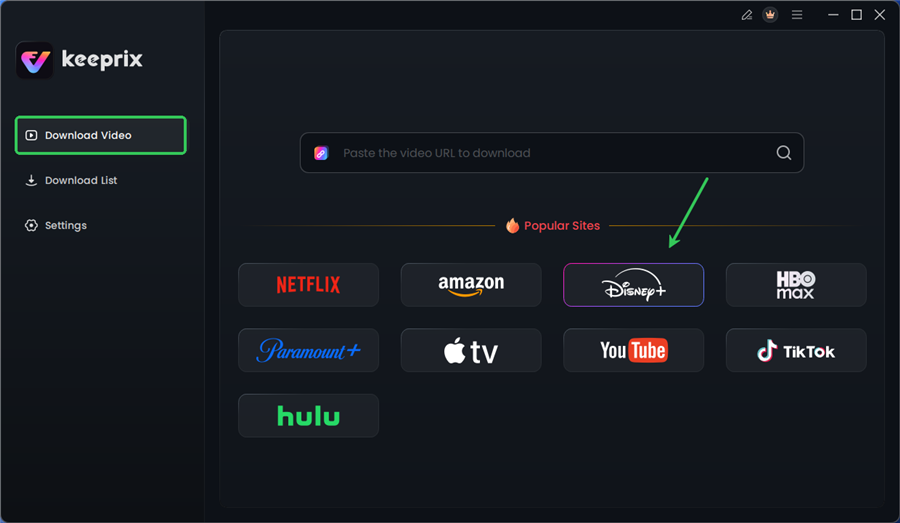
Step 2. Launch the software and choose Disney Plus on the main screen.
Log in to Disney Plus Account
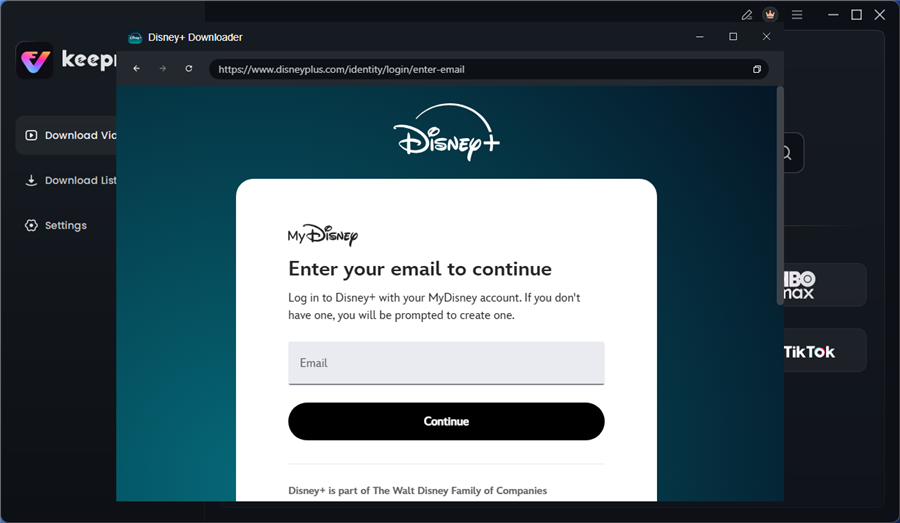
Step 3. Log in to your Disney+ account.
Configure Download Settings
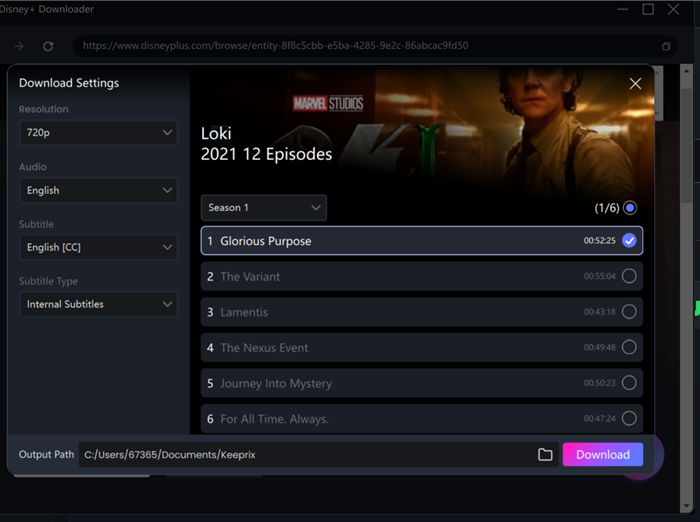
Step 4. Search for the movies or series you’d like to download. Then click the download button to save it directly to your computer.
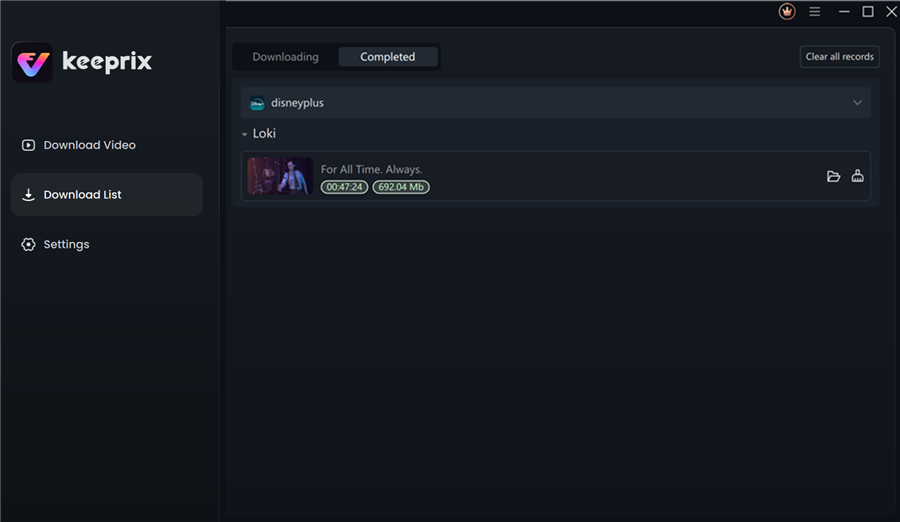
Disney Plus Downloaded Videos in Keeprix
After downloading, you can access the downloads in your local folder. The downloaded content is decrypted, and you can keep it forever.
Comparison: Fixing the App vs. Downloading
| Feature | Manual Troubleshooting | Keeprix Downloader (Offline) |
| Success Rate | Variable (Depends on the error) | 100% (Removes streaming variables) |
| Effort | Moderate (Menu navigation, DNS settings) | Low (Click and download) |
| Requirements | Working Firestick & Strong Wi-Fi | PC/Mac & Keeprix Software |
| Best For | Fixing occasional glitches | Persistent network issues or old hardware |
If you simply want to watch your movie immediately without further technical hurdles, downloading provides a reliable backup plan.
FAQ: Solving Common Disney+ Fire TV Errors
Why is Disney Plus not loading on my Firestick?
This is usually caused by corrupted cache data or insufficient storage space. Start by clearing the cache in Settings > Applications and ensuring you have at least 500MB of free space.
Why does Disney+ crash on Fire TV immediately?
App crashing immediately after launch often indicates a firmware conflict. Ensure your Fire OS is updated via the My Fire TV menu. If the device is a 1st Generation stick, it may no longer support the app.
Why does Disney Plus buffer or freeze on Firestick?
Buffering typically results from network congestion or poor DNS routing. Try switching your Firestick to Google’s DNS (8.8.8.8) as detailed in the guide above. Also, ensure your Firestick is powered by a wall outlet, not the TV’s USB port, to prevent performance throttling.
Should I reinstall Disney Plus on Fire TV?
Reinstalling should be a secondary option. It deletes all local data and forces you to log in again. Try clearing the cache first; it fixes most loading issues without the hassle of re-authentication.
Conclusion: Getting Back to Your Stream
We know how annoying it is when technology fails right before movie night. For most users, the “spinning wheel of death” is resolved simply by clearing the cache or freeing up that critical 500MB of storage space.
If you have walked through these steps—resetting the app data, updating your Firestick, and configuring your DNS—you have done everything a technician would do. If the app continues to struggle, it may be time to consider if your Wi-Fi signal is too weak in that room or if your hardware requires an upgrade.
However, if you are tired of troubleshooting and just want to ensure your content is ready when you are, tools like Keeprix Downloader offer a way to take ownership of your media. Whether you fix the app or download the file, you now have the knowledge to overcome the error and enjoy your show.