How to Watch Disney Plus in 4K: Better Streaming Experience

You have invested in a pristine 4K TV and a high-end sound system, specifically to watch The Mandalorian or the latest Marvel blockbuster in stunning detail. But when you hit play, the image looks soft, grainy, or dark. It is incredibly frustrating to expect plug-and-play perfection only to be met with a standard HD stream.
Facing a setup that refuses to perform when you are ready to relax is a significant obstacle. Whether you are dealing with Disney Plus not showing the 4K badge on movies, or titles playing only in HD despite your 4K hardware, the issue usually lies in a single, invisible bottleneck within your connection chain.
This guide details exactly how to watch Disney Plus in 4K by addressing the three pillars of UHD streaming: subscription, internet speed, and hardware compliance. We will cover specific settings for Smart TVs and streaming sticks, and introduce a method to watch Disney Plus offline if your internet connection cannot support the heavy data demands of ultra-high definition.
Watch Disney Plus in 4K
Disney+ 4K Requirements: Your Activation Checklist
Accessing Ultra HD content is not as simple as having a compatible screen. Disney+ enforces a strict digital handshake that checks your entire system before authorizing a 4K stream. If any component—from your cable to your subscription—fails this check, the service automatically downgrades your video quality to protect playback stability.
To successfully watch Disney+ Ultra HD, you must satisfy these three conditions:
1. The Right Subscription Plan
The most common oversight is the subscription tier. Not all accounts are created equal. You must be subscribed to the Disney+ Premium (No Ads) plan to access 4K UHD and HDR content. The standard ad-supported tiers frequently cap playback resolution at 1080p.
- Action: Open a web browser on your phone or computer (the TV app often hides this). Go to Account > Subscription. Confirm you are on the “Premium” tier.
2. Internet Speed Bandwidth
Internet speed for 4K is non-negotiable. Disney+ is bandwidth-heavy compared to other services. While basic HD streaming is forgiving, 4K HDR requires a robust pipeline.
See the table below to understand if your connection is sufficient:
| Quality Format | Minimum Speed | Recommended Speed | Data Usage |
| HD (1080p) | 5 Mbps | 10 Mbps | ~3 GB/hour |
| 4K UHD | 20 Mbps | 25 Mbps | ~7 GB/hour |
| 4K Dolby Vision | 25 Mbps | 35+ Mbps | ~8+ GB/hour |
These numbers refer to sustained speed. If your Wi-Fi fluctuates—dropping to 15 Mbps for even a second—the app will aggressively buffer or drop the resolution. For the most consistent results, use a wired Ethernet connection rather than Wi-Fi.
3. Hardware Compliance (HDCP 2.2)
Your display and streaming device must support HDCP 2.2 (High-Bandwidth Digital Content Protection). This is a security protocol designed to prevent piracy. If you are connecting an external device (like a Roku, Apple TV, or PC) to a TV, the HDMI cable connecting them must be rated as “High Speed” (HDMI 2.0 or higher) to carry the full 4K signal.
You may also like: How to download Disney Plus to MP4
Verifying Your Signal: Where is the Badge?
Before troubleshooting your hardware, you need to know what to look for. Disney+ does not have a “quality toggle” inside the video player. Instead, it displays a badge on the movie’s information page indicating the highest quality your current setup can handle.
Step 1. Open the Disney+ app on your TV.
Step 2. Navigate to a known 4K title.
Step 3. Click the specific title to open the Details tab.
Step 4. Look under the Play button and rating.
- Success: You see badges saying 4K Ultra HD, HDR10, or Dolby Vision.
- Failure: You only see HD or 5.1. This confirms your system is failing the handshake, and the app is limiting you to 1080p.
How to Fix 4K on Smart TVs (Samsung, LG, Sony)
Many users utilize the built-in apps on their Smart TVs rather than external sticks. If you have a modern 4K TV but the Disney+ app is stuck on HD, follow these specific steps.
Samsung TV (Tizen OS) & LG TV (WebOS)
Smart TV operating systems often manage bandwidth aggressively to keep the TV menu smooth, which can throttle streaming apps.
Step 1. Check “Data Saver” Settings: Go to your TV’s main Settings (not the app settings). Look under General or Network. Ensure any “Data Saver” or “Eco Mode” features are turned OFF. These modes often throttle Wi-Fi speed.
Step 2. Update the App Manually: TV apps do not always auto-update. Go to the “Apps” section on your TV’s home bar. Find Disney+, long-press (or click “Options”), and select Update Apps. An outdated app version is a common cause for losing 4K support.
Step 3. Cold Boot the TV: Simply turning your TV off often puts it in “Standby,” retaining old cache files. To force a handshake refresh:
- Samsung: Hold the Power button on the remote for 5 seconds until the Samsung logo appears.
- LG/Sony: Unplug the TV from the wall for 60 seconds. Plug it back in and relaunch Disney+.
Android TV / Google TV (Sony, Hisense, TCL)
Android TVs have deep system settings that can conflict with HDR signals.
Step 1. Enable Enhanced HDMI: If you use an external soundbar or receiver, ensure your HDMI inputs are configured correctly. Go to Settings > Channels & Inputs > External Inputs > HDMI Signal Format. Set this to Enhanced Format (or 4K/60Hz). If set to “Standard,” 4K HDR will be blocked.
Step 2. Clear App Cache: If the badge reads “HD” despite good internet, the app may have cached your connection status from a moment of bad Wi-Fi. Go to Settings > Apps > Disney+ > Clear Cache. Relaunch the app to force it to re-test your speed.
How to Fix 4K on Streaming Sticks
If your Smart TV’s interface is slow or outdated, or if the built-in app refuses to play 4K, using a dedicated streaming device is often the superior solution. However, you must ensure the specific model supports UHD.
Checking Your Source Device
A common issue is using an older-generation stick on a new TV. Your TV displays the resolution it receives. If you plug a standard 1080p Fire Stick into a 4K TV, you will only see an upscaled 1080p image.
To watch native 4K, your device model must be one of the following (or newer):
- Roku: Roku Streaming Stick 4K, Roku Ultra, or Roku Express 4K+. (Note: The standard Roku Express is 1080p only).
- Fire TV: Fire TV Stick 4K, 4K Max, or Fire TV Cube.
- Apple TV: Apple TV 4K (1st Gen or later). The “Apple TV HD” model looks identical but is limited to 1080p.
- Chromecast: Chromecast with Google TV (4K version).
Understanding HDR10 vs. Dolby Vision
Disney+ supports two major High Dynamic Range formats. The app selects these automatically based on what your device supports.
- HDR10: The baseline standard. If your TV is 4K but older, you will likely get this signal.
- Dolby Vision: A premium dynamic format that adjusts brightness frame-by-frame. If your TV supports this, Disney+ will prioritize it.
Pro Tip: If your colors look washed out or “grey” when 4K kicks in, go to your streaming stick’s display settings and switch from “Dolby Vision Always On” to “Match Content Dynamic Range.” This forces the stick to switch modes only when the movie actually requires it, preventing color errors on the menu.
When Internet Fails: A Stability Solution
Even with the correct hardware and settings, you are still at the mercy of your internet service provider (ISP). 4K streaming requirements demand massive amounts of consistent data.
If you have performed the checks above and still experience buffering, stuttering, or quality that keeps dropping from 4K to grainy SD, your internet connection likely cannot sustain the 25+ Mbps required for a live UHD stream. In this scenario, trying to force a 4K stream results in a worse experience than a smooth HD stream.
The Keeprix Alternative: Stability Over Resolution
For users with inconsistent internet, the best way to guarantee a smooth movie night is to remove the “live” element entirely. Keeprix Downloader allows you to download Disney+ titles directly to your PC or Mac.
Important Distinction: Keeprix downloads video files in 1080p High Bitrate, not 4K.
However, for many users, a pristine, high-bitrate 1080p file plays better than a 4K stream that is constantly buffering or heavily compressed by a struggling internet connection. Downloading shifts the burden from real-time streaming to your local storage, ensuring zero buffering and no resolution drops.
How to Use Keeprix for Offline Archiving
This method is ideal for creating a permanent library or for watching on a laptop/desktop where 4K streaming is often blocked by browsers anyway.
Steps to Download Disney+ Videos with Keeprix Downloader
Step 1. Download Keeprix Downloader and install it on your Windows or Mac computer.
Step 2. Launch the software and choose Disney Plus on the main screen.
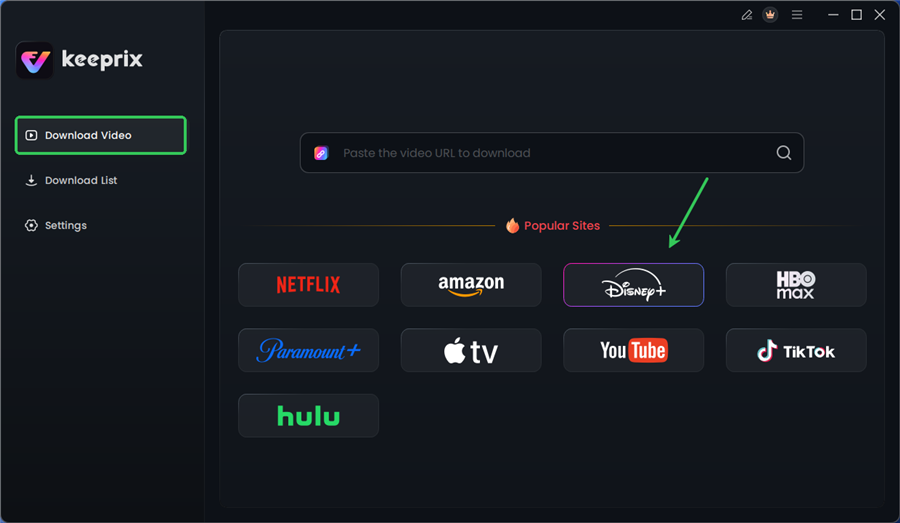
Choose Disney Plus in Keeprix
Step 3. Log in to your Disney+ account.
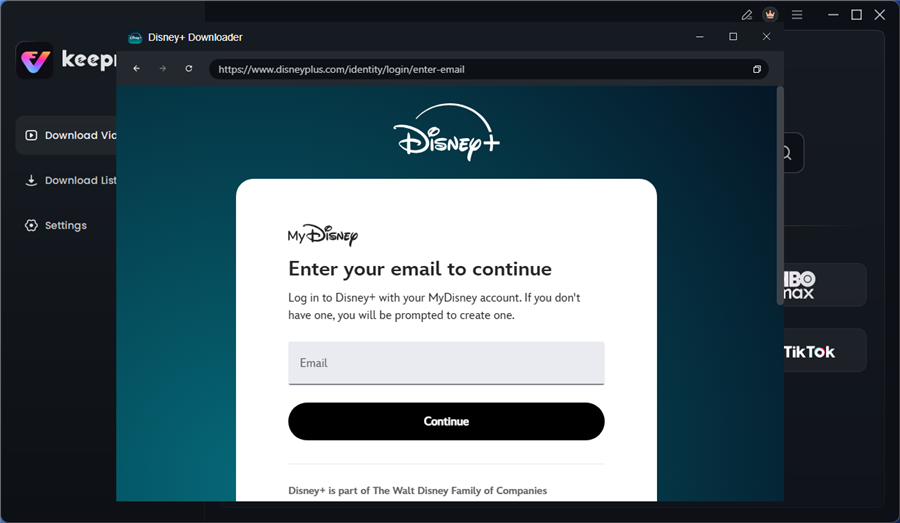
Log in to Disney Plus Account
Step 4. Search for the movies or series you’d like to download. Then click the download button to save it directly to your computer.
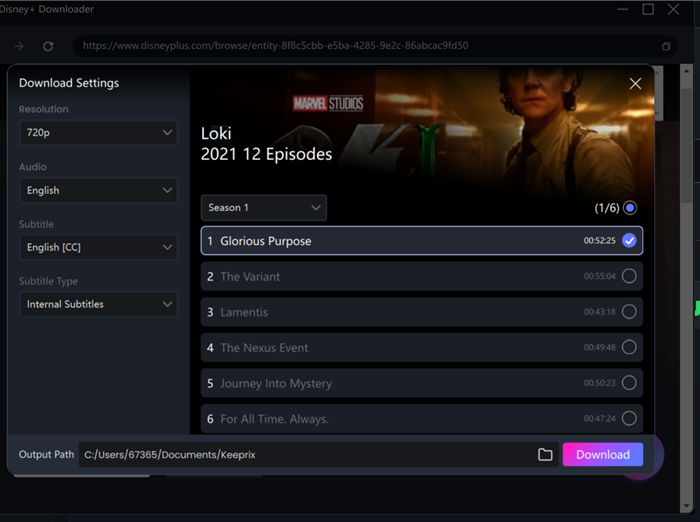
Configure Download Settings
After downloading, you can access the content in your local folder. Then you can watch Disney Plus offline in 4K resolution.
Troubleshooting: Why Can’t I Stream 4K on PC?
Desktop users frequently encounter troubleshooting HDCP-related 4K playback issues. A common misconception is that a high-resolution computer monitor will automatically stream Disney+ in 4K.
In reality, browsers are capped at 720p or 1080p. Chrome, Firefox, and Edge restrict resolution due to Digital Rights Management (DRM) constraints to prevent screen recording.
The HDCP 2.2 Handshake Failure
If you are seeing a black screen or an error message (like Error 83) when connecting a computer to a 4K monitor or TV, you are likely facing an HDCP handshake failure. This occurs when the secure connection between your computer’s graphics card, the HDMI cable, and the monitor is broken.
To achieve even 1080p/HDR on a PC connected to a TV:
- Cable: Must be a high-speed HDMI 2.0+ cable.
- Windows: Use the official Disney+ app from the Microsoft Store, not a web browser.
- macOS: Safari offers the best quality on Apple Silicon Macs, but external displays are often restricted by macOS’s strict DRM enforcement.
For the most reliable 4K experience, a dedicated streaming device or Smart TV app is always superior to a PC setup.
Frequently Asked Questions About Disney+ 4K
How do I enable 4K on Disney Plus?
There is no manual switch to “enable” 4K. The app automatically detects your hardware capabilities and bandwidth. You can try to “force” a re-check by clearing the app’s cache (on Android/Google TV) or unplugging your TV for 60 seconds (on Samsung/LG).
Why does Disney Plus not show the 4K badge?
This indicates a bottleneck. Check the following:
- Plan: Are you on the Premium tier?
- Cable: Is your HDMI cable rated for high speed?
- Port: Are you plugged into an HDMI port that supports HDCP 2.2 (sometimes labeled as HDMI 1 or ARC)?
What internet speed is required for Dolby Vision?
While 25 Mbps is the minimum for 4K, Dolby Vision involves more data. We recommend a steady speed of 35 Mbps or higher for uninterrupted Dolby Vision playback.
Why is the picture dark in 4K?
This is usually an HDR issue. If your TV has low peak brightness, HDR content can appear dim. Try going to your TV’s picture settings and increasing “Backlight” or “OLED Light” to the maximum. Alternatively, change your streaming device settings to “SDR” to disable HDR while keeping 4K resolution.
Does every Disney+ title support 4K?
No. While most new Originals and Marvel/Star Wars movies are in 4K, older library titles may only be available in HD. Always check the Details tab for the “4K Ultra HD” badge before playing.
Conclusion
Getting the best picture quality out of your subscription shouldn’t require an IT degree, but understanding the chain of requirements allows you to fix the problem quickly. Whether you need to enable “Enhanced HDMI” on your Sony TV, cold boot your Samsung Tizen interface, or simply upgrade an old HDMI cable, solving these hardware bottlenecks is the only way to watch Disney Plus in 4K as intended.
If you have optimized your hardware but your internet connection still struggles with the heavy 25+ Mbps requirement, remember that a stable image is better than a buffering one. Tools like Keeprix Downloader offer a reliable backup plan, allowing you to enjoy high-quality, stutter-free playback offline when your live connection just can’t keep up.