Why Is Disney Plus So Slow? Fix Disney Plus Buffering & Freezing

If you are asking, “Why is Disney Plus so slow?” you are likely staring at a spinning blue circle instead of the opening scene of your favorite Marvel movie or Star Wars series. Facing a locked screen when you have finally carved out time to relax is a significant obstacle. It transforms entertainment into a troubleshooting session.
Consider the experience of Emma, a “Home Streamer” we consulted for this guide. Like many users, she noticed frequent buffering while watching Disney Plus on her Smart TV, despite paying for a premium high-speed internet plan. Her experience mirrors a widespread issue: video freezing during playback often feels random, but it usually stems from specific bottlenecks in your network or device configuration.
Whether you are encountering stuttering audio, pixelated video, or complete playback failure on your TV or computer, this guide provides the solution. We have moved past generic advice to focus on specific variables—from router placement to app settings—that dictate your streaming performance.

Why Is Disney+ So Slow
Also read: How to fix Disney Plus not loading
Diagnostic Checklist: Is It Your Internet or Your Device?
Before you start unplugging cables, it is vital to identify where the problem originates. Buffering is usually caused by one of two things: the internet connection reaching your house is too slow, or your TV/Stick is struggling to process the app.
Use this rapid checklist to diagnose the culprit:
- Stand next to your TV/Streaming Device with your smartphone.
- Run a speed test on your phone while connected to the same WiFi network.
- Analyze the Result:
- Result A (High Speed): If your phone shows speeds over 25 Mbps but the TV is still buffering, the issue is likely Hardware or WiFi Interference. Your internet is fine, but your TV is struggling to receive or process it.
- Result B (Low Speed): If your phone shows speeds under 5 Mbps, the issue is your Network. The signal reaching that room is weak, or your ISP is experiencing congestion.
Once you know the source, you can skip to the relevant section below.
Quick Fix for All Devices: Adjust Quality Settings
One of the most effective, yet often overlooked, methods to stop video freezing is manually adjusting the data consumption settings within the Disney+ app. This is the first step recommended for Smart TV and Firestick users.
By default, the app attempts to stream at the highest quality possible, which requires a steady speed of at least 25 Mbps. If your network dips below this threshold even for a second, buffering occurs immediately.
How to Lower Bitrate for Stability
Lowering the visual fidelity slightly can drastically improve playback stability. Here is the procedure to adjust these settings (this applies to TV Apps and Mobile):
- Open the Disney+ app and navigate to your Profile icon.
- Select App Settings.
- Locate the Video Quality or Wi-Fi Data Usage menu.
- Change the setting from “Automatic” to “Moderate,” “Save Data,” or “Standard.”
Selecting “Moderate” caps the bitrate. While you may notice a slight reduction in sharpness, this ensures the stream requires significantly less bandwidth. This technique is particularly useful during internet rush hour when regional nodes are congested. It forces the app to prioritize continuous playback over pixel-perfect resolution.
Network Realities: Why Fast Internet Still Results in Lag
A plausible insight is that many buffering issues occur due to WiFi congestion rather than total internet speed. This means households with multiple connected devices may experience reduced Disney Plus performance even on high-speed plans. You might pay for 500 Mbps, but if that bandwidth is split between a gaming console, three smartphones, and a laptop, the “pipe” available for your TV shrinks drastically.
Understanding Bandwidth Allocation
Think of your internet connection as a highway. During peak hours (usually evenings), traffic increases. If your router prioritizes a gaming console downloading a large update, your Disney Plus stream is forced into the slow lane. This is why you experience lag even when a speed test shows decent numbers—the available continuous bandwidth is fluctuating.
Emma’s Discovery: Location & Signal Strength
Returning to our home streamer, Emma, she faced this exact contradiction: fiber-optic internet but constant buffering. After searching for solutions regarding “Disney Plus connection issues,” she learned that her router location and WiFi interference were the culprits.
She had placed her router inside a cabinet behind the TV to hide the cables. This physical barrier degraded the signal significantly. By simply repositioning the router to an open, central shelf, she cleared the interference. The moment she moved the hardware, the signal strength stabilized, and her Disney Plus playback smoothed out immediately.
Using WiFi Extenders and Mesh Systems
If your router is in the living room but you are trying to watch Disney+ in a bedroom upstairs, the signal may simply be too weak to sustain a stream. Emma’s solution of moving the router works for some, but if distance is the issue, you need hardware support.
- WiFi Extenders: These are budget-friendly devices that plug into a wall outlet halfway between your router and your TV. They “catch” the signal and rebroadcast it. They are great for fixing dead zones in single rooms.
- Mesh Systems: For larger homes, a Mesh system (like Eero or Orbi) replaces your single router with multiple “nodes” placed around the house. This creates a blanket of fast WiFi, ensuring your Smart TV in the basement gets the same speed as the one next to the modem.
Hardware Optimization: Fixing the Disney+ App
If your network is stable but playback still fails, the hardware itself—your TV, stick, or computer—needs attention.
For Smart TVs, Firesticks, and Roku
Streaming sticks often run on limited processors and memory (RAM). If the device has been running for weeks without a restart, or if the cache is full, it will struggle to process the video stream.
- The “Real” Power Cycle: Turning your TV off with the remote puts it in “Standby,” not “Off.” To clear the system memory, you must unplug the TV or stick from the wall outlet for at least 60 seconds. Plug it back in to force a fresh boot.
- Clear Cache:
- Fire TV: Go to Settings > Applications > Manage Installed Applications > Disney+ > Clear Cache.
- Android TV: Go to Settings > Apps > Disney+ > Clear Cache.
- Roku: Roku does not have a “clear cache” button. You must remove the Disney+ channel, restart the Roku (Settings > System > Power > System Restart), and then reinstall the channel.
For Desktop Users (Windows & macOS)
If you stream on a browser, specific settings can conflict with Disney’s copy protection.
- Enable Hardware Acceleration: Your browser uses the CPU for most tasks, but video decoding works better on the GPU.
- Chrome/Edge: Settings > System > Toggle “Use graphics acceleration when available” to ON.
- Firefox: Settings > General > Performance > Uncheck “recommended” > Check “Use hardware acceleration.”
- Update Widevine: Type chrome://components/ in your address bar, find “Widevine Content Decryption Module,” and click “Check for update.”
The Offline Alternative: Watching Without a Connection
Sometimes, despite your best troubleshooting efforts, the internet simply won’t cooperate. This is common during ISP outages, severe weather, or when traveling to locations with poor connectivity. In these scenarios, the only way to guarantee smooth playback is to bypass streaming entirely.
Keeprix Downloader is a tool for Windows and Mac that allows you to download Disney+ movies and shows as MP4 files directly to your hard drive. This isn’t just for watching on your laptop; it is a powerful method for “pre-loading” your entertainment for the living room.
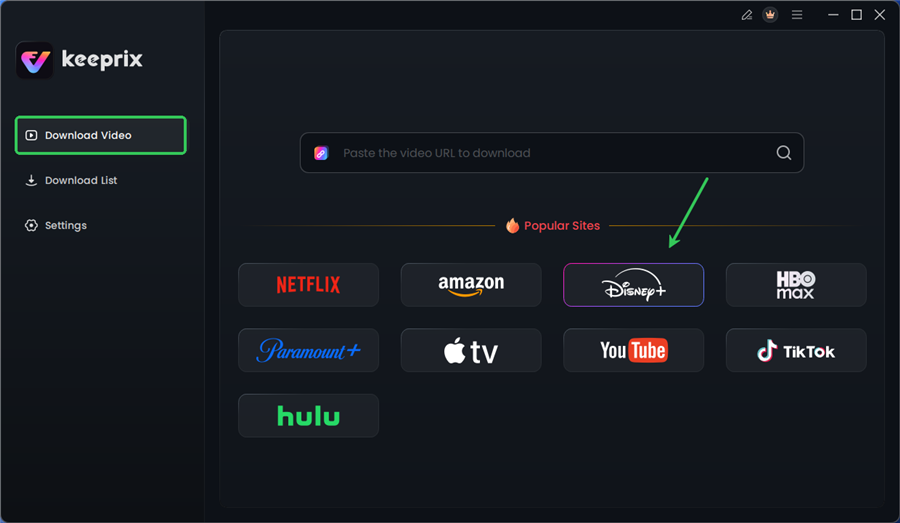
Choose Disney Plus in Keeprix
How to Watch Downloaded Files on Your TV
Unlike the mobile app’s download feature, which restricts you to watching on a small screen, downloading via Keeprix gives you a standard video file. Here is how to get that buffer-free movie onto your big screen:
- USB Playback: Most modern Smart TVs have a USB port on the back. Copy your downloaded Disney+ movie to a USB flash drive, plug it into your TV, and use the TV’s “Media Player” app to watch.
- HDMI Connection: Connect your laptop directly to your TV using an HDMI cable. This turns your TV into a monitor, playing the file flawlessly from your computer’s hard drive.
- Plex/Home Media Server: If you are tech-savvy, you can add the downloaded files to a Plex server on your PC and stream them locally to the Plex app on your Smart TV.
By having the file physically on your device (or USB), you achieve a 100% success rate for playback. You eliminate variables like bandwidth fluctuation, server congestion, and signal interference. It shifts the workflow from “stream and hope” to “download and own.”
Common Questions About Disney+ Slow Speeds
1. Why is Disney+ buffering even with good internet?
Buffering with fast internet is usually caused by local network congestion, weak WiFi signal strength due to router placement, or corrupted cache files on your device. It may also result from ISP throttling, where your provider intentionally slows down streaming traffic to manage load.
2. How much speed does Disney Plus actually require?
Disney+ recommends a minimum of 5.0 Mbps for High Definition (HD) and 25.0 Mbps for 4K UHD. However, we recommend having at least 30% overhead above these numbers. If you want to watch in 4K, aim for a stable connection of 35-40 Mbps to account for fluctuations.
3. Why does Disney+ buffer more on my Firestick than my phone?
Streaming sticks often have smaller WiFi antennas and are tucked behind the TV, where the signal is blocked by the TV’s metal chassis. Your phone, being out in the open, gets a better signal. Using an HDMI extender cable to move the stick away from the back of the TV can help.
4. Does Disney Plus buffer more during peak hours?
Yes. Between 7 PM and 11 PM, residential internet traffic spikes. This congestion happens at the ISP node level, meaning your neighbors’ usage can affect your bandwidth availability.
Conclusion
Video freezing during playback does not have to be the norm for your movie nights. By diagnosing whether the issue is your network speed or your device hardware, you can apply the right fix—whether that is adjusting your router placement, lowering the video quality settings, or clearing your app cache.
For those moments when the internet is simply too unreliable, or when you want to build a permanent library for offline viewing, tools like Keeprix Downloader offer a robust alternative. Whether you choose to optimize your stream or download your content for USB playback, you now have the control to ensure your entertainment is ready instantly, whenever you are.