How to Watch Disney Plus with Friends: Validated Methods

Connecting with loved ones over a favorite movie should be simple, yet technical barriers often turn a fun night into a headache. Take “Lily,” a user we call The Long-Distance Friend. She tried to host a virtual movie night to bridge the gap between cities, only to find that standard screen sharing resulted in a black screen, blocking the video while audio played in the background. She then tried browser extensions like Teleparty, only to face constant disconnection errors.
If you are trying to watch Disney Plus with friends, you have likely faced similar frustrations: confused setups, region-locking issues, or the infamous DRM black screen. Whether you are planning a remote viewing party or just want to catch up on the latest series together, this guide provides the specific solutions that actually work. We move beyond generic advice to compare the official Disney Plus GroupWatch feature against third-party extensions and professional methods, ensuring your movie night happens without a hitch.

How to Watch Disney Plus with Friends
Also read: Can I watch Disney Plus abroad
At a Glance: GroupWatch vs. Teleparty vs. Professional Tools
Before you send out invites, you must choose the right watch party platform based on your group’s location and equipment. Most users attempt standard screen sharing first, only to hit copyright blocks. Others try browser extensions like Teleparty, which can be unstable with Disney’s frequent app updates.
The following comparison evaluates the three primary methods: the official Disney Plus GroupWatch, popular browser extensions, and a local file workaround. This table identifies which method solves problems like co-watching features availability and cross-border restrictions.
Comparison: Choosing Your Viewing Method
| Feature | Official GroupWatch | Browser Extensions | Keeprix Method |
| Black Screen Risk | None | Moderate to High (DRM Blocks) | None (Plays Local File) |
| Chat Support | Emoji Reactions Only | Text Chat Only | Voice & Text (via Discord) |
| Region Compatibility | Strict (Must match country library) | Strict (Must match country library) | Global (Removes Restrictions) |
| Sync Quality | Perfect (Server-side sync) | Variable (Desyncs often) | Manual (Host controls playback) |
If all your friends have their own Disney+ subscriptions and reside in the same country, the official Disney Plus GroupWatch feature is the most straightforward method. However, if you need to watch with friends who do not have accounts, or who live in regions with different content libraries, the local file workaround detailed in Method 2 is the most stable solution to avoid black screens.
Method 1: Using Disney+ GroupWatch (The Official Way)
Disney Plus GroupWatch is the platform’s native solution for synchronized viewing. It allows up to seven people to watch a title simultaneously. While it ensures perfect video sync, it has a significant limitation: it lacks text or voice chat, offering only emojis for reactions.
How to Set Up GroupWatch on Desktop
- Log In: Navigate to the Disney+ website on your supported browser.
- Select Content: Click on the movie or show you wish to watch together.
- Initiate GroupWatch: Select the GroupWatch icon located next to the “Play” and “Add to Watchlist” buttons on the details page.
- Invite Friends: Click the “plus” icon to generate a link. Copy and send this link to your friends via text or email.
- Start Stream: Once everyone has joined the lobby, click “Start Stream.”
The “Dual-App” Strategy for Voice Chat
Because GroupWatch prevents real-time conversation, the experience can feel surprisingly quiet. This is where our persona, Lily, found a practical workaround that saved her movie night.
After realizing she couldn’t hear her friends laugh during the movie, she adopted a “dual-app” setup. She utilized Disney+ GroupWatch for the video feed to ensure high-quality, synchronized playback, while simultaneously keeping a Discord voice call open on her phone or a secondary browser tab.
Why this works:
- Video Quality: You get the full 1080p or 4K stream directly from Disney’s servers.
- Social Connection: You maintain the banter of a remote viewing party without relying on Disney’s limited interface.
- Bandwidth Management: By offloading voice chat to a phone or separate device, you reduce the processing load on your computer, ensuring the video stream remains smooth.
Method 2: How to Watch Disney Plus Offline with Friends
For a smooth experience—especially if your friends are in different countries or don’t have subscriptions—the most reliable technical solution is to download Disney Plus to MP4 using a tool like Keeprix Downloader.
The Workflow for DRM-Free Sharing
Keeprix acts as a bridge between the streaming service and your watch party platform. By downloading the content as a local file, you remove the encryption that triggers black screens during screen sharing.
Step 1. Download and install Keeprix Downloader on your computer.
Step 2. Launch the software and choose Disney Plus on the main screen.
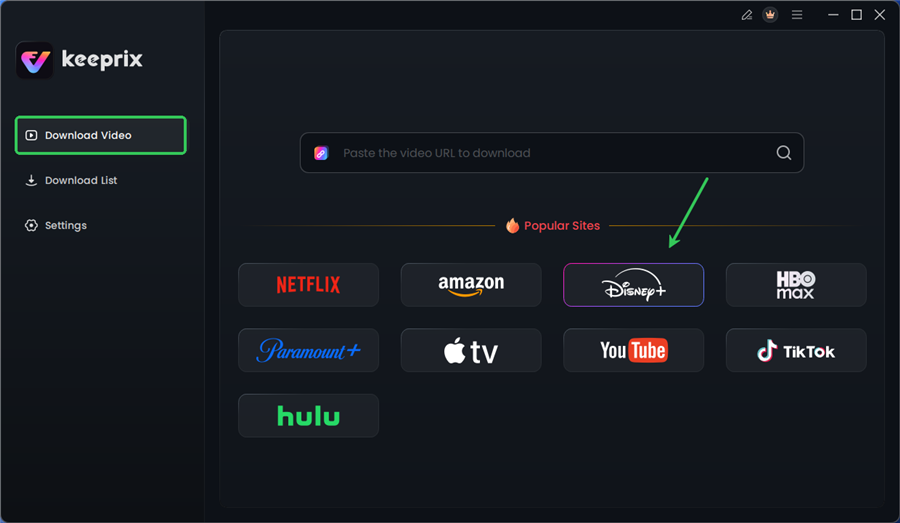
Choose Disney Plus in Keeprix
Step 3. Log in to your Disney+ account.
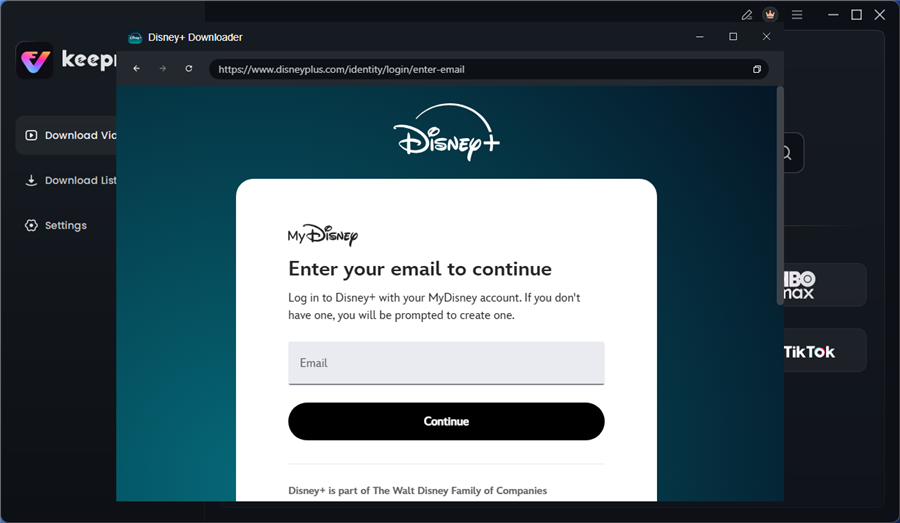
Log in to Disney Plus Account
Step 4. Search for the movies or series you’d like to download. Then click the download button to save it directly to your computer.
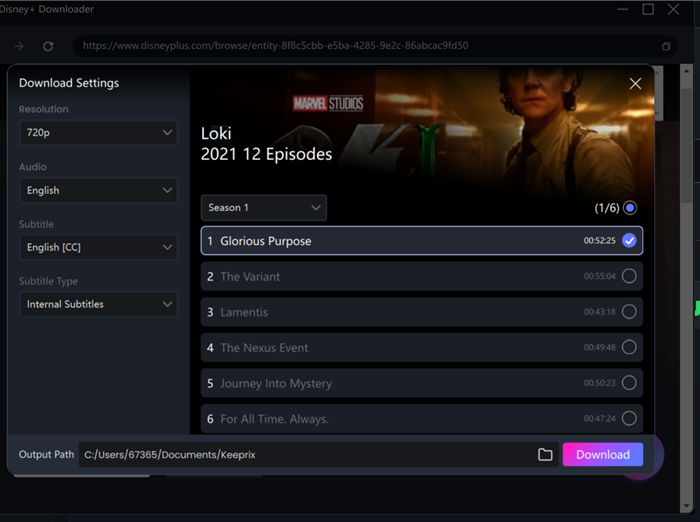
Configure Download Settings
After downloading, you can access the downloads in your local folder. The downloaded content is decrypted, and you can watch it offline with your friends without restrictions.
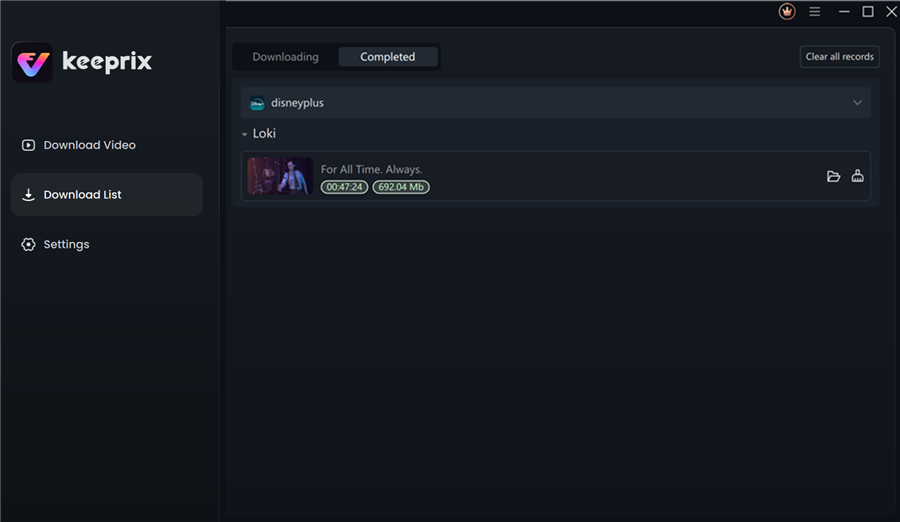
Disney Plus Downloaded Videos in Keeprix
Why You Get a Black Screen When Sharing Disney Plus
Understanding the technology behind the “black screen” helps explain why simple workarounds often fail. Disney+ utilizes restrictive DRM (Digital Rights Management) policies combined with HDCP (High-bandwidth Digital Content Protection). This technology is designed to prevent unauthorized duplication of content.
When you attempt to watch Disney Plus with friends by sharing a browser window on Discord or Zoom, the browser detects the screen capture software. The DRM protocol immediately interprets this as a potential piracy attempt. Consequently, it masks the video feed with a black layer while continuing to play the audio. This creates the confusing scenario where your friends can hear the movie but see nothing.
Expert Insight: Disney’s DRM is applied at the rendering level of the browser. While some guides suggest disabling hardware acceleration in Chrome settings, this is often a temporary fix. Browser updates frequently patch this loophole, leading to stuttering video or a sudden return of the black screen mid-movie.
This technical reality validates why the local file method (Method 2) is often preferred for important events. By using a tool to legally download the content to your local drive first, you are sharing a video file that is no longer tethered to the browser’s active DRM triggers.
Troubleshooting Sync Issues and Connection Errors
Even with the right tools, technical glitches can interrupt your disney plus party mode. If playback becomes unsynced or connection errors occur, follow these troubleshooting steps to restore smooth viewing.
Fix Out-of-Sync Playback
In GroupWatch, playback is managed by the server. If one user experiences buffering, the stream pauses for everyone. This automatic sync is helpful but sensitive.
- Solution: If a specific user causes frequent pauses, they should lower their stream quality settings in the Disney+ app to reduce bandwidth usage.
- Manual Sync (Method 2): For screen sharing on Discord, the host controls playback. If a guest lags, the host must pause manually to let them catch up. Voice communication is critical here—simply ask, “Is everyone at timestamp 10:15?” before resuming.
Joining GroupWatch on Smart TVs
Many users find it difficult to locate the GroupWatch session on their television.
- The Fix: You generally cannot start a GroupWatch invite from a Smart TV. You must accept the invite link on your mobile device or laptop first. Once you have joined the “Lobby” on your phone, open the Disney+ app on your Smart TV. You should see the same profile icon or a “Continue Watching” prompt that allows you to join the active session on the big screen.
Browser and Device Checks
Ensure all participants are using supported browsers updated to the latest version. Outdated browsers often fail to handle the heavy encryption required for synchronized playback, leading to crashes or disconnection during the stream.
Frequently Asked Questions About Disney Plus Party Mode
How many people can join a Disney Plus GroupWatch?
Disney Plus GroupWatch supports up to 7 participants, including the host. All users must have their own active Disney+ subscription to join the session.
Can I use Discord screen share to watch Disney Plus with friends?
Yes, but if you stream directly from a browser, you will likely encounter a black screen due to DRM protection. To watch Disney Plus with friends on Discord successfully, we recommend using a downloader tool to play a local file (Method 2), as this bypasses the blocking mechanism.
Why does GroupWatch not include a chat feature?
Disney designed GroupWatch with a focus on family-friendly safety and simplicity, opting for emoji reactions instead of text or voice chat. For full communication, we recommend running a separate Discord or Zoom audio call.
Does GroupWatch work in every country?
GroupWatch is available in most regions where Disney+ is supported, but it requires all participants to be in the same country or region. Cross-border viewing is often blocked due to licensing differences; in this case, a screen-sharing workaround using downloaded files is necessary.
Why not just use Teleparty (formerly Netflix Party)?
Teleparty is a popular browser extension, but it is prone to breaking whenever Disney+ updates its video player code. Users frequently report desync issues or sudden disconnection. Furthermore, Teleparty does not bypass region locks—if your friend in the UK doesn’t have access to the specific US title you are watching, the extension will not work for them.
Conclusion
Trying to watch Disney Plus with friends should not involve hours of technical troubleshooting or the disappointment of a black screen. While the official Disney Plus GroupWatch is excellent for local friends with their own subscriptions, it falls short for cross-border groups or mixed-subscription parties. The frustration of disjointed playback and region locks is a problem you can solve today.
For the most stable experience that avoids black screens entirely, taking control of your media is the best approach. By using Keeprix Downloader to prepare your movie ahead of time, you eliminate the variables of browser DRM and internet lag. This allows you to host a true movie night online, ensuring that everyone sees the same high-quality video at the same time. Whether you stick to the official app or opt for the robust local method, the goal is connection—choose the tool that lets you focus on the movie, not the tech.