How to Get Rid of Ads on Disney Plus: Verified Methods

Imagine settling in for a family movie night, ready to watch The Mandalorian or Bluey, only to be jarred by a loud, unskippable commercial break. If you are experiencing this sudden disruption, you are not alone. Thousands of subscribers have recently found themselves puzzled by commercials appearing on accounts that used to be ad-free.
You are likely feeling frustrated not just at the interruption, but at the confusion of why it is happening. You didn’t click “downgrade,” so why did the experience change? The reality is often linked to subtle plan shifts, automatic migrations during price hikes, or “Bundle” adjustments that default to ad-supported tiers without clear notification.
You are here because you need to know how to get rid of ads on Disney Plus and restore the seamless experience you paid for. This guide prioritizes the official, verified steps to fix your account status immediately, while also offering alternative solutions for Disney Plus offline viewing.
How to Get Rid of Ads on Disney Plus
Why Am I Seeing Ads? (The “Bundle Trap” Explained)
Before you try to fix the settings, it is vital to understand the source of the issue. Most users seeing unexpected ads have fallen into what we call the “Bundle Trap.” When you merge Disney+ with Hulu or ESPN+, or when your annual plan renews, the platform often defaults to the Basic (With Ads) tier. This is especially common if you recently switched from a legacy individual plan to a “Duo” or “Trio” bundle.
- The Duo Confusion: Many users assume “Disney Bundle Duo” implies a premium experience. However, the standard Duo plan is almost always ad-supported.
- Legacy Migrations: If you were a subscriber from the early days, you may have been automatically migrated to a new tier structure during the 2024-2025 price adjustments. If you didn’t explicitly agree to a price increase, Disney may have moved you to the ad-supported tier to keep your monthly bill static.
Confirming the subscription type is the key to eliminating ads. If your billing statement says “Basic” or “Standard with Ads,” the commercials are not a glitch—they are a feature of your current plan.
You may also like: How to download Disney Plus to MP4
Step 1: Verify Your Plan in the App
Before you navigate to a browser to make changes, you should confirm your current status directly within the app on your phone or TV. While you usually cannot change the plan here (due to app store billing policies), you can verify the problem instantly.
On Mobile (iOS/Android):
- Open the Disney+ App.
- Tap your Profile Icon (usually bottom right).
- Tap Account.
- Look under the Subscription header.
- If you see Disney+ Basic or Disney Bundle Duo Basic, you are on an ad-supported plan.
On Smart TVs / Streaming Sticks:
- Navigate to the left-side menu bar.
- Select Settings.
- Select Account.
- Your current plan name will be listed next to your email address.
Method 1: The Official Fix (Upgrade Your Subscription)
The most direct way to stop ads on Disney Plus is to upgrade your subscription tier.
Crucial Note: You generally cannot perform this action inside the Disney+ app on a Smart TV, Roku, or Fire Stick. You must use a web browser to manage billing settings.
Step-by-Step Upgrade Procedure
Step 1. Log in via Browser: Open Chrome, Safari, or Edge and go to the Disney Plus website. Log in with your credentials.
Step 2. Access Account Settings: Hover over your profile icon in the top right corner and click Account.
Step 3. Locate Subscription: Find the section labeled “Subscription.” Next to your plan name (e.g., Disney+ Basic), you will see a text link or button.
Step 4. Select “Change”: Click the link labeled Change or Switch Plan. (Note: The UI here is subtle; look for the text link rather than a large button.)
Step 5. Choose the Premium Tier:
- U.S. Users: Select Disney+ Premium (No Ads) or Disney Bundle Trio Premium.
- International Users (UK/Europe/Canada): Look for Standard or Premium. Note that the “Standard with Ads” plan is distinct from the “Standard” (No Ads) plan in many regions.
Step 6. Confirm Payment: Review the prorated cost. The system will charge you the difference for the remainder of the month immediately.
Once you confirm, the upgrade is instant. If you are currently watching TV, you may need to sign out and sign back in to refresh the app and remove the ad markers.
Troubleshooting Third-Party Billing
If you do not see the “Change” option, your billing is managed by a third party. You must upgrade through their portal:
- Apple App Store: Go to iPhone Settings > Apple ID > Subscriptions. Tap Disney+ and select the Premium option.
- Google Play: Open Play Store > Tap Profile > Payments & Subscriptions.
- Roku/Amazon: Log in to the Roku or Amazon website on a computer to manage your “Channels” or “App Subscriptions.”
Method 2: Alternative for Offline Viewers (Downloading Tools)
If you have upgraded your plan but still want more control—or if you prefer to build a permanent library rather than paying a monthly premium indefinitely—there is a secondary technical solution: downloading content offline using software like Keeprix Downloader.
This method is distinct from streaming. Instead of playing the video from Disney’s servers (where ads are injected), this tool downloads the video file directly to your Windows or Mac computer.
Why Some Users Choose This Route
While the official upgrade is the best path for living room streaming, an offline tool addresses specific needs:
- No Expiration: Official downloads on the mobile app expire after 48 hours of viewing. PC downloads via Keeprix last forever.
- Consistent Quality: It ensures 1080p quality even if your internet connection fluctuates during playback.
- Clean Files: The software processes the video stream and removes ad markers during the download, resulting in an uninterrupted file regardless of your subscription tier.
Steps to Download Disney+ Videos with Keeprix Downloader
Step 1. Download Keeprix Downloader and install it on your Windows or Mac computer.
Step 2. Launch the software and choose Disney Plus on the main screen.
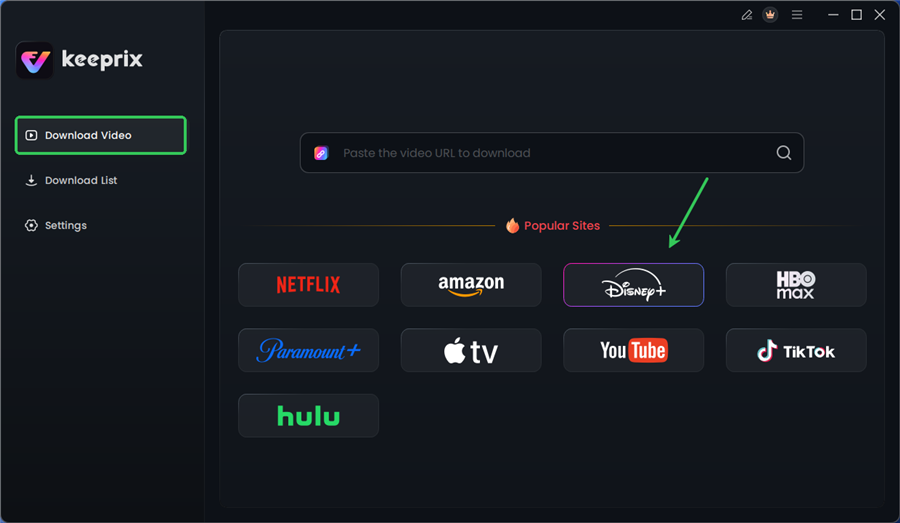
Choose Disney Plus in Keeprix
Step 3. Log in to your Disney+ account.
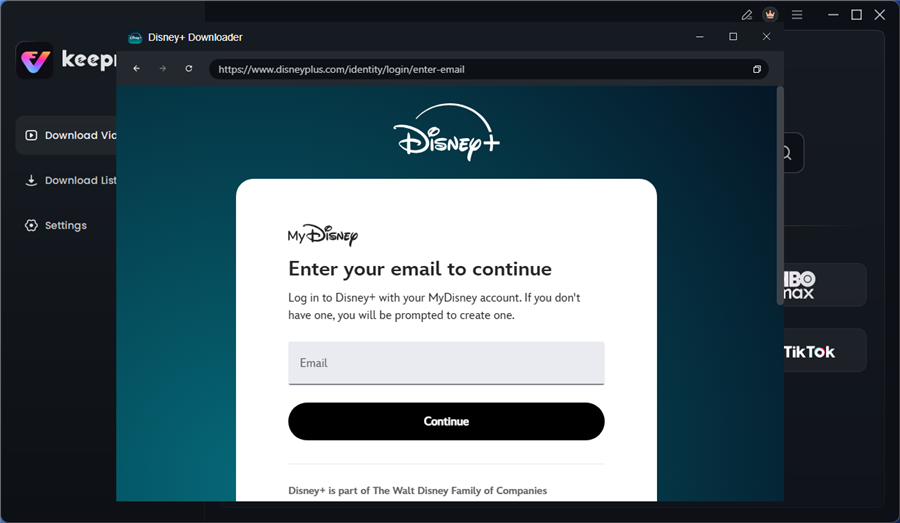
Log in to Disney Plus Account
Step 4. Search for the movies or series you’d like to download. Then click the download button to save it directly to your computer.
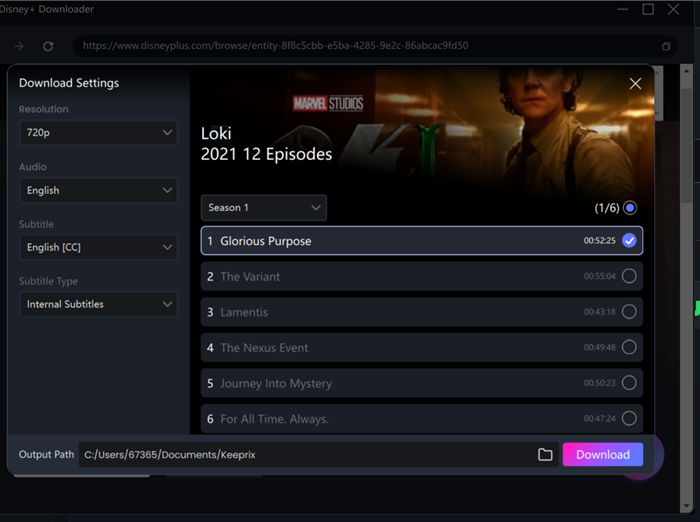
Configure Download Settings
After downloading, you can access the downloads in your local folder. The downloaded content is decrypted, and you can keep it forever.
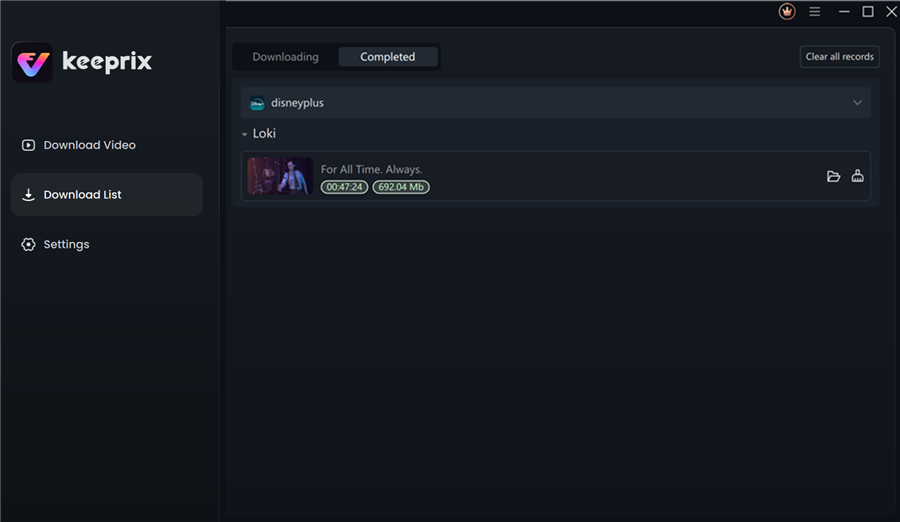
Disney Plus Downloaded Videos in Keeprix
Quick Comparison: Premium Subscription vs. Offline Tool
| Feature | Disney+ Premium (Official Upgrade) | Keeprix Downloader (Offline Tool) |
| Primary Use | Streaming on TV/Phone | Permanent Library on PC/Mac |
| Ad Removal | Account-wide status | Ads removed during download |
| Cost Model | Monthly recurring fee | Software license fee |
| Convenience | Instant playback | Requires download time |
| File Ownership | Rented (expires if canceled) | Owned (files kept locally) |
If your goal is simply to watch TV tonight without commercials, stick to Method 1. If your goal is to archive a series or watch offline on a laptop without checking in to the internet, this tool offers a viable alternative.
Ad-Free Streaming FAQ
Even after you upgrade to Disney Plus no ads, you might notice short clips appearing before your content. This often leads to confusion about whether the upgrade worked. Here are the technical distinctions you need to know.
Do promotional trailers count as ads?
Yes and no. Disney+ distinguishes between “Commercials” (paid ads for car insurance, soap, etc.) and “Promos” (trailers for other Disney+ shows). Even on the Premium (No Ads) tier, you may see a skippable trailer for a show like The Bear or Andor before your movie starts. These are not removed by the ad-free plan, but they can be skipped.
Why can’t I remove ads using my TV settings?
A common misconception is that changing privacy settings on a Samsung or LG TV will stop ads. This does not work for streaming apps. Disney uses Server-Side Ad Insertion (SSAI). This means the ad is stitched into the video stream before it ever reaches your device. No browser extension or TV setting can block these, which is why an account upgrade is the only official fix.
Does the plan affect all profiles?
Yes. The subscription status is account-wide. If the account holder is on an ad-supported streaming tier, every profile—including Kids profiles—will be subject to the plan’s restrictions. Note that ads in “Junior Mode” are generally curated strictly for appropriate content, but they are still present on the Basic plan.
I upgraded to the Bundle, but I still see ads. Why?
If you have the Disney Bundle (Disney+, Hulu, ESPN+), you cannot upgrade just one service. You likely selected “Disney Bundle Trio Basic.” You need to switch specifically to Disney Bundle Trio Premium.
- Go to your Account page.
- Select Switch Plan.
- Scroll past the initial offers to view Plan Options.
- Ensure you select the tier that explicitly says “Premium” or “No Ads” for both Hulu and Disney+.
Final Thoughts: Restoring Your Viewing Experience
For most viewers, the sudden appearance of ads is a simple case of a “Bundle Trap” or a legacy plan migration. By logging into the browser and hitting that Change button next to your subscription, you can usually resolve the issue in under two minutes.
Verify your status in the app, use the browser to upgrade your tier, and ensure you are selecting the specific “Premium” option if you are part of a bundle. While downloading tools like Keeprix offer a niche solution for offline archivists, the quickest path back to your seamless Star Wars marathon is ensuring your subscription matches your viewing preferences.