Cancel Disney Plus Subscription: Step-by-step Guide

Facing a recurring charge for a service you rarely use is frustrating. It is particularly aggravating when you encounter uncertainty about accessing the subscription settings, often leading to an unwanted auto-renewal. You are not alone in this; confusion regarding multiple account roles, third-party billing sources, and bundled packages frequently creates a barrier between a user and a successful cancellation.
Whether you need to tighten your monthly budget or simply want to switch providers, the process to cancel Disney+ membership should be straightforward. However, the specific procedure depends entirely on where you originally signed up. A “Cancel” button visible to one user might be completely hidden for another. This guide provides a verified, technical solution to stop Disney Plus billing immediately, regardless of your platform.
How to Cancel Disney Plus Subscription
You may also like: How to get rid of ads on Disney Plus
Identify Your Billing Source (The “Hidden Button” Problem)
Before attempting to click any buttons, you must determine which entity handles your payments. Most cancellation attempts fail because users look for a button on the Disney+ website that simply isn’t there. If you signed up via an iPhone app, a Roku device, or a bundle, the desktop site often cannot cancel the billing for you.
Instead of guessing, follow this preliminary check to identify your billing provider. This prevents you from searching in circles.
Step 1. Log in to your Disney Plus account via a web browser.
Step 2. Select your Profile icon and navigate to Account.
Step 3. Look under the Subscription header.
- Scenario A: If you see your plan details and a “Next Billing Date,” you are a direct subscriber. Proceed to Method 1.
- Scenario B: If you see a link saying “Manage on [Apple/Google/Amazon/Verizon],” you are billed by a third party. You must use Method 2.
Identifying this early is the only way to effectively stop Disney Plus billing without navigating through broken links.
Method 1: How to End Disney+ Subscription via Web Browser
If your account details indicate that you are billed directly by Disney, you can use any web browser to terminate the service. This procedure applies to direct subscribers and is the standard technique for payment method management.
⚠️ Crucial Constraint:
You cannot cancel a direct subscription inside the Disney+ app on your phone, tablet, or Smart TV. The “Account” section in the app is often read-only. You must use a web browser on a computer or mobile device to complete these steps.
Follow these precise steps on how to end Disney+ subscription:
- Access the Portal: Open your preferred web browser and log in to your account at the Disney+ website.
- Navigate to Settings: Hover over your Profile icon in the top right corner and select Account from the dropdown menu.
- Locate Subscription: Under the section labelled “Subscription,” click on your specific plan name.
- Initiate Cancellation: You will see your payment history and next billing date. Locate and click the Cancel Subscription link at the bottom of the page.
- Navigate the “Retention” Screens: Disney will likely present a survey or an offer to stay. You must click “No Thanks, Cancel Disney+” (or similar wording) to proceed.
- The Final Confirmation: Do not close the window yet. Continue clicking until you see a confirmation screen that explicitly states: “Your subscription has been cancelled.”
Pro Tip: After completing these steps, check your email inbox immediately. You should receive a confirmation email with the subject line “Your Disney+ subscription has been cancelled.” If you do not receive this email within 15 minutes, log back in and check your status—the cancellation may not have processed.
Method 2: Stopping Third-Party Billing (Apple, Google, Amazon, Bundles)
If you checked your account in Step 0 and saw “Manage on…”, or if the cancel button is missing entirely, you are being billed by a third-party provider. In this scenario, your subscription management must occur on the platform where the purchase originated.
Here are the specific procedures for the major third-party billing platforms.
Apple App Store (iPhone/iPad)
This answers the common query: “How do I cancel if I subscribed on iPhone or iPad?”
- Open the Settings app on your iOS device.
- Tap your name (Apple ID) at the very top of the menu.
- Select Subscriptions.
- Tap Disney+ from the active list.
- Select Cancel Subscription.
If you do not see “Cancel Subscription” but see text in red saying “Expires on [Date]”, the subscription is already cancelled.
Google Play Store (Android)
For users asking “how do I cancel if my account is billed through google play?”:
- Open the Google Play Store app on your Android device.
- Tap your profile icon in the top right corner.
- Select Payments & subscriptions > Subscriptions.
- Select Disney+ from the list and tap Cancel subscription.
- Follow the on-screen instructions to confirm.
Amazon
For those wondering “how do I stop Disney Plus billing on amazon?”:
- Go to the Amazon website and log in to your account.
- Navigate to Account & Lists > Memberships & Subscriptions.
- Locate Disney+ in the list and select Manage Subscription.
- Click the link under “Advanced Controls” to end the service.
The Disney Bundle (Hulu)
If you have the Disney+, Hulu, and ESPN+ bundle, and you are billed through Hulu:
- Log in to your Hulu account page (not Disney+).
- Select your name in the top right corner and click Account.
- Scroll to the Your Subscription section.
- Select Manage next to “Add-ons” to remove specific parts, or select Cancel next to your base plan to stop the entire bundle.
Verizon (Carrier Billing)
If your subscription is a perk of your mobile data plan:
- Log in to My Verizon (web or app).
- Navigate to Account > Apps & Add-ons.
- Click Manage next to the Disney+ (or Disney Bundle) section.
- Follow the prompts to remove the add-on from your line.
Optional: Archiving Your Library Before Access Ends
Once you have successfully cancelled your subscription, you are on a countdown. As mentioned in the FAQ, your access to exclusive movies and shows will cease completely when the current billing cycle finishes. If your goal is strictly to save money and move on, you can stop reading here. However, if you are cancelling because of the price hike but still wish you could keep access to specific shows, there is a technical workaround known as Smart Archiving.
Tools like Keeprix Downloader allow users to download streaming videos in high definition (1080P) directly to a hard drive before the subscription expires. This converts the content into permanent files (MP4/MKV) that you own, rather than temporary streams you rent.
Exit Strategy Comparison
Here is an objective look at how your content access changes with standard cancellation versus cancellation combined with archiving:
| Feature | Standard Cancellation | Cancellation + Keeprix Archiving |
| Monthly Cost | $0 (After cycle ends) | $0 (After cycle ends) |
| Library Status | Access Revoked (Stream unavailable) | Files Retained (Permanent ownership) |
| Playback | Requires Internet (Until expiry) | Offline, any device, forever |
| Ads | Ads remain (if on ad-tier) | Ads removed during download |
How It Works
If you decide to archive your favourites before your “paid through” date arrives:
Step 1. Download Keeprix Downloader and install it on your Windows or Mac computer.
Step 2. Launch the software and choose Disney Plus on the main screen.
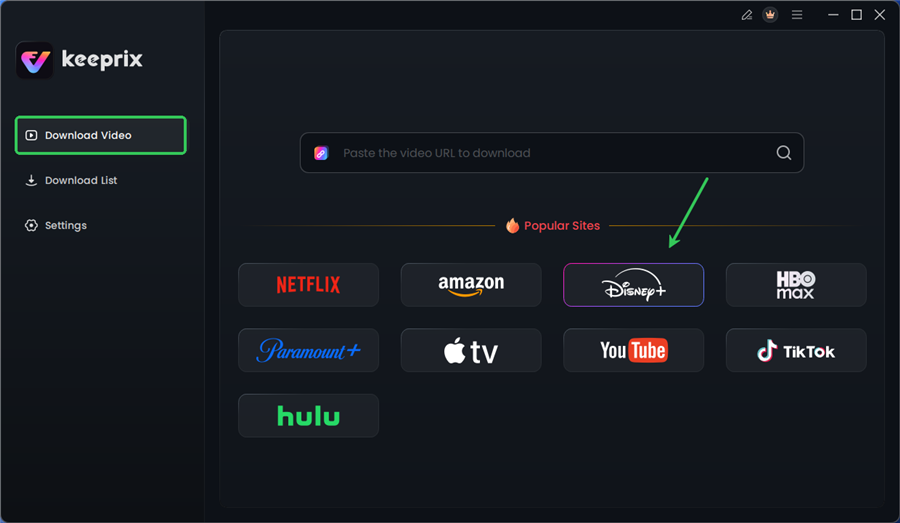
Choose Disney Plus in Keeprix
Step 3. Log in to your Disney+ account.
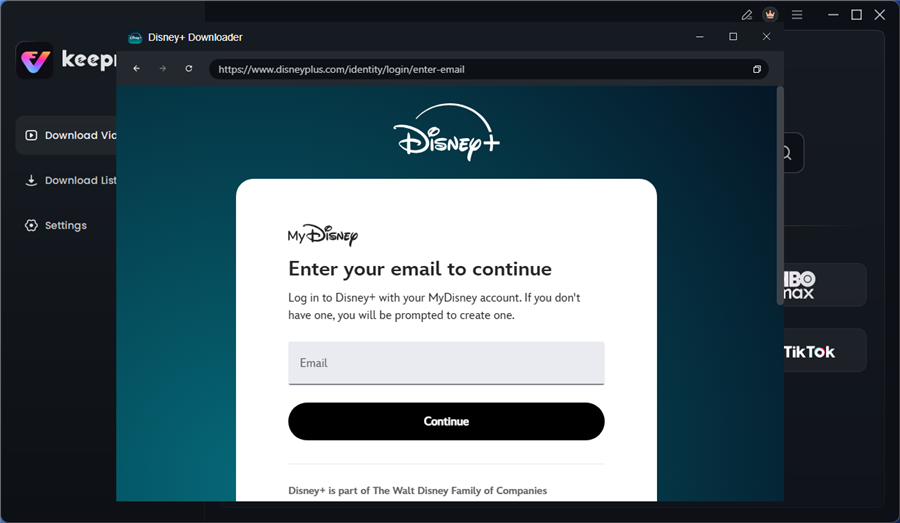
Log in to Disney Plus Account
Step 4. Search for the movies or series you’d like to download. Then click the download button to save it directly to your computer.
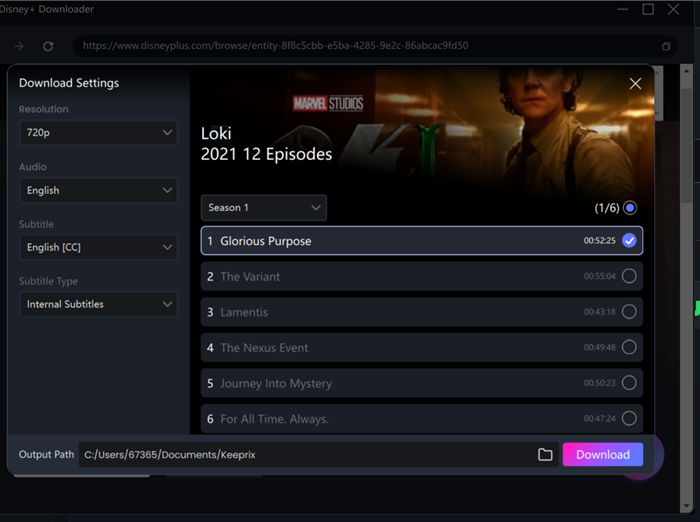
Configure Download Settings
By securing your library locally, you eliminate the risk of content disappearing due to licensing changes or account closure. This turns the cancellation process from a loss of service into a transition to a personally owned media collection.
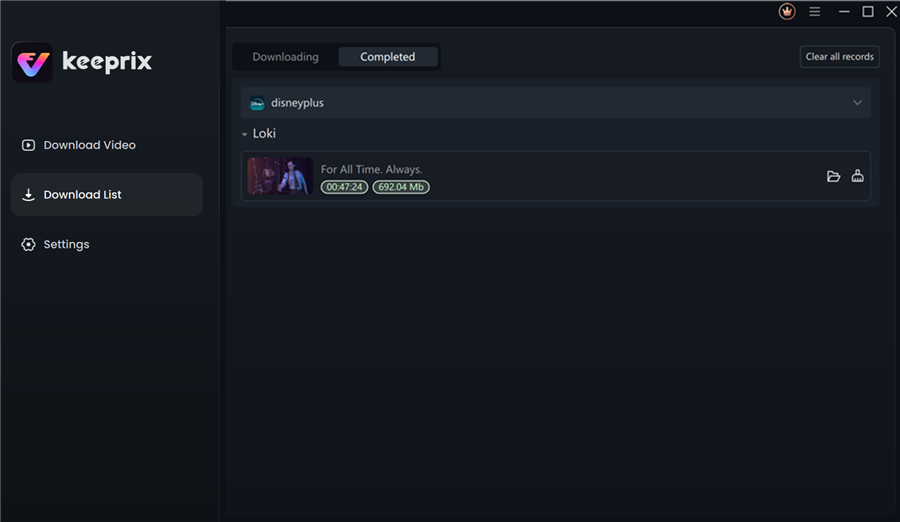
Disney Plus Downloaded Videos in Keeprix
Conclusion
Regaining control over your monthly expenses should not be a complex ordeal. By identifying your billing source first—whether it is Disney directly, a bundle provider like Hulu, or an app store—you can eliminate the uncertainty about how to access the subscription settings and ensure you are cancelling in the right place.
Remember: Check for the confirmation email to be 100% sure the auto-renewal is off. If you plan to archive any content using tools like Keeprix, ensure you do so before your final billing date passes.
Frequently Asked Questions About Disney+ Account Closure
Even after following the steps above, users often have lingering questions about streaming service account settings and access rights. Addressing these concerns helps confirm that the process was successful.
1. What happens after I cancel my subscription?
When you cancel your Disney+ membership, you are essentially turning off auto-renewal. You will retain full access to your content library until the end of your current billing cycle. For example, if you are billed on the 15th of the month and cancel on the 2nd, you have 13 days of viewing remaining.
2. Does deleting the app cancel the subscription?
No. This is a critical distinction. Deleting the application from your phone, tablet, or Smart TV does not stop the billing. The subscription is tied to your account credentials, not the installation of the app. You must navigate to the account settings and formally terminate the agreement to prevent future charges.
3. Why can’t I find the cancel option in the Disney+ app?
Disney does not allow cancellation inside their mobile or TV apps for direct subscribers to avoid paying commission fees to Apple or Google. You must use a web browser. If you are a third-party subscriber, the button is missing because Disney doesn’t control your billing—Apple, Google, or your carrier does.
4. Can I restart my subscription later?
Yes. Your account preferences and viewing history are typically saved for a period after cancellation. You can reactivate your membership at any time by logging in and updating your payment method. This flexibility allows for effective payment method management based on your current budget.