7 Ways to Fix Error Code 42 on Disney Plus

Key Takeaways
- Error Code 42 is a connectivity error indicating your device cannot connect to Disney+ servers.
- Common Causes include weak Wi-Fi signals, server timeouts, ISP throttling, or corrupted app cache.
- Quickest Fixes involve restarting your streaming device, power-cycling your router, and disabling VPNs.
- Advanced Solutions may require changing DNS settings to Google Public DNS or clearing local cache data.
There is nothing more frustrating than settling in for a movie night with The Mandalorian or a classic Disney film, only to be stopped by a black screen and the message: “We’re sorry; we’re having trouble connecting you to the service. Please check to see that you are still connected to the internet and try again (Error Code 42).”
This error is one of the most common hurdles Disney+ subscribers face. Fortunately, it is rarely fatal to your account and usually points to a temporary communication breakdown between your device and the Disney servers. This guide will walk you through exactly what this error is and the proven steps to fix it in 2026.
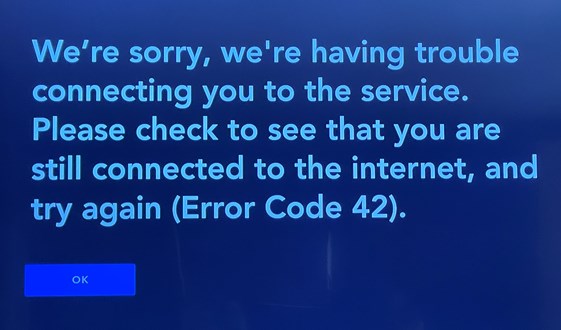
Disney Plus Error Code 42
You may also like: How to fix Disney Plus error code 83
What Is Disney+ Error Code 42?
Disney Plus Error Code 42 is essentially a timeout error. In technical terms, it means your streaming device (whether it’s a Roku, Fire Stick, Smart TV, or smartphone) tried to “handshake” with the Disney+ servers to request a video stream, but the server took too long to respond or didn’t respond at all.
Because the app is programmed to wait only a specific amount of time for a response, it eventually gives up and displays Error Code 42 to prevent the app from freezing indefinitely. While the error message suggests checking your internet connection, the issue can sometimes stem from the Disney+ servers themselves rather than your home network.
Why Do You Get the Disney+ Error Code 42?
Understanding the why can help you choose the right fix. The four main culprits include:
1. Disney+ Server Overload
If millions of users log in simultaneously for a premiere (like a new Marvel series finale), the servers may become overwhelmed and fail to respond to your device’s request in time.
2. Weak Local Wi-Fi Strength
Even if your internet is working, your streaming device might be receiving a weak signal. This often happens if the device is far from the router or hidden behind a TV cabinet, causing “packet loss.”
3. Corrupted Cache or Data
Over time, the temporary files the Disney+ app stores on your device can become corrupted, interfering with the login or streaming process.
4. DNS Issues
Your Internet Service Provider (ISP) assigns you a DNS server to translate web addresses. If your ISP’s DNS is slow or blocking specific traffic, Disney+ may fail to load.
How to Fix Error Code 42 on Disney+?
Follow these troubleshooting steps in order. They range from the simplest quick fixes to more advanced technical solutions.
1. Check Disney+ Server Status
Before you troubleshoot your own equipment, ensure the problem isn’t on Disney’s end. You can check the Disney Plus server status before trying any fixes.
- Visit a site like DownDetector or search “Disney Plus server status” on Google.
- Check the official Disney+ Help Twitter/X account.
- Verdict: If others are reporting a spike in outages, you simply have to wait for Disney engineers to fix it.
2. Perform a “Cold Restart” of Your Streaming Device
Turning the TV off and on often isn’t enough because modern devices go into sleep mode rather than fully shutting down.
- For TVs/Consoles: Unplug the power cord from the wall outlet. Wait 60 seconds. Plug it back in.
- For Fire Stick/Roku: Go to Settings > System > Restart.
- This clears the device’s short-term memory (RAM) and forces a fresh connection.
3. Power Cycle Your Router and Modem
If the error code 42 on Disney+ is caused by a poor network connection, you may need to restart your router and reconnect to try. This can be the most effective fix for Error 42. Here’s how:
- Unplug your modem and router from the power source.
- Wait for at least 30 seconds.
- Plug the modem back in and wait for the lights to stabilize.
- Plug the router back in.
- Reconnect your device and try Disney+ again.
4. Test Your Internet Speed
Disney+ requires a steady connection. Minimum recommendations are 5.0 Mbps for High Definition and 25.0 Mbps for 4K UHD.
- Run a speed test (like fast.com) specifically on the device having issues, if possible.
- If your speed is low, try disconnecting other devices (phones, tablets) from the Wi-Fi to free up bandwidth.
5. Change Your DNS Settings (Advanced Fix)
If your ISP’s DNS is lagging, switching to a public DNS like Google’s or Cloudflare’s can resolve timeout errors immediately.
- On Fire TV: Go to Settings > Network > Select your Wi-Fi > Menu button (Forget Network). Reconnect, enter password, but select “Advanced”. Enter IP manually, and for DNS 1 use 8.8.8.8 and DNS 2 use 8.8.4.4.
- On Apple TV: Go to Settings > Network > Wi-Fi > Configure DNS > Manual. Change to 008.008.008.008.
- On PS4/PS5: Go to Network Settings > Set Up Internet Connection > Custom > DNS Settings > Manual. Primary: 8.8.8.8, Secondary: 8.8.4.4.
6. Clear App Cache and Data
Corrupted files can block the connection.
- Android TV/Fire Stick: Settings > Applications > Manage Installed Applications > Disney+ > Clear Cache (and Clear Data if necessary).
- Roku: Remove the Disney+ channel, restart the Roku, and then reinstall the channel.
- Web Browser: Clear your browser’s cookies and cache specifically for disneyplus.com.
7. Disable VPNs and Proxies
Disney+ has strict geo-blocking protocols. If you are using a VPN or a Proxy server, Disney might block the connection, resulting in Error 42. In this case, you can turn off your VPN and try connecting directly.
Also read: How to fix Disney+ won’t load
FAQs About Disney+ Error Code 42
1. Can I fix Disney+ error 42 by restarting my device?
Yes, in many cases, a simple restart is enough. However, ensure you perform a full restart (unplugging the power or selecting “Restart” from the system menu) rather than just putting the device to sleep. This clears minor software glitches that interfere with the network handshake.
2. Is there a temporary fix for Disney+ error code 42?
If you cannot fix the root cause immediately (e.g., your home Wi-Fi is acting up), a temporary workaround is to switch to a different network. Try using your smartphone’s mobile data hotspot to connect your TV or laptop. If Disney+ works on the hotspot, you know the issue is definitely with your home Wi-Fi network.
3. How to fix when Disney+ error code 42 but the internet is fine?
If other apps like YouTube or Netflix are working but Disney+ isn’t, the issue is likely latency or DNS rather than speed.
- Step 1: Change your DNS settings to Google (8.8.8.8) as detailed in Part 3.
- Step 2: Log out of Disney+ on all devices (Account > Log out of all devices) and log back in.
- Step 3: Check for a firmware update for your specific TV or router.
Conclusion
Disney Plus Error Code 42 is a connection timeout that can usually be resolved by refreshing your home network or streaming device. By systematically cycling your router, checking for server outages, and ensuring your DNS settings are optimized, you can quickly get back to your favorite shows. We hope this article helps, and you can enjoy a great streaming experience on Disney Plus!