How to Fix Error Code 83 on Disney Plus [Solved]

Encountering Error Code 83 on Disney+ can be frustrating, interrupting your movie night with a vague “Something went wrong” message. This error typically signals a device compatibility issue or a connection failure. In this guide, we will break down exactly why this happens and provide step-by-step solutions to get you back to streaming your favorite content immediately.
Disney Plus Error Code 83
You may also like: How to fix Disney Plus won’t load
What Does Error Code 83 Mean on Disney+?
If you are seeing Error Code 83, you are looking at one of the most common—and arguably most annoying—error messages on the Disney+ platform. Unlike specific network errors that tell you your internet is down, Error 83 is a “catch-all” code.
Officially, Disney defines Error Code 83 as an unknown error related to device compatibility, connection integrity, or account issues. When you press play, the Disney+ server performs a rapid “handshake” with your device. It checks two main things:
- Can this device technically play the video? (Is the software up to date? Is the hardware powerful enough?)
- Is the connection secure? (Does the device support the necessary DRM—Digital Rights Management—to prevent piracy?)
If the server fails to verify either of these within a specific timeframe, it blocks the stream and throws Error Code 83. It essentially means the server thinks you are trying to watch on an “incompatible” device, even if that device worked perfectly yesterday.
Causes of Disney+ Error Code 83
To fix the problem, you must first understand the root cause. While the error message is vague, our analysis of user reports and technical documentation points to five distinct culprits:
1. Device Incompatibility
This is the most frequent cause. If you are using an older smartphone, an outdated smart TV, or a web browser that hasn’t been updated in months, Disney+ may no longer support it. This is also common on devices running Linux (like the Steam Deck or desktop Linux distros) because Disney’s DRM technology is strict about which operating systems it trusts.
2. Unstable Internet Connection
Even if your internet is “on,” it might not be stable enough for the initial verification handshake. Packet loss, high latency, or a momentary drop in speed can cause the verification to time out, triggering Error 83.
3. Corrupted Cache or App Data
Over time, the Disney+ app accumulates temporary files (cache) to load images and menus faster. If these files become corrupted during an update or a crash, they can conflict with the startup process, confusing the server into thinking the device is new or unauthorized.
4. Server-Side Issues
Sometimes, the problem isn’t on your end at all. If Disney+ servers are overloaded—common during major premieres like a new Marvel or Star Wars show—the verification server may fail to respond to your device’s request in time.
5. IP Address Blocks (VPNs)
Disney+ has aggressive anti-piracy filters. If you are using a VPN, a proxy server, or if your ISP has assigned you an IP address that was previously flagged for suspicious activity, the app will block playback with Error 83.
How to Fix Error Code 83 on Disney+?
We have compiled the most effective fixes, ranked from the easiest (and most likely to work) to the more technical solutions.
Method 1: The “Hard” Restart (Power Cycle)
Simply turning your TV off with the remote puts it in “standby,” which doesn’t clear the system RAM. You need a full power cycle.
- Turn off your TV or streaming device.
- Unplug the power cord from the wall outlet.
- Wait 60 seconds. This is crucial to drain residual power.
- Plug it back in and relaunch Disney+.
Best for: Smart TVs, Roku, Fire Stick, Consoles
Method 2: Check for App and OS Updates
An outdated operating system is a primary trigger for compatibility errors.
- On iPhone/iPad: Go to Settings > General > Software Update. Also, open the App Store and verify Disney+ is on the latest version.
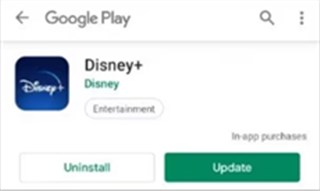
- On Android: Open the Google Play Store, search for Disney+, and tap Update if available.
- On PlayStation/Xbox: Check the system settings for a firmware update. Older firmware often lacks the security certificates Disney+ requires.
Update Disney Plus
Best for: Mobile, Tablets, Consoles
Method 3: Test and Reset Your Internet
Error 83 can happen if your internet speed is sufficient but the connection is “jittery.”
- Run a Speed Test: Use Fast.com or Ookla. You need at least 5 Mbps for HD and 25 Mbps for 4K.
- Reboot the Router: Unplug your Wi-Fi router for 30 seconds and plug it back in to refresh your IP address.
- Switch Data: If you are on mobile, turn off Wi-Fi and try using your cellular data (4G/5G). If it works on data, the issue is your home Wi-Fi setup.
Best for: All Devices
Method 4: Clear Cache and Data
Old data can cause verification conflicts.
- Android: Settings > Apps > Disney+ > Storage > Clear Cache (and Clear Data if necessary).
- Web Browser (Chrome/Edge): Press Ctrl + Shift + Delete, select Cached images and files, and click Clear data.
- Fire Stick: Settings > Applications > Manage Installed Applications > Disney+ > Clear Cache.
Best for: Android, Web Browsers, Fire Stick
Method 5: Disable VPNs and Proxies
If you have a VPN running (even for work or privacy), turn it off. Disney+ will almost always block a connection if it detects an anonymizer. If you must use a VPN, try switching to a dedicated “Streaming” server provided by your VPN service.
Best for: PC, Mobile
Method 6: Reinstall the Application
If the app is corrupted, updates won’t fix it.
- Uninstall the Disney+ app completely.
- Restart your device (do not skip this step).
- Go to the store and reinstall the app.
- Log in and try again.
Best for: Roku, Apple TV, Consoles
FAQs About Disney+ Error Code 83
Here are detailed answers to the specific questions frequently asked by users dealing with this error.
1. What is error code 83 on Steam Deck Disney Plus?
The Steam Deck is a powerful gaming handheld, but it runs on SteamOS (a version of Linux). Disney+ does not have a native Linux app, and Linux browsers often struggle with the “Widevine DRM” that Disney uses to protect content.
How to fix it:
Step 1. Use Microsoft Edge: In Desktop Mode, install Microsoft Edge (Beta) from the Discover store. Microsoft has optimized Edge for Linux to handle streaming DRM better than Chrome in some instances.
Step 2. Launch Command: If you are running Disney+ via a browser added to Steam as a “Non-Steam Game,” you may need to add a specific launch argument to force the browser to identify as a compatible device.
- Right-click the browser shortcut in Steam > Properties.
- In “Launch Options,” ensure you are pointing to the correct browser executable.
Step 3. Proton Compatibility: Ensure you are not forcing a compatibility layer (Proton) on the browser itself unless necessary, as native Linux browsers usually handle streaming better than Windows browsers running through Wine/Proton.
2. How to fix Disney Plus error on TV?
Smart TVs (Samsung Tizen, LG WebOS, Android TV) are the most common victims of Error 83 due to aggressive memory management.
- Cold Boot: As mentioned in Method 1, unplug the TV from the wall.
- Check HDMI: If you are using a set-top box (like a Roku or Apple TV), ensure your HDMI cable supports HDCP 2.2. If the cable is old or damaged, the “handshake” fails, and Disney+ throws Error 83 because it thinks you are trying to record the screen. Try swapping the HDMI cable ends or using a different port.
- DNS Change: In your TV’s network settings, change the DNS to Google’s public DNS (Primary: 8.8.8.8, Secondary: 8.8.4.4). This often bypasses ISP routing issues that cause timeouts.
3. How to check Disney Plus server status?
Before tearing your setup apart, confirm Disney+ isn’t down globally.
- DownDetector: Use the DownDetector website. This site aggregates user reports. If you see a massive spike in the graph, the issue is on Disney’s end, and you just have to wait.
- Social Media: Search Twitter/X for the hashtag #DisneyPlusDown. Real-time user complaints are often faster than official status pages.
- Help Center: Visit the Disney+ Help Center for official notices, though they are often slower to update than third-party sites.
Conclusion
Disney Plus Error Code 83 is fundamentally a communication breakdown between your device and the streaming servers. By systematically eliminating the causes—starting with a simple power cycle, checking your internet connection, and ensuring your software is up to date—you can resolve the issue in most cases. If you have tried all the steps above and still face issues, consider testing your account on a different device (like a phone using 5G) to rule out account-specific bans.