Imagine settling in for a movie night, ready to relax, only to find the dialogue dubbing doesn’t match your family’s needs. For multilingual households balancing English and Spanish preferences, or for language learners wanting to immerse themselves in a new tongue, this simple hiccup becomes a significant obstacle. You are not alone in figuring out how to change language on Disney Plus; many users struggle because the controls shift drastically depending on whether you are holding a TV remote, a smartphone, or a mouse.
Facing a locked language setting when you simply want to enjoy a show is frustrating. Whether you are dealing with the app reverting to English unexpectedly or simply cannot find the menu on your specific Smart TV interface, the confusion between global app settings and immediate playback controls is a common pain point.
This guide provides a verified, comprehensive solution to switch Disney Plus language settings on every major device. To ensure accuracy, we have expanded our guidance to include detailed steps for mobile apps and TV interfaces.

How to Change Language on Disney Plus
You may also like: How to turn off subtitles on Disney Plus
Method 1: Adjusting Audio & Subtitles During Playback (All Devices)
If you are currently watching a video and need to make an immediate adjustment, you do not need to exit to the main menu. This is the “Quick Fix.” However, the location of the Disney+ audio language settings varies significantly depending on your hardware.
1. For Smart TVs and Gaming Consoles
Includes Apple TV, Roku, Fire TV, PlayStation, Xbox, and Native TV Apps.
The interface on a television is often the most confusing because it lacks the mouse-hover cues found on a computer.
- Start Playback: Begin your movie or episode.
- Reveal the Menu: Press the Down Arrow or Up Arrow on your remote (depending on your specific device) to reveal the player timeline and control bar.
- Navigate to the Icon: Look for a square icon in the top-right or bottom-right corner of the screen.
On Apple TV, you may need to swipe down on the touch remote to access the “Info” tab, then navigate to “Audio.”
On Roku and Fire TV, it is often a square icon resembling a keyboard or a speech bubble labeled “Audio & Subtitles.”
-
- Select Preferences: Click the icon. You will see two lists: Audio (spoken language) and Subtitles (text).
- Confirm: Select your language and back out of the menu. The audio should switch instantly.
Also read: How to get Disney Plus on Apple TV
2. For Mobile Devices (iOS & Android)
Includes iPhone, iPad, Android Phones, and Tablets.
- Tap the Screen: While the video is playing, tap anywhere on the screen once to wake up the interface.
- Tap the Icon: Look for the Audio and Subtitles icon (a square with lines inside) in the top-right corner.
- Choose Your Track: A menu will slide up from the bottom. Select your desired Audio and Subtitle language.
- Close: Tap the “X” or tap outside the menu to resume viewing.
3. For Desktop Browsers
Includes Chrome, Safari, Edge, and Firefox.
- Hover: Move your mouse cursor over the video player window to trigger the overlay controls.
- Click the Icon: Click the square icon (often resembling a keyboard) in the top-right corner.
- Select: Choose from the Audio column on the left or Subtitles on the right.
By mastering the specific inputs for your device—whether it’s a swipe, a click, or a remote press—you can solve the difficulty locating audio and subtitle settings regardless of where you are watching.
Method 2: Setting Permanent Profile Preferences
While the in-player menu is great for a quick switch, setting your profile language settings helps ensure a consistent experience every time you log in. It is crucial to understand the relationship between App Language (interface text) and playback defaults.
Many users ask: “Does Disney+ have a default audio setting?” The answer is technically no, but you can influence it. Disney+ uses your App Language to infer your audio preference.
How to Change Default App Language
To permanently change subtitles language Disney Plus or the app interface language, follow these steps:
Step 1. Access Profile Menu:
- Desktop: Hover over your avatar in the top right.
- Mobile/TV: Navigate to the navigation bar (usually the left side) and select your avatar.
Step 2. Select Edit Profiles: Choose the Edit Profiles button.
Step 3. Select the Target Profile: Click the pencil icon or select the profile you wish to edit.
Step 4. Modify App Language: Select the App Language setting.
Step 5. Save: Confirm your choice.
Why this matters: If you set your App Language to Spanish, Disney+ will prioritize the Spanish audio track whenever it is available. This helps prevent the issue of profile language not syncing across devices, as this setting is saved to your account in the cloud, not just the specific device.
Troubleshooting: Why Language Options Disappear
It can be perplexing when you follow every step correctly, yet the Disney Plus language options menu remains empty or lacks your target language. Here is the critical insight: Disney+ overrides your profile preferences based on your physical location.
This explains why a user traveling from the US to France might suddenly lose access to certain Asian language dubs. The platform auto-selects the best available match for the network region (IP address), not necessarily the user’s preference.
3 Reasons Your Language is Missing
- Geo-Licensing Restrictions: This is the most common culprit. Audio tracks are licensed content. If Disney has not cleared the rights for the Italian dub in the US region, that option will vanish from the menu entirely.
- Network-Based Resets: You may notice Disney+ changing audio language automatically if your internet connection routes through a different server or if you disconnect a VPN. The app refreshes and defaults to the “safest” language for that region.
- Device Conflict: Occasionally, casting (AirPlay/Chromecast) creates a conflict. The stream may default to the TV’s system language rather than the phone app’s setting.
Solution for Travelers: Offline Archiving
For users who travel frequently or have unreliable internet, relying solely on streaming can be risky because language availability shifts with your location. If you need to guarantee that a specific language track (like a specific dub for your children) stays available during a trip abroad, downloading the content is the most reliable method.
While the Disney+ app allows temporary mobile downloads, they still expire and check your geolocation. For a permanent solution, especially on laptops (Windows/Mac), tools like Keeprix Downloader offer a professional alternative.
Ensuring Multi-Language Access Offline
Keeprix allows users to download Disney+ content as MP4 files while specifically selecting which audio and subtitle tracks to keep.
- Regional Locking: Standard streaming libraries change when you cross borders. A downloaded file works anywhere.
- Audio Track Selection: In the Keeprix interface, you can check boxes for multiple languages simultaneously. The software embeds all selected tracks into a single video file.
- Permanence: Unlike app downloads that expire after 30 days or 48 hours after viewing, these files remain on your drive indefinitely.
Steps to Download Disney+ Videos with Keeprix Downloader
Step 1. Download Keeprix Downloader and install it on your Windows or Mac computer.
Step 2. Launch the software and choose Disney Plus on the main screen.
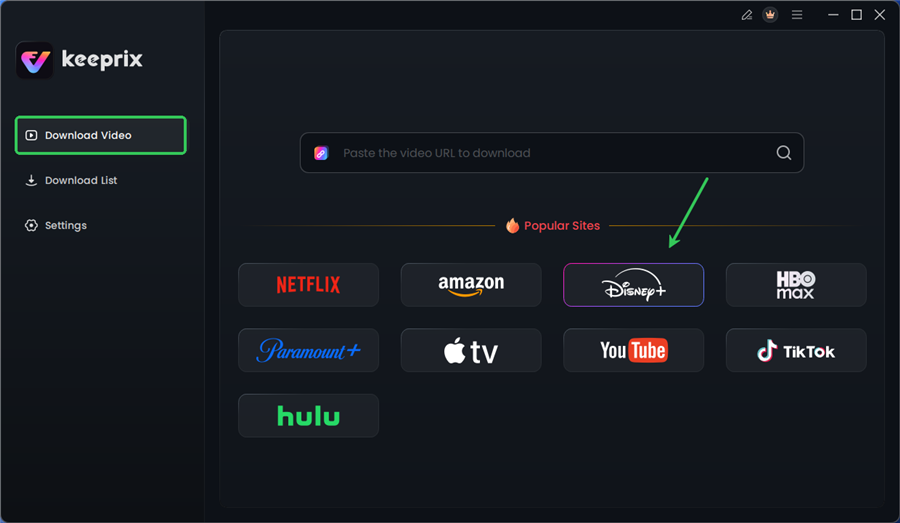
Choose Disney Plus in Keeprix
Step 3. Log in to your Disney+ account.
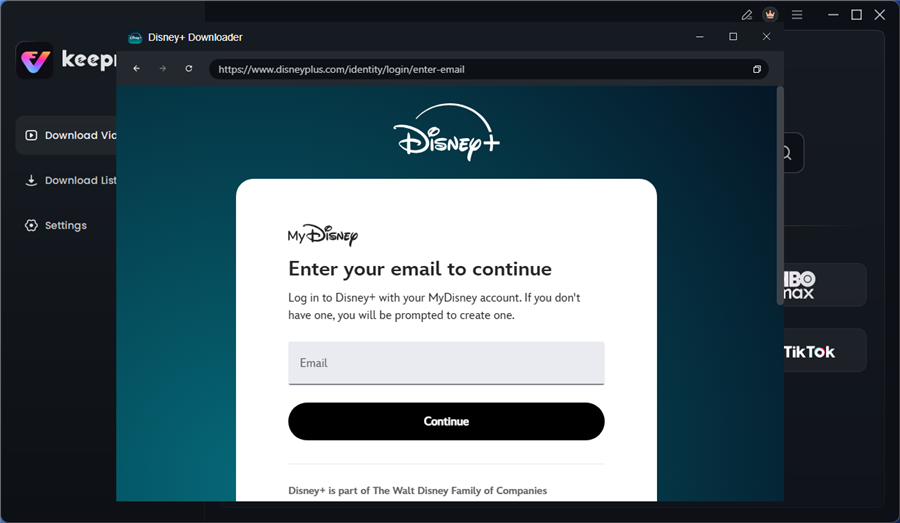
Log in to Disney Plus Account
Step 4. Search for the movies or series you’d like to download. Then click the download button to save it directly to your computer.
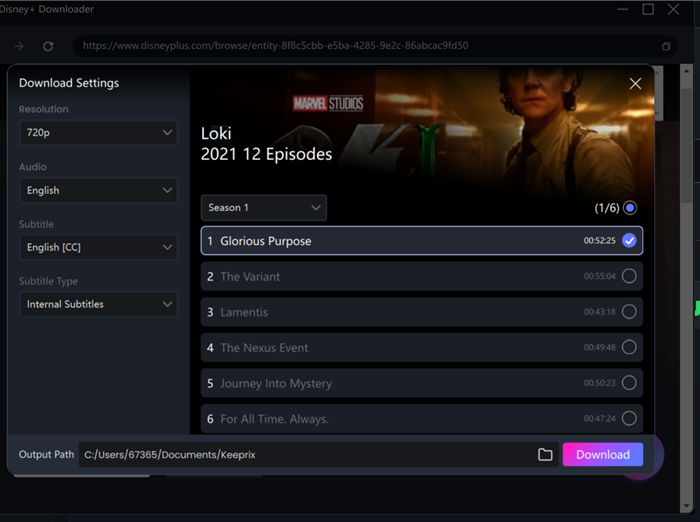
Configure Download Settings
After downloading, you can access the downloads in your local folder and watch them offline with your desired subtitle. This ensures you have a permanent backup of your multi-language streaming content that is immune to regional licensing changes.
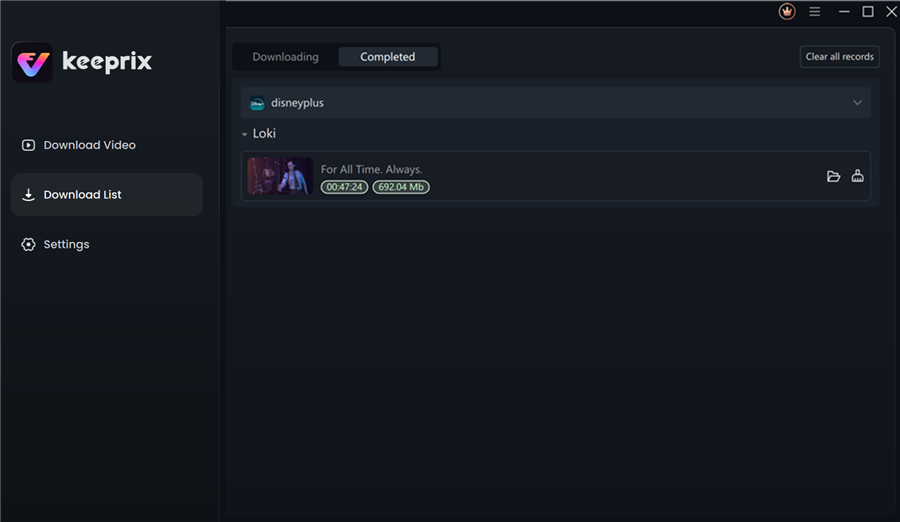
Disney Plus Downloaded Videos in Keeprix
Frequently Asked Questions
1. How do I change the language on my Apple TV?
Swipe down on the touch surface of your Apple remote (or press the down button on newer remotes) to reveal the info pane. Navigate to the “Audio” tab to switch languages.
2. Why does Disney+ keep switching back to English?
This usually happens if the show you are watching does not have your preferred language available. The system reverts to the region’s default (usually English). It can also happen if your App Language is set to English.
3. Can I set a default audio language for all profiles?
No, there is no master switch. You must edit the App Language for each profile to influence the default audio track.
4. Why are subtitles on but the audio is different?
These are separate tracks. You must adjust them individually in the Audio & Subtitles menu. Make sure to check both columns (Audio on the left, Subtitles on the right).
5. I am in a different country and my language is gone. Why?
Disney+ catalogues are region-locked. If you are in a country where the Spanish dub is not licensed, it will not appear in the menu, even if your profile is set to Spanish.
Conclusion
Navigating digital interfaces shouldn’t require technical expertise, yet the gap between mobile, TV, and desktop controls remains a frequent hurdle. Whether you are dealing with limited dub availability or simply trying to navigate a Smart TV menu with a clunky remote, knowing exactly where to look saves time and frustration.
By distinguishing between your permanent profile settings and the temporary in-player controls, you can ensure a smoother viewing experience. And for those who need absolute certainty while traveling, backing up your favorite audio track selection via offline tools like Keeprix ensures your library speaks your language, no matter where in the world you are.