What Does TV-MA Mean on Disney+? Tips for Subscribers

For years, Disney+ was synonymous with family-friendly entertainment—a safe haven of animated classics, Star Wars adventures, and Marvel superheroes that rarely pushed the boundaries beyond a PG-13 rating. However, if you have browsed the platform recently, you may have noticed a new badge appearing on certain titles: TV-MA.
If you are a parent or a subscriber used to the “old” Disney ecosystem, this might be confusing. What does TV-MA mean on Disney Plus? Is the platform changing? And most importantly, how can you control who sees what in your household?
This comprehensive guide will answer every question you have about TV-MA content on Disney+, explain why it’s there, and provide step-by-step instructions on managing your viewing experience.
TV-MA Meaning on Disney+
The Short Answer: What Is TV-MA?
TV-MA stands for TV-Mature Audience. According to the TV Parental Guidelines in the United States, this rating signifies that a program is designed specifically for adults and may be unsuitable for children under 17.
When you see the TV-MA icon on a Disney+ show, it indicates the presence of one or more of the following elements:
- Graphic Violence: Scenes depicting intense physical harm, blood, or gore.
- Explicit Sexual Activity: Scenes depicting sexual acts or strong sexual themes.
- Crude or Indecent Language: Strong profanity that goes beyond standard cable TV limits.
- Substance Abuse: Depictions of drug use or excessive drinking.
Key Comparison: Think of TV-MA as the television equivalent of an R rating for movies.
Why Is TV-MA Content on Disney Plus?
Many users ask, “I thought Disney was just for kids. Why is there mature content now?”
The addition of TV-MA content marks a significant strategic shift for The Walt Disney Company. Here is the breakdown of why this change happened:
The “Defenders” Migration (March 2022)
The major turning point occurred in March 2022. Disney reclaimed the rights to several Marvel series that were originally produced for Netflix. These shows—including Daredevil, Jessica Jones, Luke Cage, The Iron Fist, The Punisher, and The Defenders—were significantly darker and more violent than the movies in the Marvel Cinematic Universe (MCU).
Rather than putting these popular characters on Hulu (where adult content usually lives), Disney decided to house the entire Marvel brand under one roof: Disney+. To do this, they had to update the platform to support TV-MA ratings.
Competing with Other Streamers
To compete with Netflix, Max (HBO), and Amazon Prime Video, Disney+ needed to offer “General Entertainment” content beyond just cartoons and family sitcoms. By adding TV-MA content, they can appeal to single adults and couples who want to watch gritty dramas or R-rated comedies without switching apps.
The Hulu Integration (Beta & Full Release)
As of late 2023 and 2024, Disney has begun integrating Hulu content directly into the Disney+ app for bundle subscribers. This “Hulu on Disney+” experience brings a massive library of FX shows (like The Bear and Shōgun) and Searchlight movies directly onto the Disney+ interface—many of which are rated TV-MA or R.
Examples of TV-MA Content on Disney Plus
To give you a better idea of what constitutes “Mature” on the platform, here are some prominent examples currently available (availability may vary by region):
Marvel “Defenders” Saga
- Marvel’s Daredevil: Dark, gritty crime drama with bone-crunching violence.
- Marvel’s The Punisher: Features intense gun violence, torture, and PTSD themes.
- Marvel’s Jessica Jones: Deals with sexual assault, trauma, and alcoholism.
Movies (Rated R)
- Deadpool & Deadpool 2: These were the first R-rated movies to join the MCU section on Disney+. They feature extreme violence and constant strong language.
- Logan: A Wolverine film featuring bloody violence and strong language.
Hulu on Disney+ (For Bundle Subscribers)
If you subscribe to the Disney Bundle, you may see these titles inside the Disney+ app:
- The Bear: Contains constant strong language and high-stress adult situations.
- Shōgun: Features graphic violence and adult themes.
- American Horror Story: Contains horror, gore, and sexual content.
How to Watch TV-MA Content: Unlocking Your Profile
If you are an adult user and you cannot find Deadpool or Daredevil, your profile is likely restricted. When Disney+ introduced mature content, it defaulted many existing profiles to a lower age rating (usually TV-14) for safety. Here is how to unlock the full library.
Step-by-Step Guide to Allow TV-MA
Step 1. Open Disney+ on your browser or mobile app.
Step 2. Navigate to Edit Profiles.
- On TV: Navigate to the sidebar, select your avatar, and click “Edit Profiles.”
- On Mobile: Tap your profile icon in the bottom right corner, then tap “Edit Profiles.”
Step 3. Select the Profile you want to edit.
Step 4. Scroll down to the Parental Controls section.
Step 5. Tap or click on Content Rating.
Step 6. Enter your Password. For security, Disney+ requires the account password to change rating settings.
Step 7. Select TV-MA and click Save.
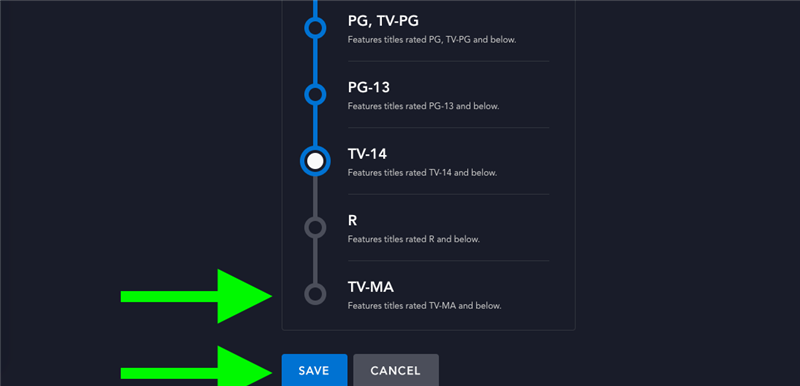
Allow TV-MA on Disney+
Result: Your Disney+ home screen will reload, and you will now see recommendations for mature content.
How to Restrict TV-MA Content: A Guide for Parents
If you are a parent, your primary concern is likely keeping this content away from your children. Disney+ offers granular controls to ensure your 7-year-old doesn’t accidentally stumble into an episode of The Punisher.
You should set up Profile-Specific Ratings and Profile PINs.
Method A: Setting Age Ratings for Kids
You can set a specific ceiling for each child’s profile.
Step 1. Go to Edit Profiles and select your child’s profile.
Step 2. Under Parental Controls, select Content Rating.
Step 3. Enter your password. Then choose the appropriate age limit:
TV-Y7: Suitable for children 7 and older. Then click Save.
- PG: Parental Guidance.
- PG-13 / TV-14: Suitable for teenagers.
If a profile is set to TV-14, searches for “Deadpool” or “Daredevil” will yield zero results. The content effectively does not exist for that user.
Method B: “Junior Mode” (The Safest Option)
For very young children, standard ratings might still show thumbnails that look scary.
Step 1. In Edit Profiles, select the child’s profile.
Step 2. Toggle Junior Mode to ON. Then click Save.
What this does: It changes the entire interface to a simplified, colorful design that only shows pre-approved content for preschool and early elementary-aged kids.
Method C: PIN Protection (Locking Adult Profiles)
Setting a child’s profile to TV-Y7 is useless if they can simply switch to your profile. You must lock the adult profiles.
Step 1. Go to Edit Profiles and select your Adult Profile.
Step 2. Under Parental Controls, select Profile PIN.
Step 3. Enter your account password.
Step 4. Check the box to “Limit access to this profile with a 4-digit PIN.”
Step 5. Create a 4-digit code, then click Save.
Now, whenever anyone tries to enter your profile to watch TV-MA shows, they will be blocked without the PIN.
The “Not Rated” and Live Content Loophole
There is one setting many parents overlook: Not Rated and Live Content.
Some content on Disney+ may not have a standard MPA or TV rating, such as older documentaries, live events, or news streams.
- The Risk: If this setting is OFF, unrated content is hidden. If it is ON, unrated content is visible. While usually benign, live content cannot be rated in real-time.
- How to change: In the Edit Profile menu, toggle “Not Rated and Live Content” to OFF for strict control on children’s profiles.
Troubleshooting: Why Can’t I See TV-MA Shows?
If you have followed the steps above but still cannot watch Logan or Family Guy, check these common issues:
1. You are in “Junior Mode”
Check if the interface looks “bubbly” or simplified. If so, you are in a Junior profile, which strictly prohibits mature content regardless of settings.
2. You are not the Primary Account Holder
Only the account holder (who knows the password) can change content ratings. If you share an account with a friend or parent, they may have locked the ratings.
3. Geographical Restrictions
While the US, UK, Canada, and Europe have fully integrated mature content (via the “Star” brand internationally), some regions may still have stricter regulations or different libraries.
4. The “Kid-Proof Exit” is On
If you are trying to leave a kid’s profile to switch to an adult one, and it’s asking for a hard question or password, this is a safety feature. You need to complete the exit challenge to switch profiles.
Conclusion: Balancing Nostalgia with Maturity
The introduction of TV-MA on Disney+ represents the platform’s evolution from a “digital babysitter” to a comprehensive streaming competitor.
- For Adults: It means you finally get the uncut, gritty Marvel stories and R-rated blockbusters without needing a separate subscription.
- For Parents: It requires a one-time “audit” of your account settings.
By taking five minutes to set up PIN codes and Content Ratings, you can ensure that Disney+ remains a magical place for your children while serving as an entertainment hub for you after they go to bed.