How to Set Up Parental Controls on Disney Plus [2026 Guide]

Disney Plus has evolved far beyond the repository of animated classics it started as. With the integration of the Star hub, Marvel’s grittier series, and R-rated blockbusters, the platform now hosts a significant amount of content strictly for adults. While this is great for parents after bedtime, it poses a challenge: how do you ensure your 6-year-old doesn’t stumble from Bluey into Deadpool?
Fortunately, Disney Plus offers one of the most robust parental control suites of any streaming service. This comprehensive guide will walk you through every feature, offering a step-by-step masterclass on securing your account.

Disney Plus Parental Controls
Why Disney Plus Parental Controls Are Essential
When Disney Plus launched, it was largely safe by default. Today, the library includes content rated TV-MA and R. Without proper configuration, a child’s profile (or a shared family profile) could easily access violence, strong language, and mature themes.
Implementing these controls isn’t just about restriction; it’s about curation. It ensures that your preschooler sees an interface designed for them, while your teenager has access to the Marvel Cinematic Universe but not adult thrillers.
The Toolkit at a Glance
Before diving into the setup, here is what Disney Plus offers:
- Junior Mode: A walled garden for the youngest viewers with a simplified interface.
- Content Ratings: Granular age limits (e.g., PG, PG-13, TV-14) for specific profiles.
- Profile PINs: 4-digit codes to secure adult profiles, preventing kids from accessing them.
- Kid-Proof Exit: A barrier that prevents children from easily leaving Junior Mode.
- Profile Creation Restriction: Prevents savvy kids from creating a new “unrestricted” profile.
Feature 1: Junior Mode (The “Easy Button”)
For parents of toddlers and preschoolers, Junior Mode is the primary line of defense. It acts as a completely separate interface. When enabled, the profile will strictly show content rated TV-Y, TV-Y7, and G.
How it Works
Junior Mode doesn’t just filter content; it changes the user experience. The background becomes brighter, the font usage is minimized in favor of character images, and “suggested” content is strictly curated.
Step-by-Step Setup:
Step 1. Open the Disney Plus app or website.
Step 2. Navigate to your profile icon and select Edit Profiles.
Step 3. Select the profile you wish to convert (or create a new one).
Step 4. Toggle the switch for Junior Mode to ON. Then click Save.
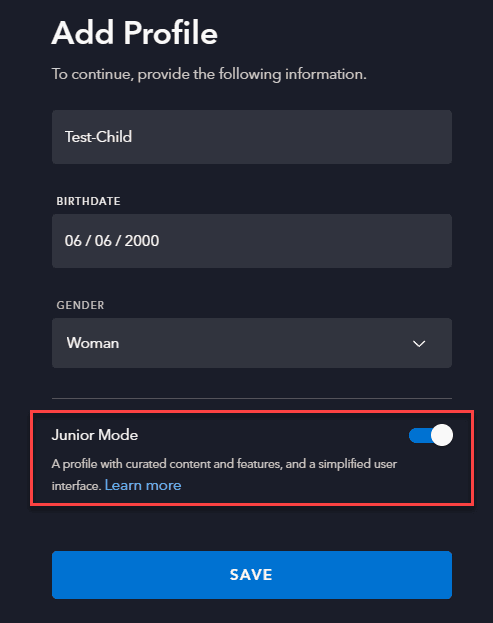
Disney Plus Junior Mode
| Pros | Cons |
| Zero chance of slipping into mature content; ad-free (mostly); simplified navigation. | It is a blanket filter. If you have an 8-year-old who wants to watch a PG movie like Frozen II or Star Wars, Junior Mode might be too restrictive. |
The “Kid-Proof Exit”
A common issue with “Kids Modes” on streaming apps is that children simply hit the “Back” button and switch to the parent’s profile. Disney solved this with the Kid-Proof Exit.
When enabled, exiting a Junior Mode profile requires the user to read a question on the screen and type it in. It defeats random clicking but allows older children or parents to exit easily.
To Enable Kid-Proof Exit on Disney Plus:
Step 1. Go to Edit Profiles and select the Junior Mode profile.
Step 2. Toggle Kid-Proof Exit to ON.
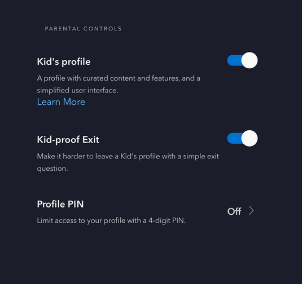
Disney Plus Kids Proof Exit
Step 3. Enter your account password to confirm.
Feature 2: Content Ratings (For Older Kids & Teens)
As children grow, Junior Mode becomes insufficient. They want to watch The Avengers or The Simpsons. This is where Content Ratings shine. Unlike Netflix, which often applies settings globally or clunkily, Disney Plus allows you to set a specific ceiling for every single profile.
The Ratings Ladder
You can set a profile to allow content up to strictly:
- 0+ (TV-Y/G): The safest tier.
- 6+ (PG/TV-Y7): Cartoons with mild fantasy violence.
- 9+ (PG): General family movies.
- 12+ (PG-13): Teen content, Marvel movies, Star Wars.
- 14+ (TV-14): Sitcoms, some dramas.
- 16+ / 18+ (R/TV-MA): Full access.
How to Set Specific Ratings:
Step 1. Go to Edit Profiles and select the child’s profile.
Step 2. Scroll down to Parental Controls and select Content Rating.
Step 3. Security Check: You will be asked to enter your Disney+ password.
Step 4. Select the maximum age rating you want for this user. Then click Save.
Once set, titles above this rating will not even appear in search results for that profile.
Feature 3: Profile PINs (Locking the Adults Out)
Setting up restrictions on your child’s profile is useless if they can simply click on your profile and watch Predator. To secure the ecosystem, you must lock the adult profiles.
How to Set a PIN:
- Navigate to Edit Profiles.
- Select your (adult) profile.
- Scroll to Parental Controls and select Profile PIN.
- Enter your password to verify ownership.
- Check the box “Limit access to this profile with a 4-digit PIN.”
- Enter your desired code and click Save.
Pro-Tip: Do not use a PIN that is easily guessable, like a birth year or “1234”. If you forget your PIN, you can reset it by clicking “Forgot PIN?” and entering your account password.
Feature 4: Restrict Profile Creation
This is the most overlooked feature. Clever children, upon finding that their profile is restricted and yours is locked, may simply hit “Add Profile” to create a new, unrestricted user. You can block this loophole entirely.
How to Restrict Creation:
- Go to your Account page (not “Edit Profiles”).
- Look under the Settings section.
- Find Restrict Profile Creation and toggle it ON.
- Enter your password to confirm.
Now, adding a new profile requires the account holder’s password.
Strategy: Analyzing the Top Concerns
Based on search trends and user queries, here are specific solutions to the most common friction points parents face.
The “Live Content” Gap
Some parents worry about live streams (which Disney+ is experimenting with) or “Unrated” content.
- Solution: In the profile settings, there is a toggle for Not Rated & Live Content. For strict control, ensure this is toggled OFF for children. This prevents them from viewing content that hasn’t been assigned a specific rating yet.
“My Kid Found a Workaround!”
If your child is bypassing controls, check the following:
- Did you lock YOUR profile? (See Feature 3).
- Is Profile Creation restricted? (See Feature 4).
- Are they using a Guest Account? Ensure no extra “Guest” profiles exist on the account.
Managing Multiple Children
If you have a 5-year-old and a 13-year-old, do not share a profile.
Best Practice: Create a “Junior Mode” profile for the 5-year-old. Create a standard profile rated “12+” for the 13-year-old. Lock the adult profile. This ensures the algorithm suggests appropriate content for each age group, rather than a confusing mix of Mickey Mouse Clubhouse and Loki.
Step-by-Step Quick Reference Guide
If you are setting this up right now, follow this rapid checklist:
Step 1. Open Disney+ on a desktop or mobile (TV apps sometimes have limited settings).
Step 2. Go to Account Settings > Toggle Restrict Profile Creation ON.
Step 3. Lock Admin: Go to Edit Profiles > Select Parent Profile > Set Profile PIN.
Step 4. Create Profile > Name it > Toggle Junior Mode ON > Enable Kid-Proof Exit.
Step 5. Create Profile > Go to Content Rating > Select Age > Save.
FAQ: Common Questions and Troubleshooting
Q: Can I set a time limit on Disney Plus?
A: Currently, Disney Plus does not have a built-in screen time limit feature. You must use device-level controls (like Apple Screen Time, Android Digital Wellbeing, or router-level controls) to limit how long the app can be open.
Q: Why can’t I see the “Content Rating” option?
A: If a profile is set to Junior Mode, the “Content Rating” option disappears because Junior Mode defaults to the safest rating (TV-Y/G). You must turn off Junior Mode to manually select a rating like PG or PG-13.
Q: I changed the rating, but mature content is still showing.
A: This is usually a caching issue. Close the app completely (force quit) and restart it. If it persists, ensure you have edited the correct profile.
Q: Does changing the rating affect the Watchlist?
A: Yes. If a title was on a Watchlist but you lower the age rating for that profile, the title will vanish from the list (for that specific profile) until the rating is raised again.
Conclusion
Disney Plus has successfully transitioned from a child-focused app to a general entertainment giant. While this adds value for adults, it necessitates vigilance. By utilizing the “Swiss Army Knife” of parental controls – combining PINs, Ratings, and Creation Restrictions – you can create a digital environment that is safe, personalized, and fun for every member of the family.