How to Get Disney Plus on Samsung TV [Step-by-step Guide]

Setting up your entertainment system should be a relaxing experience, yet it often becomes a source of frustration. Imagine settling in to watch The Mandalorian, only to be met with a frozen loading screen or an error message stating the app is unavailable. Facing a locked device when you need it most is a significant obstacle.
Whether you are dealing with Disney Plus on Samsung TV setups that refuse to load, or trying to understand why incompatible older Samsung TV models lack the app entirely, the issue usually lies in specific software compatibility rules or cache corruption rather than hardware failure. This guide addresses those specific technical hurdles, providing a verified procedure to restore your access to Disney+ content—whether via the native app, a streaming stick, or offline playback with a Disney Plus downloader.
Disney+ on Samsung TV
Compatibility Check: Is Your Samsung TV Supported?
Before attempting to install the app, it is vital to verify if your specific hardware supports it. A common frustration for users is searching for an app that simply isn’t there.
The Golden Rule: Disney+ is available natively on Samsung Smart TVs released in 2016 or later running Tizen OS 2.4 or higher.
Supported vs. Unsupported Models
If you are unsure of your TV’s age, look at the model code on the back of the TV. The letter immediately following the screen size indicates the year.
| Year | Series/Model Letter | Disney+ Support Status |
| 2016-2025 | K, M, N, R, T, A, B, C, D (and QLED/OLED) | Fully Supported (Native App Available) |
| 2015 | J (e.g., UN55J6200) | Unsupported (Tizen OS < 2.4) |
| 2014 | H (e.g., UN55H6350) | Unsupported (Orsay OS) |
| 2012-2013 | E, F | Unsupported |
How to Check Your Tizen OS Version
If your model seems compatible but the app is missing, verify your software version manually:
- Navigate to Settings.
- Select Support.
- Select About This TV.
- Look for the line labeled Software Version or Tizen Version. If the Tizen version is listed as 2.3 or lower, the native Disney+ app will not function on this device.
You may also like: How to Get Disney Plus on Apple TV
Standard Method: How to Install Disney+ on Samsung Smart TV
For Samsung TVs manufactured in 2016 or later, the Disney+ Samsung smart TV app is available directly through the onboard store. This is the standard method to install Disney+ easily and requires only a stable internet connection and a Samsung account.
Follow this procedure to locate and install the application:
- Access the Smart Hub: Press the Home button on your remote control to bring up the bottom menu bar.
- Navigate to Apps: Scroll to the left until you see the Apps icon and select it.
- Search for the App: Select the Search icon (magnifying glass) in the top-right corner. Type “Disney+” using the on-screen keyboard.
- Install: Select the Disney+ icon from the results and click Install. Once the process completes, the button will change to Open.
- Add to Home: To avoid searching for it later, navigate to the installed app, press the Down arrow on your remote, and select Add to Home.
Fixing Playback Issues: Resetting Smart Hub & Firmware
If you have a compatible TV (2016+) but the app freezes on the blue logo screen or crashes to the dashboard, the root cause is likely not your internet connection, but rather corrupted temporary data.
Expert Insight: A critical detail often overlooked is that playback failure is frequently caused by an outdated Smart Hub cache (“cookies” for your TV). Over time, temporary files corrupt the launch sequence. Additionally, if your Samsung Tizen os version is outdated, the app may disappear entirely from the store.
Here is the technique to resolve these errors:
1. Reset the Smart Hub
⚠️ CRITICAL WARNING: Resetting the Smart Hub will sign you out of all applications (Netflix, Hulu, Prime Video, etc.) and remove customized app layouts. Ensure you have your login credentials (usernames and passwords) for all your streaming services ready before proceeding.
- Go to Settings.
- Select Support > Self Diagnosis (on older models) or Device Care (on newer models).
- Select Reset Smart Hub.
- Enter your PIN (default is usually 0000).
- The TV may restart. You will need to re-download Disney+ and log in again.
2. Update Firmware
If the reset does not work, or if the app is missing despite having a newer TV, force a firmware update.
- Navigate to Settings > Support > Software Update.
- Select Update Now.
- Do not turn off the TV until it reboots and the confirmation message appears.
Solution Comparison: Native App vs. Streaming Sticks vs. USB Tools
If your TV model predates 2016 (J-Series or older), or if the standard installation keeps failing due to hardware limitations, you must use an external method. While the native app is convenient, it relies heavily on the TV’s processor, which can be sluggish on aging hardware.
Below is an objective comparison of the three primary solutions to watch Disney Plus on Samsung television screens.
| Feature | Native Samsung App | Streaming Stick (FireStick/Roku) | Keeprix Downloader (USB Method) |
| TV Compatibility | 2016+ Models Only | All Models (via HDMI) | All Models (via USB/HDMI) |
| Buffering Risk | Variable (Depends on WiFi) | Variable (Depends on WiFi) | Zero (Offline Playback) |
| Convenience | High (One Remote) | High (Plug & Play) | Medium (Requires PC Transfer) |
| Cost | Free | Hardware Purchase ($30-$50) | Software License |
| Best For | Modern TVs with Good WiFi | Older TVs with Good WiFi | Poor WiFi / Offline Viewing |
Analysis:
For users with modern hardware and fast internet, the native app remains the logical choice. However, for those with incompatible older Samsung TV models, a Streaming Stick (Roku or Fire Stick) is generally the most user-friendly solution. It bypasses the Samsung OS entirely.
Alternatively, if you suffer from persistent buffering due to slow rural internet or network congestion, an offline solution like the Keeprix Downloader offers superior stability by eliminating the reliance on real-time data streaming.
How to Watch Disney+ on Older or Incompatible Samsung TVs
Option A: The Streaming Stick (Easiest Method)
If your TV is a J-Series (2015) or older, the internal hardware cannot run Disney+. The fastest fix is purchasing a Roku Express or Amazon Fire TV Stick.
- Plug the device into your Samsung TV’s HDMI port.
- Switch the TV Input/Source to that HDMI port.
- Use the stick’s remote to download Disney+ from its app store.
Option B: The USB Download Method (Best for Poor Internet)
If you have slow internet or frequent buffering, streaming sticks may still lag. In these scenarios, Keeprix Downloader provides a workaround by allowing you to download Disney+ content to your PC and play it on your TV via USB.
This method directly addresses the issue of slow or unstable WiFi connectivity by moving the playback offline. Instead of relying on a fluctuating stream, Keeprix saves videos as MP4 or MKV files, ensuring compatibility with players on computers, mobile phones, and smart TVs without the need for a native app.
Step-by-Step Workflow:
Step 1. Download Content: Install Keeprix on your Windows or Mac computer. Use the built-in browser to log in to Disney+.
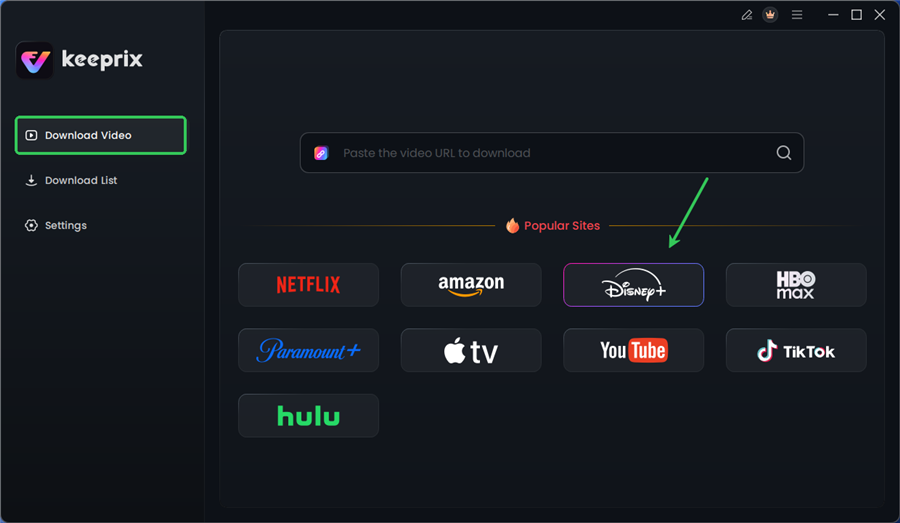
Choose Disney Plus in Keeprix
Step 2. Video Search: Search for your desired video, then click the download button to save it directly.
Step 3. Confirm Settings: Select the MP4 format for optimal TV compatibility. Keeprix supports High-Definition Downloads (up to 1080P), ensuring the picture looks crisp on your large Samsung screen. Set your USB drive as the output path.
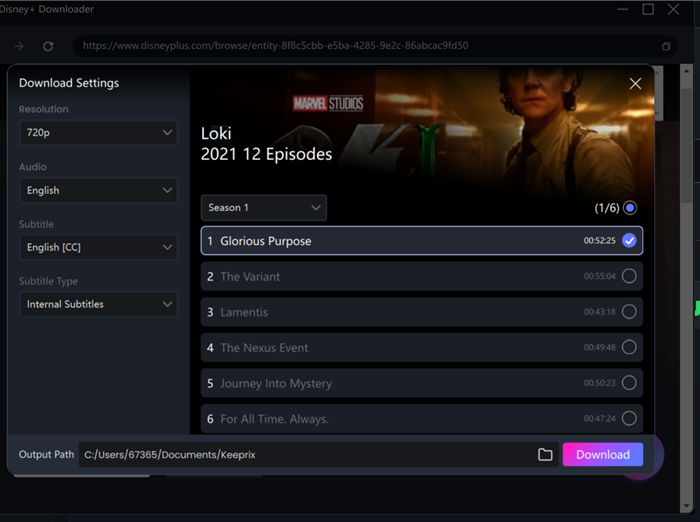
Configure Download Settings
Step 4. Play on TV: After downloading, you can insert the drive into your Samsung TV’s USB port and select the file from the media source menu.
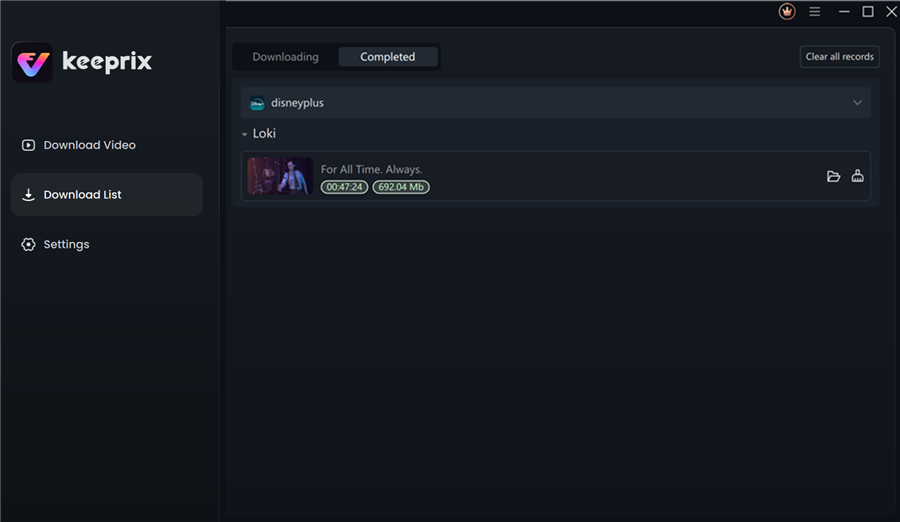
Disney Plus Downloaded Videos in Keeprix
This tool also solves the problem of expiring content. While the official app has viewing limits, this method allows you to archive videos locally, ensuring you can view your library even if your internet goes down completely.
Network Optimization for Buffer-Free Streaming
Even with a compatible TV, Disney+ playback issues often stem from network configuration rather than the app itself. Samsung TVs can sometimes struggle with default ISP settings. Optimizing your connection ensures the bandwidth necessary for HD (5 Mbps) and 4K (25 Mbps) streaming.
Technique 1: Change DNS Settings
Samsung TVs default to your ISP’s DNS server, which can be slow. Switching to a public DNS often improves app response time.
- Go to Settings > General > Network > Network Status.
- Select IP Settings.
- Change DNS Setting to “Enter Manually.”
- Enter 8.8.8.8 (Google) or 1.1.1.1 (Cloudflare).
Technique 2: Router Prioritization (QoS)
If multiple devices are using your WiFi, your TV might be deprioritized. You can fix this by adding your TV to your router’s “High Priority” list, but first, you need the TV’s specific ID (MAC Address).
Step 1. Find your TV’s MAC Address:
- Go to Settings > Support > About This TV.
- Scroll down to find Wireless MAC Address (it will look like 00:11:22:33:44:55). Write this down.
Step 2. Configure Router:
- Access your router’s admin panel (usually via a web browser).
- Look for QoS (Quality of Service) settings.
- Add the MAC address you wrote down to the “High Priority” list. This instructs the router to allocate bandwidth to your stream before other devices.
Disney Plus on Samsung TV FAQs
1. How do I install Disney+ on my Samsung TV?
Press the Home button, navigate to Apps, select the Search icon, type “Disney+”, and select Install. If installed, the button will say “Open.” Ensure you are logged into your Samsung account to complete the download.
2. Why can’t I find the Disney Plus app in the Samsung app store?
If the app is missing, your TV likely runs a Tizen OS version older than 2.4. This affects most models released before 2016 (Series J, H, F, and E). These TVs cannot run the modern app code. You will need a Roku, FireStick, or Apple TV to watch Disney+ on these screens.
3. Which Samsung TV models support Disney+?
Disney+ supports Samsung Smart TVs released from 2016 onwards (K-Series and newer) that run Tizen OS 2.4 or later. This includes QLED, UHD, and Crystal UHD series models. Check your model code on the back of the TV; if the letter after the screen size is J or earlier in the alphabet, it is unsupported.
4. Why does Disney+ crash or freeze during playback?
Freezing is usually caused by a corrupted Smart Hub cache or outdated firmware. To fix this, perform a “cold boot” by holding the power button on your remote until the TV turns off and back on, or go to Settings > Support > Device Care to clear memory.
Conclusion: Best Way to Enjoy Disney+ on Your Samsung Screen
Getting Disney Plus on Samsung TV systems to function correctly is ultimately about matching the solution to your specific hardware capabilities.
- For 2016+ Models: The native app is the best route. Maintain it by clearing the Smart Hub cache if it freezes and keeping your firmware updated.
- For 2015 and Older Models: Do not waste time searching the app store. Connect a streaming stick (Roku/FireStick) to an HDMI port to modernize your TV instantly.
- For Slow Connections: If you battle persistent Disney Plus buffering regardless of your device, software troubleshooting alone may not suffice. In these cases, regain control over your viewing experience with Keeprix Downloader. By downloading your movies to a USB drive, you bypass network instability entirely.
Choose the method that fits your setup, and get back to enjoying your content without the technical headaches.